On this page
Your profile is your account: personal details, settings and security. This is where you change your name, photo and language, and download a copy of your data.
ProfilePersonal DataOpen it from the bottom of the side menu or from the menu under your photo in the top right corner.
Pick a tab
Tabs depend on your role. Coaches have Invitations, athletes have Athlete Data and Integrations. Both roles have Personal Data, Settings and Account.
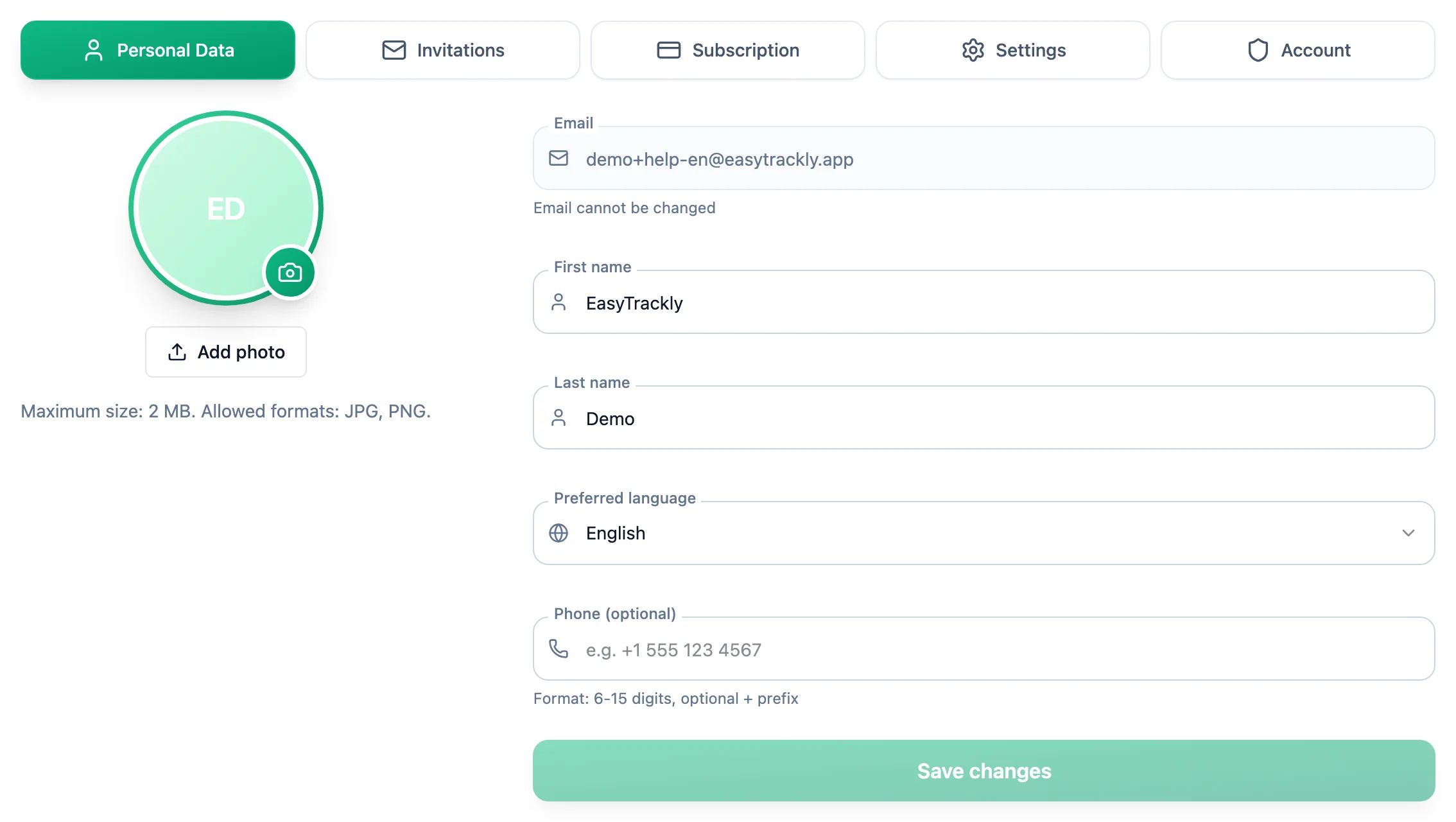
Fill in your details
Edit First name, Last name or Phone (optional) and click Save changes. The email address cannot be changed
- it is your login.
Add a photo
Add photo lets you pick a JPG or PNG file up to 2 MB and crop it. Your coach or your athletes see the photo.
Marketing consent and data export
Below the form, the Marketing emails switch turns emails with news and training guides on or off. You can withdraw consent at any time with the same switch.
Export data in the Data export section prepares a copy of your data as JSON. A download link arrives by email within 24 hours, and you can request the next export after 24 hours.
More in this section: Account
For coaches and athletes
Training settings and zonesHow to set maximum heart rate, thresholds and training zones for running, cycling and swimming.For coaches
Coach settingsHow to turn on the wellness check-in, choose its fields, and set reminders and question wording for report requests.For coaches and athletes
App languageHow to change the app language and where your choice is saved.For coaches and athletes
Password and securityHow to change your password in the profile and set a new one when you have forgotten it.For athletes
Who can see my dataWhat your coach sees of your workouts, reports and check-ins, what nobody but you can see, and what happens to your data when coaching ends or you delete your account.For coaches and athletes
Deleting your accountHow to delete your account, what happens to your data and how to restore it within 30 days.