The summary puts everything you know about an athlete on one screen: recent weeks of training, the upcoming plan, thresholds, reports and your private notes.
TeamAthletesOn the athlete list, click a row or choose View profile from the row menu.
Read the header
The header shows the sport, age, last login and how long you have been working together, and below it the 7- and 30-day numbers: workouts, time, completion rate and workouts planned for the coming week. The Calendar and Statistics shortcuts open this athlete's calendar and statistics. The arrow next to the name switches to another athlete without going back to the list.

Check alerts and training data
When something needs your attention, an alert bar appears under the header, for example several days without activity or missed workouts. The Training data section holds Engagement, Training volume, the Perceived exertion chart and Recent activities.
Look at the planning side
The Planning and notes section starts with Upcoming: planned workouts and races. Further down are the athlete's thresholds and zones and their latest report.
Add a note
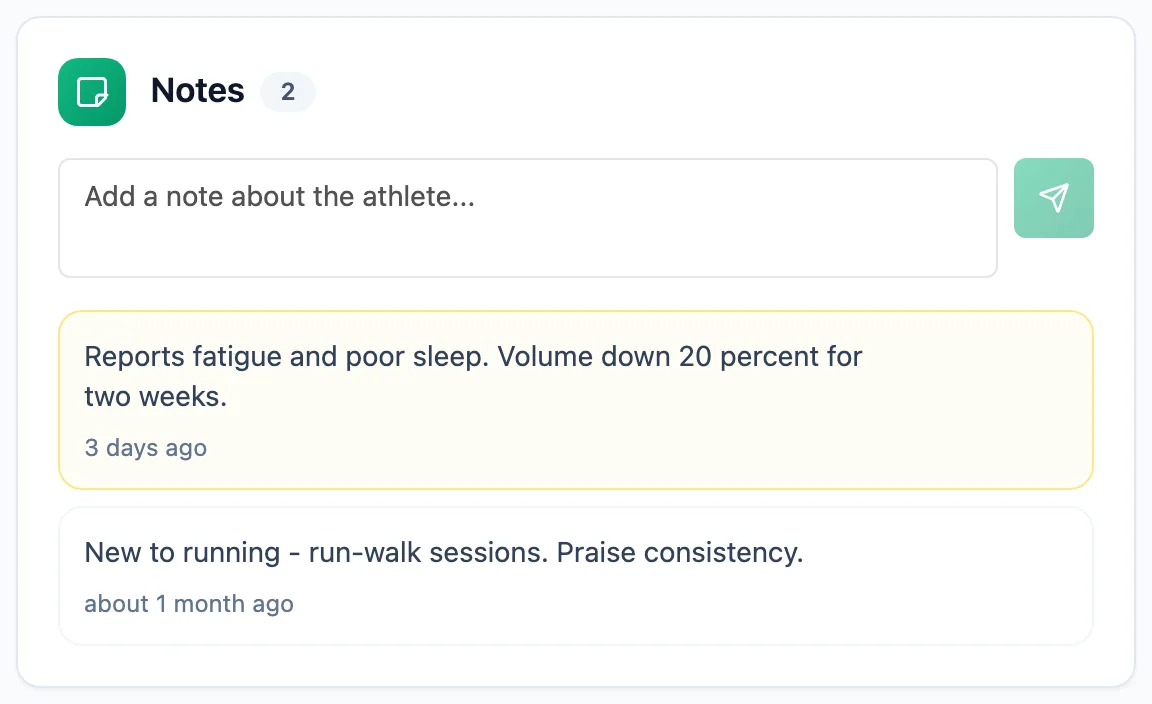
The Notes card sits at the bottom of the screen. Type the text and send it with the arrow or Ctrl+Enter. The note menu lets you pin it to the top, edit it or delete it.
More in this section: Athletes
For coaches
Athlete listHow to search and narrow the athlete list, read its columns and act on an athlete.For coaches
Athlete groupsHow to create an athlete group, change its members, name and colour, delete it, and where groups help across the app.For coaches
Group calendarHow to schedule a group session for the whole group, change or cancel it, see who is coming and record attendance.For coaches
Athlete racesHow to review every athlete race in one table and open the race details.For coaches
Athlete reportsHow to ask an athlete for a report, set up a series of requests, send a reminder and reply to a report.For coaches
Athlete paymentsHow to record athlete payments, set a monthly rate and keep track of whose paid period is running out.For coaches
Suspending and ending the coaching relationshipHow suspending an athlete differs from deleting them, what happens to their plan and data, and how to bring them back.