On this page
The settings tab is where you decide what you collect from your athletes: daily ratings in the wellness check-in and written answers in reports. Every change is saved straight away, there is no save button.
ProfileSettingsWellness check-in
Turn the check-in on or off
The Enable wellness check-in switch applies to all of your athletes at once. A new account has the check-in on with every field. Once it is off, athletes no longer see the check-in in the calendar or on their dashboard.

Pick the active fields
Under Active fields, tick what you want to ask about: Sleep, Motivation, Hydration, Pain and Fatigue. An unticked field disappears from the athlete's form. Fields can only be changed while the check-in is on.
Athlete reports
Set up reminders
With Automatic reminders on, the athlete gets one email reminder at 18:00 their time on the request day. No reminder goes out if the report is already in or the athlete has turned off report notifications.
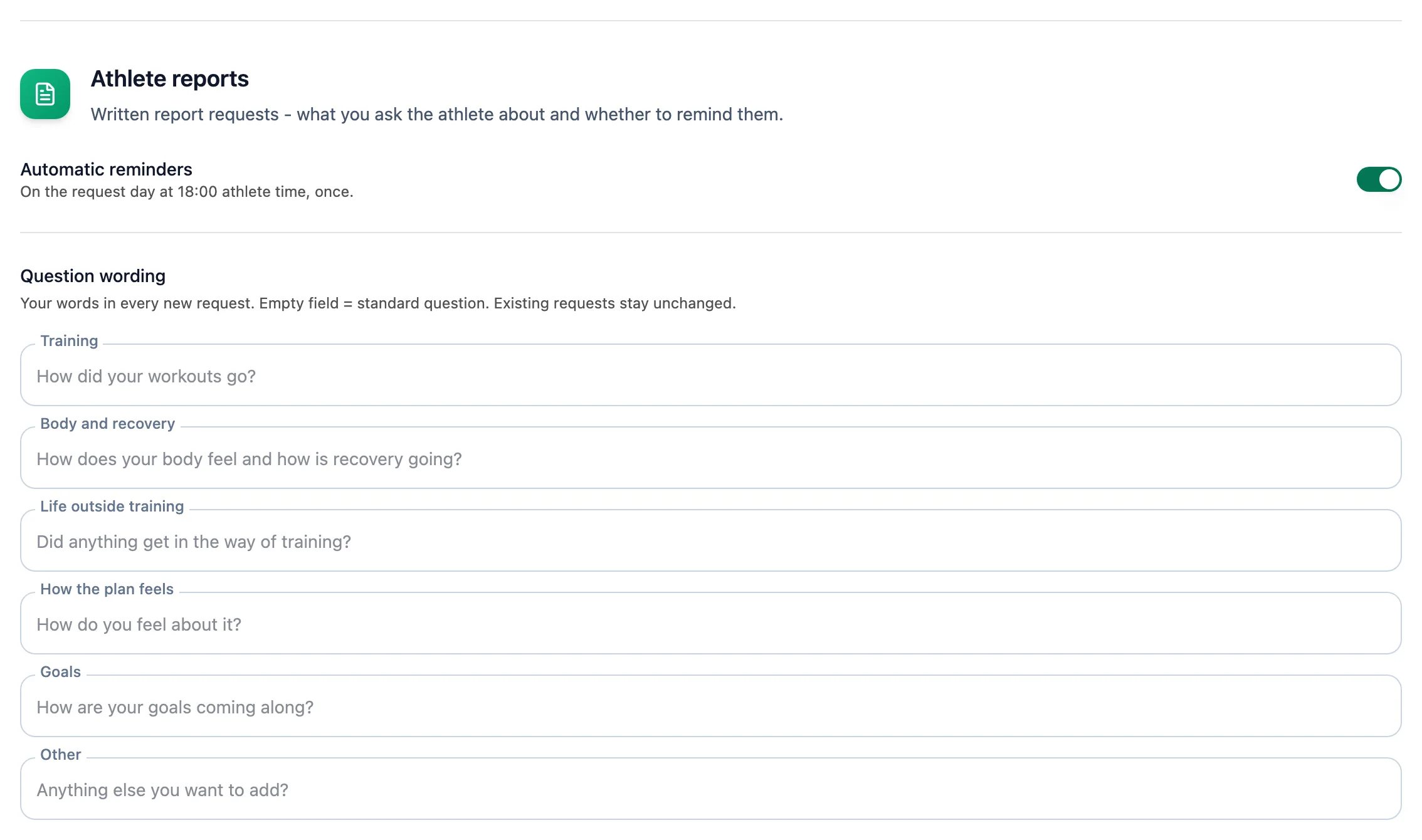
Ask in your own words
Under Question wording, every part of the report has a field for your question; it is saved when you leave the field. An empty field means the standard question, shown in the field as a hint.
More in this section: Account
For coaches and athletes
ProfileWhich tabs the profile has and how to fill in personal details, marketing consent and data export.For coaches and athletes
Training settings and zonesHow to set maximum heart rate, thresholds and training zones for running, cycling and swimming.For coaches and athletes
App languageHow to change the app language and where your choice is saved.For coaches and athletes
Password and securityHow to change your password in the profile and set a new one when you have forgotten it.For athletes
Who can see my dataWhat your coach sees of your workouts, reports and check-ins, what nobody but you can see, and what happens to your data when coaching ends or you delete your account.For coaches and athletes
Deleting your accountHow to delete your account, what happens to your data and how to restore it within 30 days.