A report is your own account of a training period. You write one when your trainer asks for it, and every new request comes with a notification.
TrainingReportsFind the waiting request
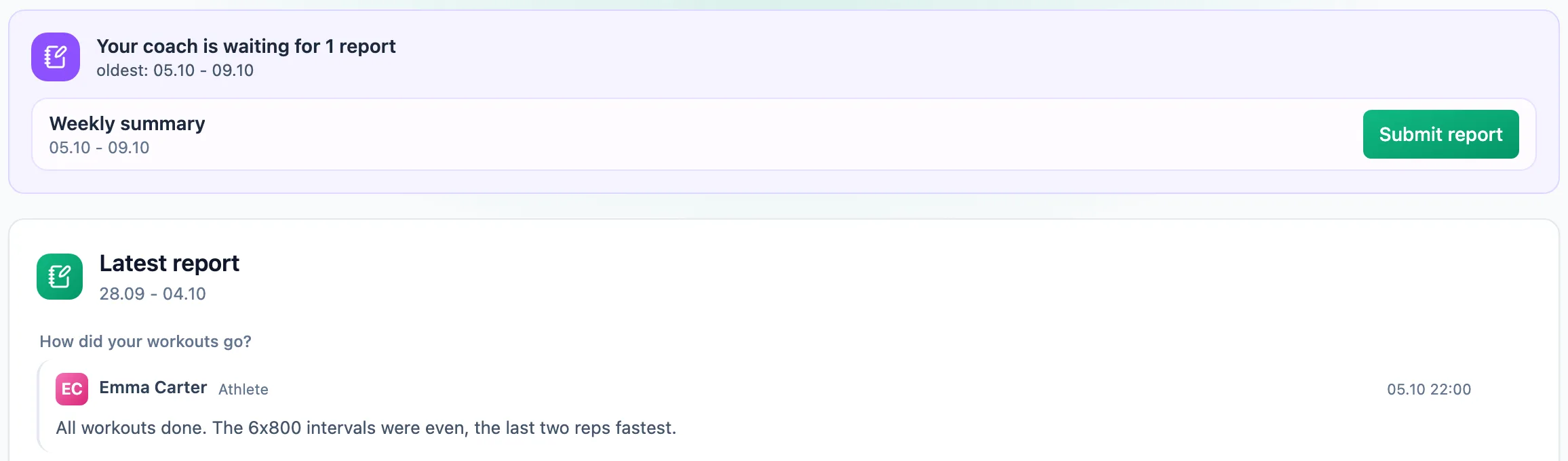
The card at the top tells you how many reports your trainer is waiting for and gives the period of the oldest one. Each request has a name, a period and a Submit report button. Below it is Latest report with your answers.
Answer the questions
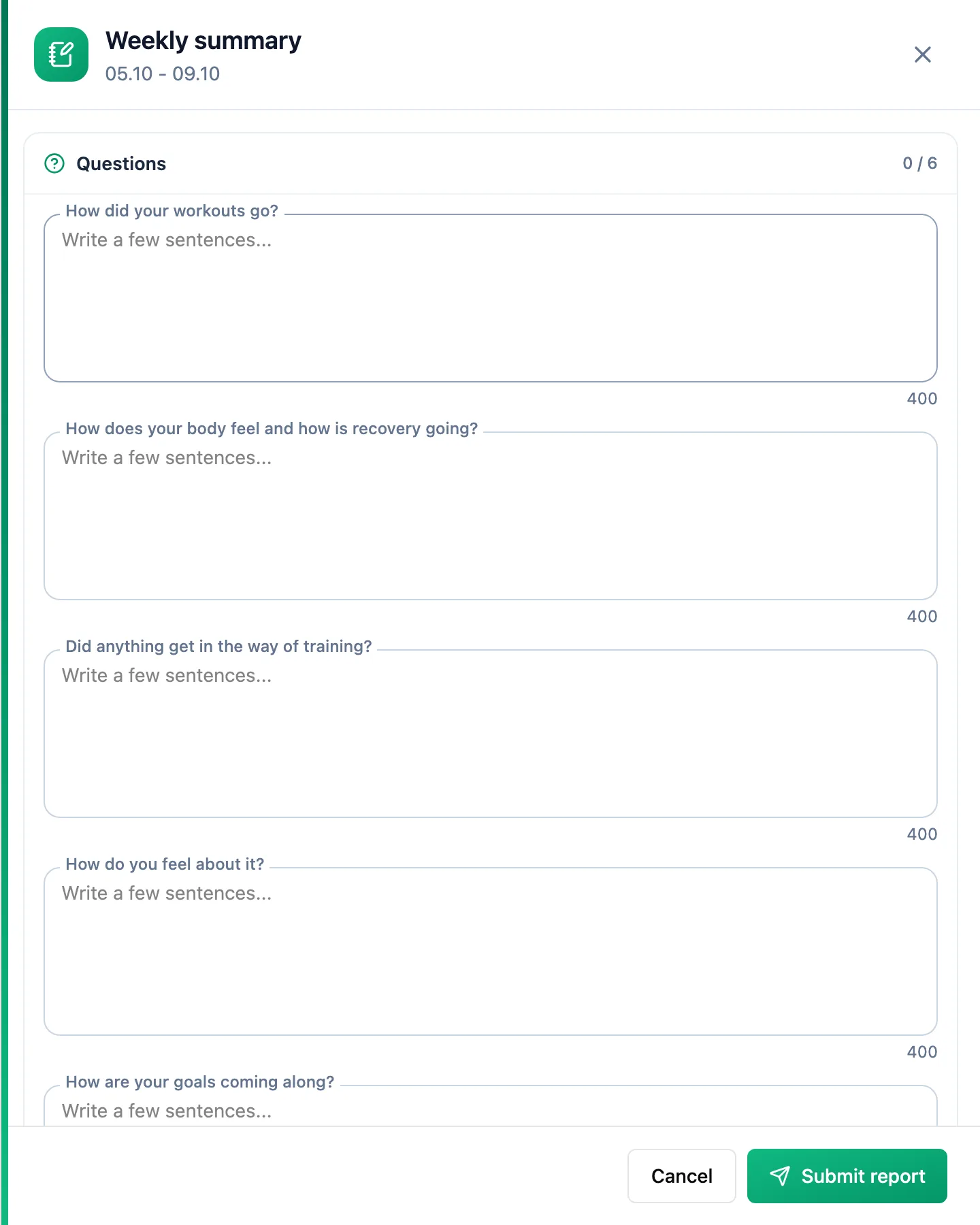
Click Submit report. In the panel, the Questions section holds the questions your trainer chose, each limited to 400 characters. Further down, Previous report lets you look back at what you wrote last time.
Submit the report
Click Submit report in the panel footer. The report goes to your trainer and shows Not read by your coach yet until they open it. After that its status shows the day it was read, and once the trainer replies, the day of the reply.
Read the trainer's reply
The reply appears under the report and you get a notification. Older reports are under Earlier reports; click one to open the whole conversation.
More in this section: Analysis
For coaches
Trainer dashboardWhat the trainer dashboard shows: team numbers, athletes who need attention, the weekly summary, upcoming workouts and competitions, and recent activities.For athletes
Athlete dashboardWhat the athlete dashboard shows: today's workouts, 7- and 30-day numbers, the weekly summary, your workout streak, recent activities and the plan ahead.For coaches and athletes
StatisticsHow to pick the athlete, sport and date range in statistics, and what the Overview, Training, Progress and Wellbeing tabs contain.For coaches and athletes
Training load and formWhere training load from power, pace, heart rate or RPE comes from, which athlete thresholds it needs, and how to read the load chart and the form chart.For coaches and athletes
Laps, charts and zonesHow to read the activity panel: the laps table, charts over time, drift and EF for a chosen range, and time in heart rate and power zones.