On this page
Athletes join you with an invitation code. You generate it in your profile and hand it over yourself - the app does not send invitations by email.
ProfileInvitationsThe Add Athlete button in the Athletes list leads to the same tab.
Open invitations
The tab shows the Active invitations card with codes waiting to be used, and how many free slots your plan has left.
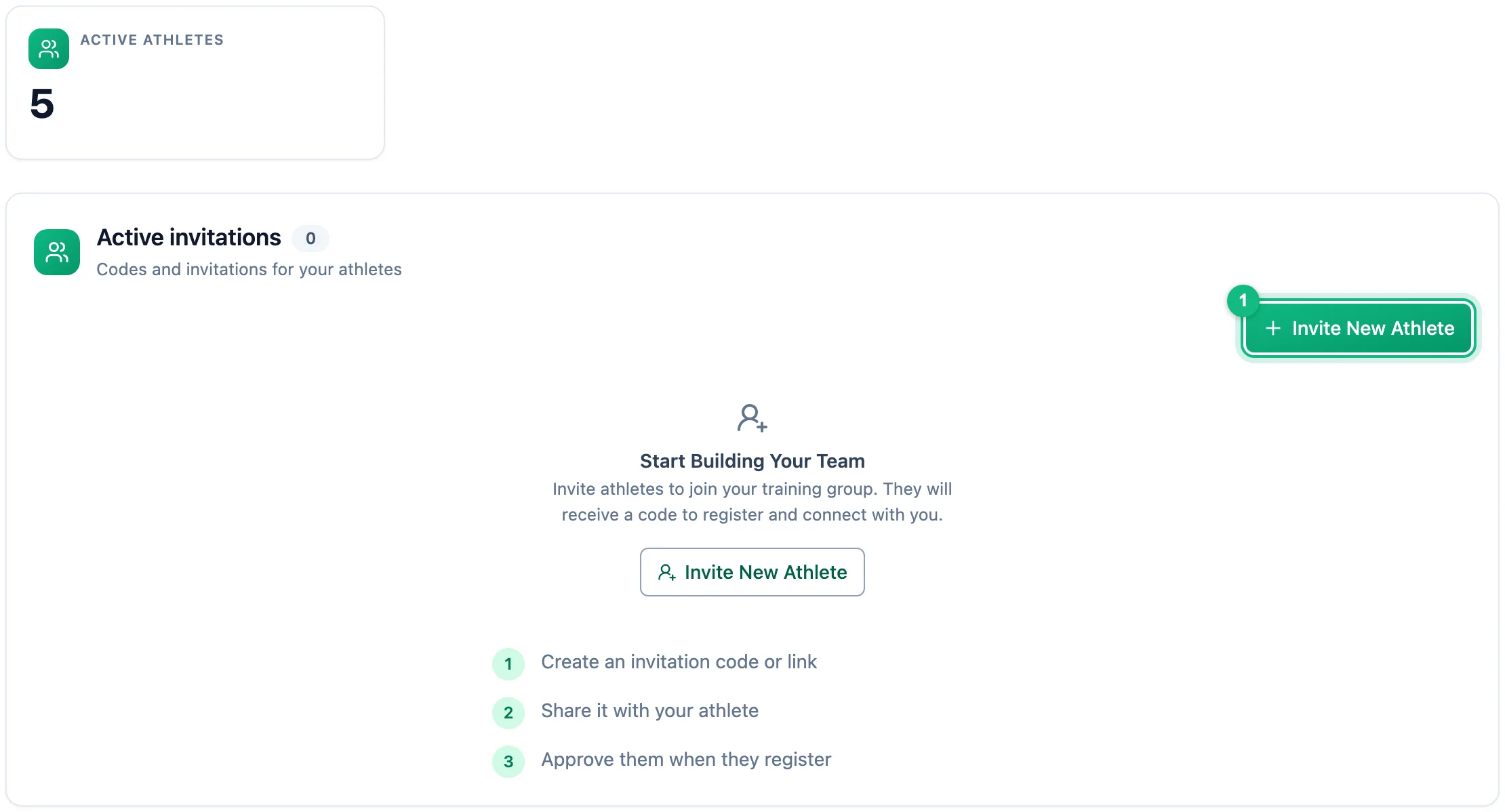
Generate a code
Click Invite New Athlete, then confirm in the Invite New Athlete window with Generate invitation. A new eight-character code appears in the list.
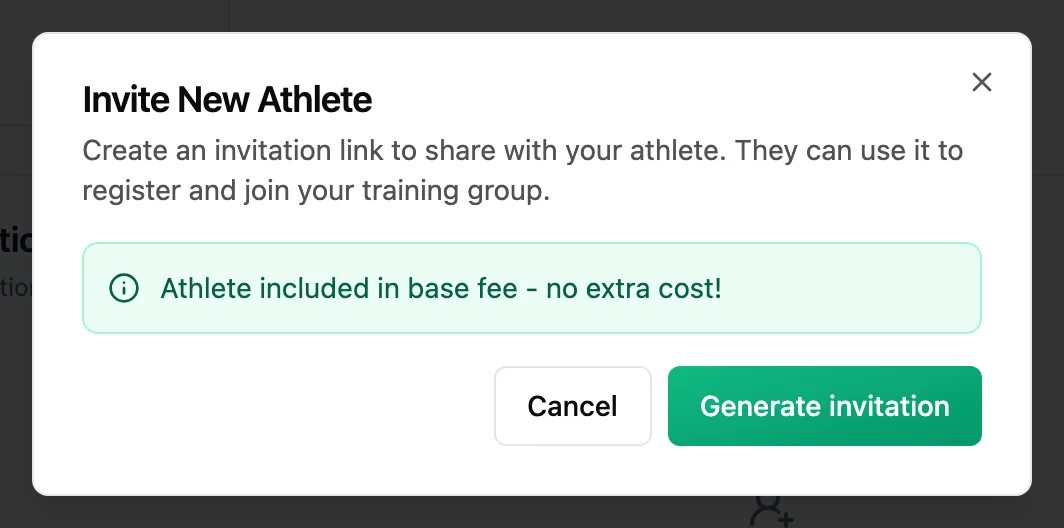
Send the link to your athlete
In the code's row, click Copy link. Your clipboard now holds the sign-up address with the code filled in - send it by message or email.
Check that the athlete has joined
A used code leaves the active list. Expand Invitation History: the code is marked Used next to the athlete's name. The athlete also shows up in Athletes.
After the athlete signs up
The athlete joins straight away; there is nothing for you to approve, because handing over the code is the approval. You do not get a notification about the new athlete either - check the invitation history instead. If the code is still among the active ones, the athlete has not finished signing up.
More in this section: Getting started
For coaches and athletes
What EasyTrackly isWhat the app does for coaches and athletes, and where to start.For coaches
Coach accountHow to create a coach account with the form or a Google account, and sign in for the first time.For coaches
Demo athleteWhere the demo athlete comes from, whether it counts toward your limit and statistics, and how to remove it.For athletes
Athlete accountHow an athlete creates an account from a coach invitation, and what to do when the code does not work.For coaches and athletes
Finding your way aroundWhat is in the coach and athlete side menu, the header and the user menu.For coaches and athletes
Basic conceptsWhat workouts, activities, completion, races, templates and reports mean in EasyTrackly.