On this page
A few words in the app have a precise meaning. This page explains them so that the rest of the guide reads the same way to everyone.
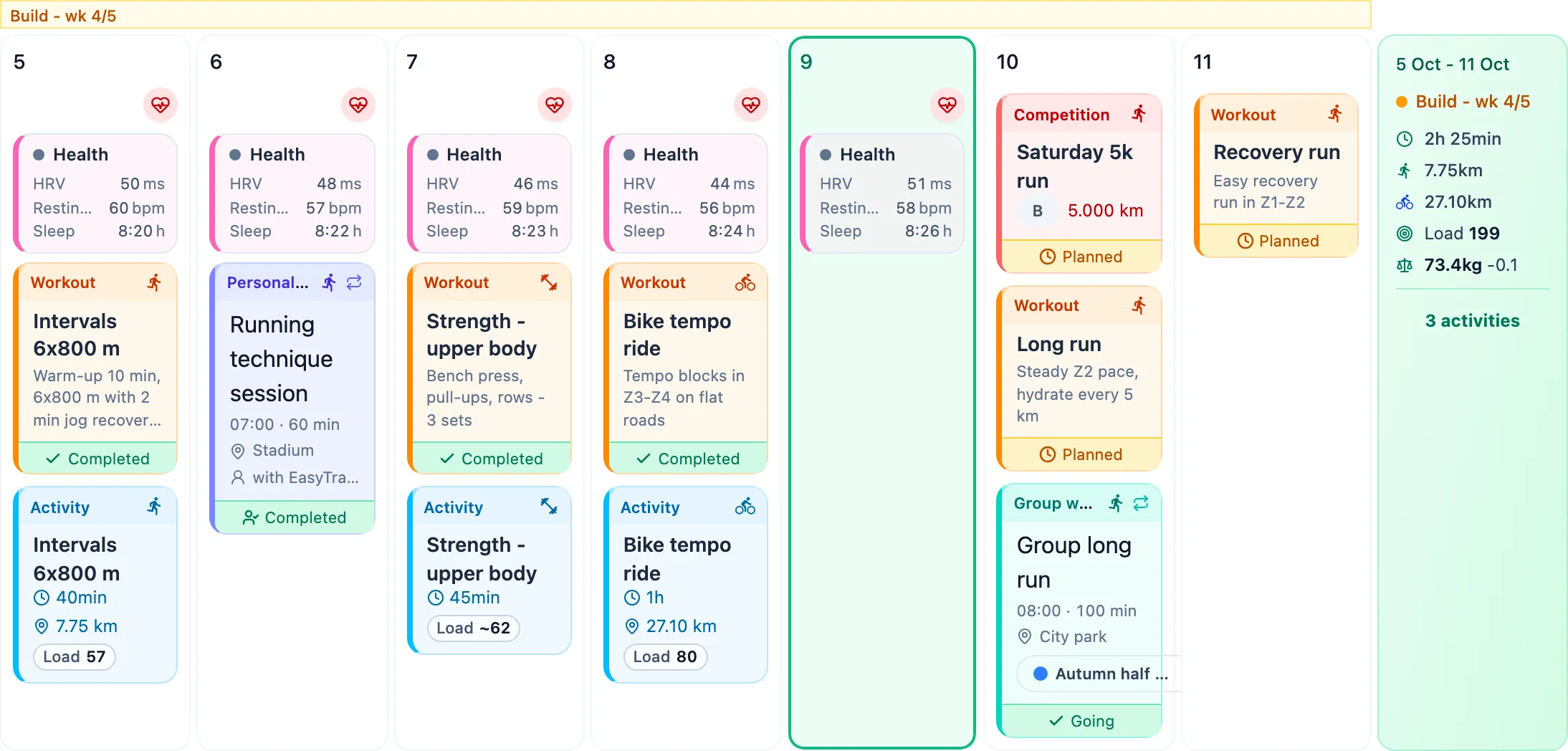
Workout
A workout is the plan: what the athlete should do on a given day. It has a sport, a description and targets such as duration, distance or interval steps. The coach plans the workouts in an athlete's calendar.
Activity
An activity is the execution: a record of what the athlete actually did. It comes from a connected watch, or the athlete enters it by hand. It holds measured values: time, distance, heart rate, load.
Completed workout
A workout becomes completed once it is linked to an activity. The athlete can link an activity from their watch to the workout, or mark the workout as completed - then an activity is created from the plan. The workout card shows it as completed, and plan and execution can be compared.
Race
A race is a competition in the athlete's calendar: date, distance, location and, afterwards, the result. Every race has an A, B or C priority - A is the key race of the season that the plan builds towards.
Template
A template is a saved workout the coach reuses. Once placed in the calendar it becomes an ordinary workout for that athlete; changing the template does not change workouts already placed.
Report
A report is the athlete's answer to the coach's request: a few sentences on how a training period went. The coach asks for a report once or on a regular schedule and reads the submitted ones in the Reports inbox.
Invitation
An athlete is connected to a coach through an invitation code. A coach sees and plans only for athletes who joined them with a code.
More in this section: Getting started
For coaches and athletes
What EasyTrackly isWhat the app does for coaches and athletes, and where to start.For coaches
Coach accountHow to create a coach account with the form or a Google account, and sign in for the first time.For coaches
Inviting athletesHow to generate an invitation code, pass it to your athlete and check that they have joined.For coaches
Demo athleteWhere the demo athlete comes from, whether it counts toward your limit and statistics, and how to remove it.For athletes
Athlete accountHow an athlete creates an account from a coach invitation, and what to do when the code does not work.For coaches and athletes
Finding your way aroundWhat is in the coach and athlete side menu, the header and the user menu.