On this page
Once you are signed in, the side menu sits on the left and the header at the top holds notifications and the user menu. This page shows where everything is.
Coach side menu
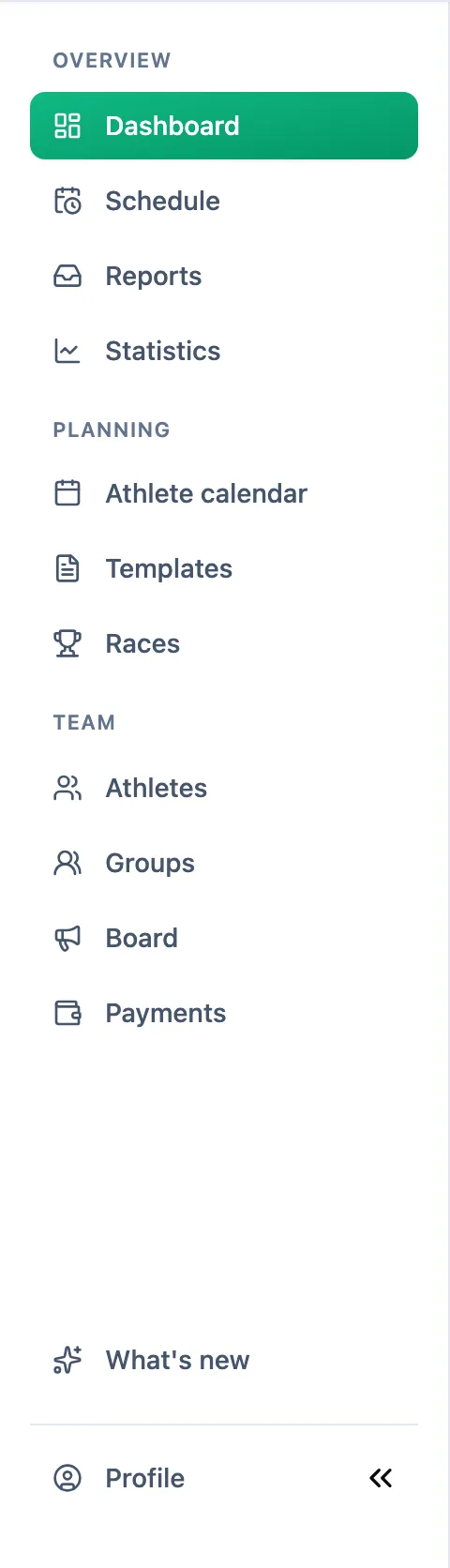
Items are grouped by what you are doing:
- Overview - Dashboard, Schedule, Reports from athletes and Statistics,
- Planning - Athlete calendar, Templates and Races,
- Team - Athletes, Groups, Board and Payments.
Athlete side menu
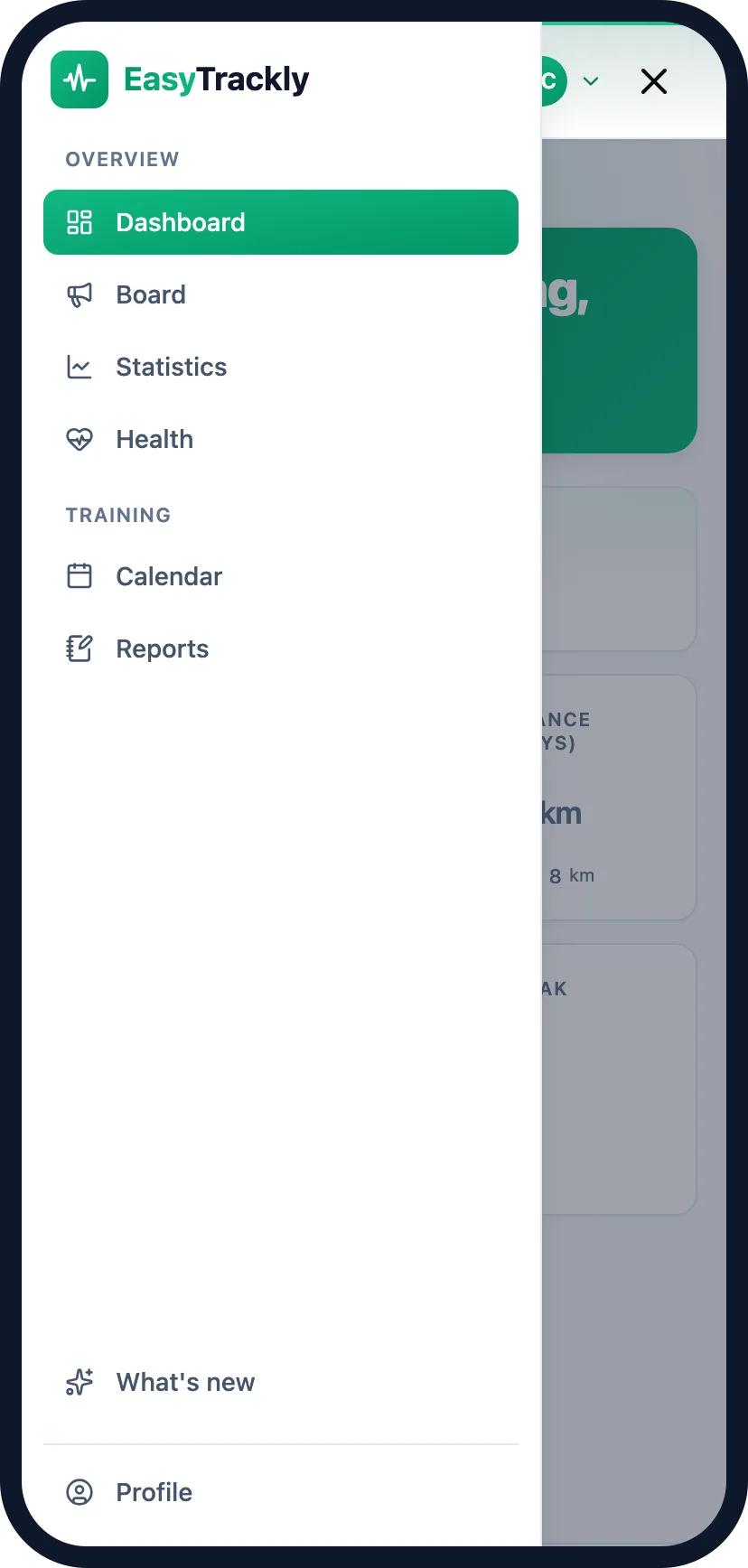
Athletes have two groups: Overview (Dashboard, Board, Statistics, Health) and Training (Calendar and Reports).
Menu footer and header
The bottom of the menu always has What's new, with the list of changes in the app, and Profile with your account details. The Collapse menu button next to the profile shrinks the menu to icons; hover over an icon to see what the item is for.
On a phone the menu is hidden - open it with the Open menu button in the header.
On the right of the header you have the notifications bell and your avatar. The avatar opens the user menu: Profile, Language, Help, Send Feedback and Logout. Help opens the help page for the screen you are on in a new tab; if the screen has no page of its own, you land on the help center home.
More in this section: Getting started
For coaches and athletes
What EasyTrackly isWhat the app does for coaches and athletes, and where to start.For coaches
Coach accountHow to create a coach account with the form or a Google account, and sign in for the first time.For coaches
Inviting athletesHow to generate an invitation code, pass it to your athlete and check that they have joined.For coaches
Demo athleteWhere the demo athlete comes from, whether it counts toward your limit and statistics, and how to remove it.For athletes
Athlete accountHow an athlete creates an account from a coach invitation, and what to do when the code does not work.For coaches and athletes
Basic conceptsWhat workouts, activities, completion, races, templates and reports mean in EasyTrackly.