On this page
The Garmin Connect connection works both ways: finished workouts from the watch go to the calendar, and workouts planned by your coach go to the watch.
ProfileIntegrationsGarmin ConnectConnect the account
On the Garmin Connect card, click Connect. Sign in on Garmin's site and leave the permissions ticked, historical data included - without it, a manual sync can't fetch older workouts.
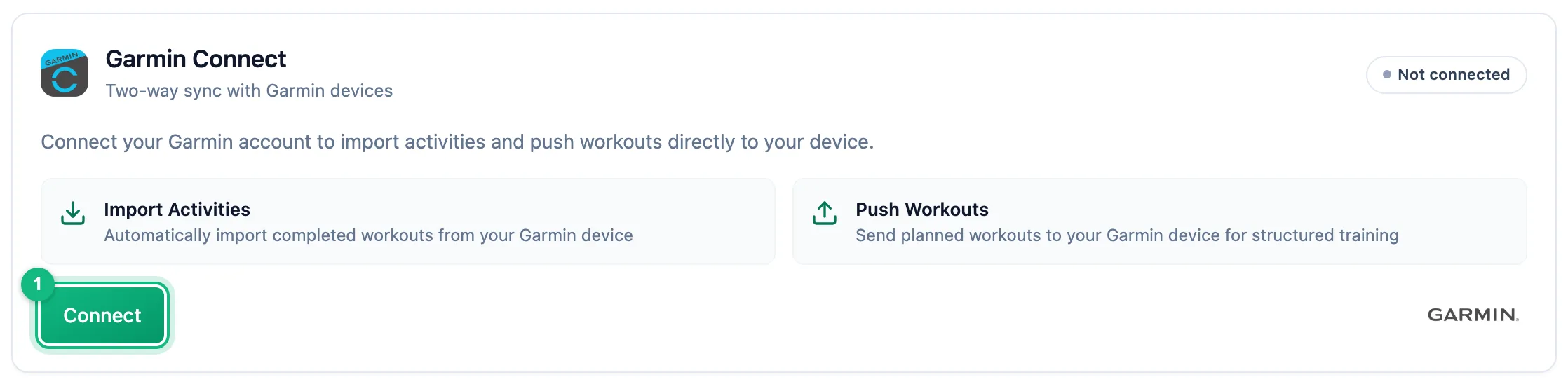
You approve the connection in your own Garmin account Check the status
Back in the app, the card shows Active and two counters: Imported activities and Pushed workouts.
Set up import
In the Workouts section, keep on the sports that should reach the calendar. Sync Now fetches workouts from the last 30 days.
Decide about sending to the watch
The Send planned workouts to your watch switch is on right after connecting. Published workouts from your coach then appear in your Garmin Connect calendar and reach the watch when it syncs. Turn it off and import keeps working, while plans stay in the app only.
Reconnecting and disconnecting
Re-auth required means Garmin revoked or invalidated access. New workouts don't arrive and plans don't reach the watch until you click Reconnect and approve access again.
Disconnect in the card header stops import and sending. Workouts already imported stay in the calendar.
More in this section: Integrations
For coaches and athletes
How import worksHow workouts from a watch reach the calendar: connecting the account, choosing sports, manual sync and matching to the plan.For athletes
PolarHow to connect your Polar Flow account, accept the Polar consents and choose which sports reach the calendar.For athletes
SuuntoHow to connect your Suunto account, choose which sports to import, fetch workouts from the last 90 days and send planned workouts to the watch.For coaches and athletes
Workouts on the watchHow a planned workout reaches the athlete's Garmin or Suunto watch: what the athlete sets up, which workouts qualify and what happens when sending fails.For coaches and athletes
Common sync problemsWhat to check when a workout from the watch didn't reach the calendar or a planned workout didn't reach the watch.