When an athlete takes a break or you stop working together, you have two actions: suspend and delete. Neither of them removes the athlete's workouts or data.
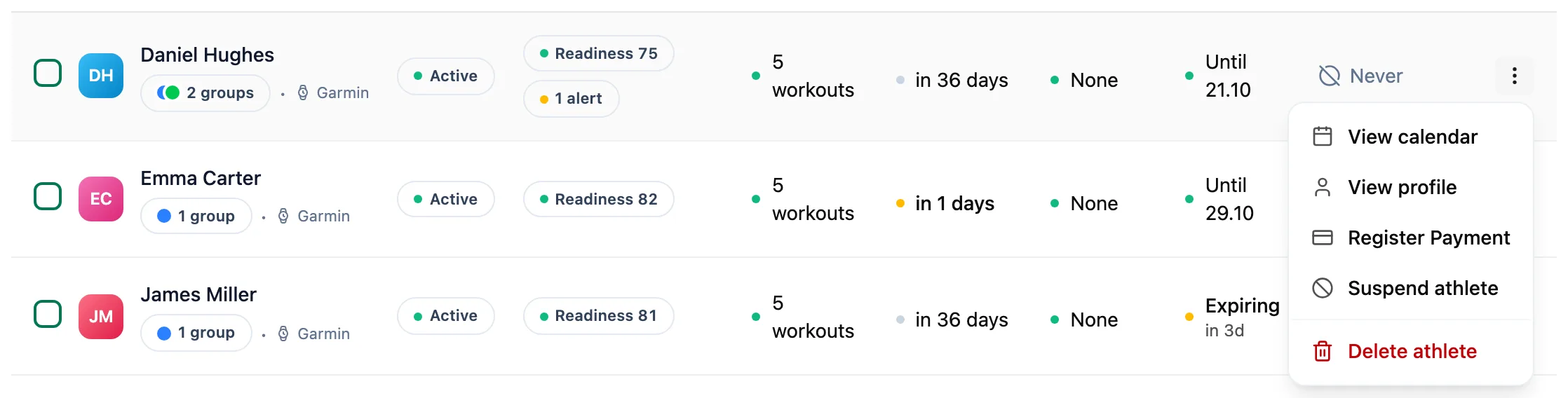
TeamAthletesBoth actions live in the three-dot menu on the athlete's row.
Suspend an athlete for a break
Choose Suspend athlete. You can enter a reason in the dialog. A suspended athlete does not take a slot in your plan's limit and drops out of the Need attention alerts and the payments list. You still see their calendar and data.
Unsuspend the athlete
Set the Status filter to Suspended and choose Unsuspend athlete. The athlete returns to the active list as long as you have a free slot in your limit.
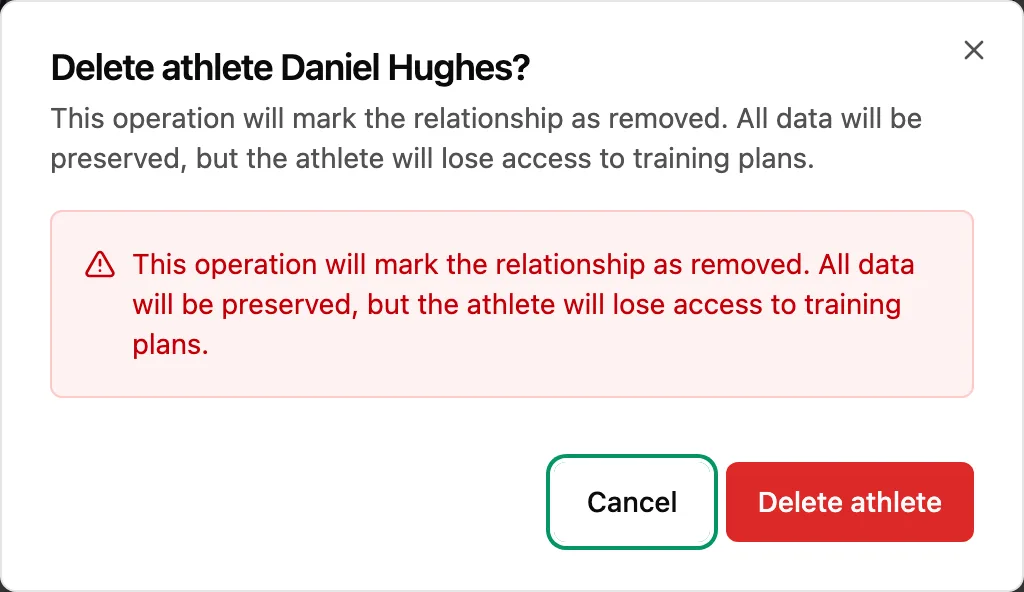
Delete the athlete when you part ways
Choose Delete athlete and confirm in the dialog. The athlete gets a notification, and you lose access to their calendar and data. Workouts you planned for them stay in their calendar.
Restore a deleted athlete
Set the Status filter to Removed and choose Restore athlete. The athlete comes back as active and takes a slot in your limit again.
More in this section: Athletes
For coaches
Athlete listHow to search and narrow the athlete list, read its columns and act on an athlete.For coaches
Athlete summaryWhat the single-athlete screen shows and how to keep notes on it.For coaches
Athlete groupsHow to create an athlete group, change its members, name and colour, delete it, and where groups help across the app.For coaches
Group calendarHow to schedule a group session for the whole group, change or cancel it, see who is coming and record attendance.For coaches
Athlete racesHow to review every athlete race in one table and open the race details.For coaches
Athlete reportsHow to ask an athlete for a report, set up a series of requests, send a reminder and reply to a report.For coaches
Athlete paymentsHow to record athlete payments, set a monthly rate and keep track of whose paid period is running out.