On this page
A planned workout can be changed, taken back to a draft or deleted. Each of these starts with a click on the workout in the athlete's calendar.
Athlete calendarEditEditing a workout
Open the workout
Click the workout tile, then Edit in the panel footer. The wizard opens on the Details step.
Make your changes
Change the title, date, description or the steps under Structure. The footer buttons move you between steps, and your edits wait until you save.
Save
Click Save. A published workout stays published: the athlete sees the new version in their calendar straight away, and the changes reach their Garmin or Suunto watch on their own.
Unpublishing
Unpublishing hides the workout from the athlete without deleting it - it stays with you as a draft.
Open the More menu
In the footer of the workout panel or the edit wizard, click More. This is also where you find Unpublish and Delete workout.
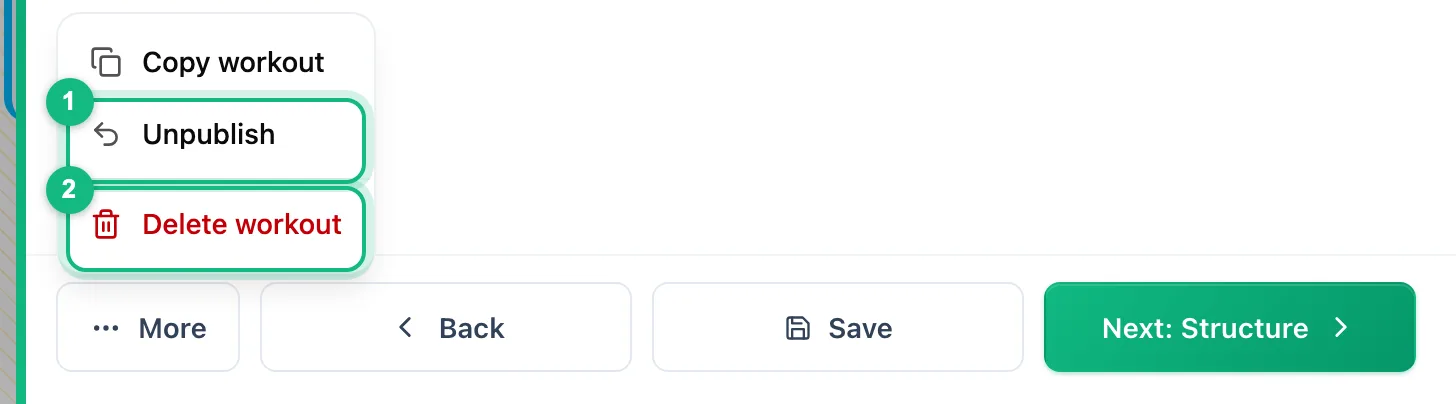
Unpublish
Click Unpublish. The workout goes back to a draft: it disappears from the athlete's calendar and from the calendar on their phone, and the app removes it from their Garmin or Suunto watch.
The option is only there for a published workout that is still waiting to be done. A completed, missed or cancelled workout can't go back to a draft. When the plan is ready again, open the workout and click Publish - the athlete is notified just like the first time, and the workout goes back to the watch.
Deleting a workout
Choose delete
In the More menu, click Delete workout. The app asks
Delete workout?Confirm
Click Delete. The workout disappears from your calendar and the athlete's, and the app removes it from the watch.
More in this section: Calendar
For coaches and athletes
Calendar viewsHow to browse the calendar: month, week and day views, jumping back to today and what the tiles mean.For coaches
Adding a workoutHow to plan a workout for an athlete: the day, sport and template, details, structure and publishing.For coaches
Structured workoutsHow to build a workout from steps: warm-up, intervals, recoveries and repeats with a pace, speed, heart rate, power or cadence target.For coaches
Copying and movingHow to move a workout to another day, reorder a day, and copy a workout to the following weeks or to other athletes.For coaches and athletes
Completing a workoutHow to close a planned workout: linking an activity from the watch, entering a result by hand, linking from the activity side and fixing a wrong link.For coaches and athletes
Missed and cancelled workoutsWhat to do with a workout whose day has passed: done, not done or moved; cancelling a plan as the trainer and undoing the status.For coaches and athletes
Manually entered activityHow to log a session done without a watch from the day menu in the calendar: form fields, load from perceived exertion and linking it to a plan later.For coaches and athletes
Uploading a file from your watchHow to add an activity from a FIT, TCX or GPX file when the watch is not connected to the app.For coaches and athletes
Sharing a workout on a photoHow to turn an activity into a transparent sticker or frame for your own photo, pick the data fields, and when each style works best.For coaches and athletes
Comments and wellbeingHow to discuss a specific workout in comments, rate the effort and fill in the wellbeing survey for a chosen day.For coaches and athletes
CompetitionsHow to add a competition to the calendar: type, how it is measured, date, race priority and target.For coaches and athletes
Your plan in Google, Apple or Outlook CalendarHow to add workouts and competitions to the calendar you already use, and how often they refresh.