A report is where the athlete describes a stretch of training in their own words. Every report starts with your request: athletes cannot send one on their own.
OverviewReportsAsk for a report
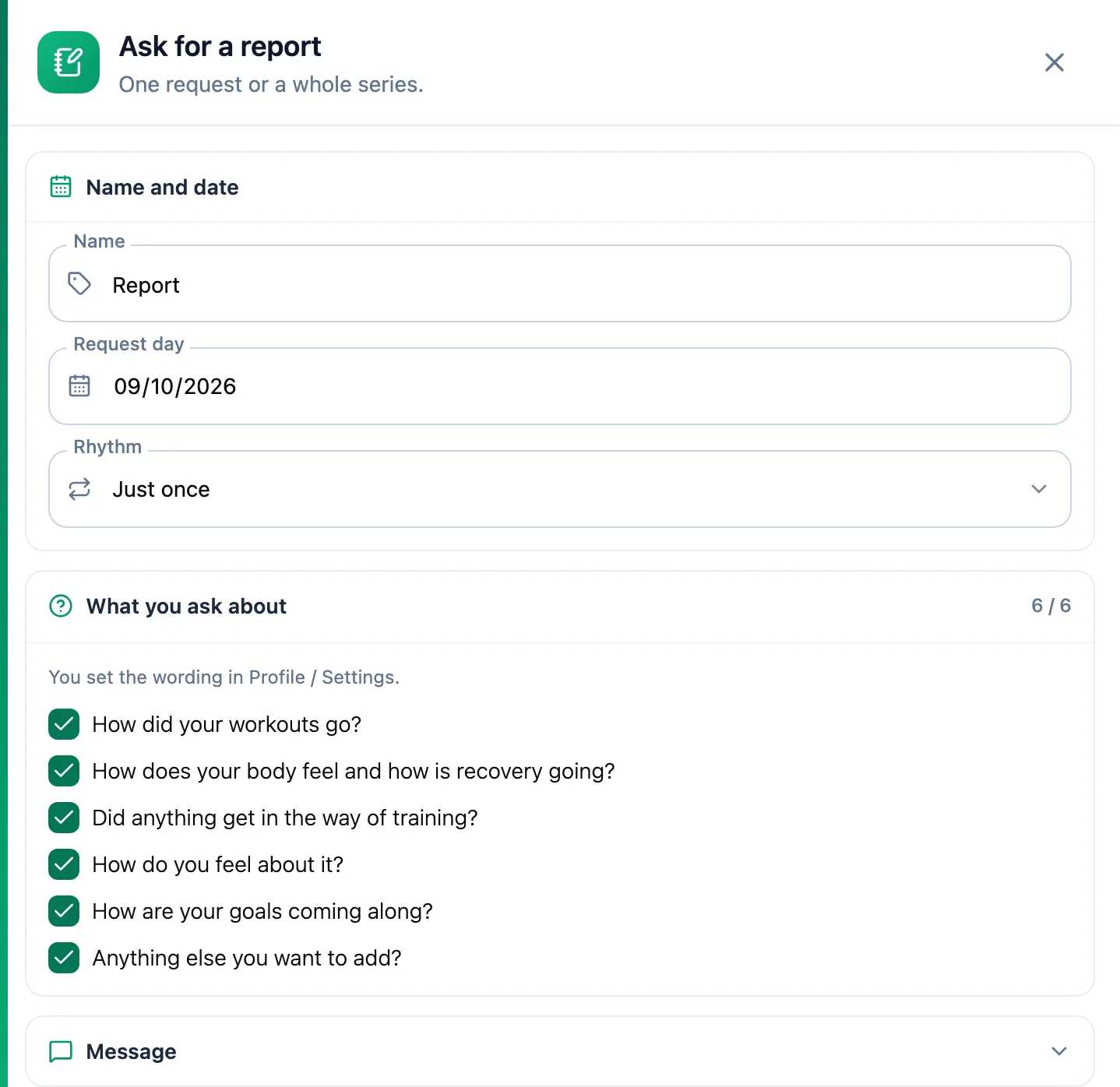
In the inbox, open the athlete's row menu or their report history and choose Request a report. You can send the same request from the athlete's calendar with the notebook icon in the corner of a day. Set the Request day, tick the questions in What you ask about and add a Message (optional). Confirm with Ask.
Turn a request into a series
Change the Rhythm from Just once to Every week or another rhythm and pick the Ends. The report period is worked out for you: from the end of the previous period to the request day, so periods never overlap.
Go through the inbox
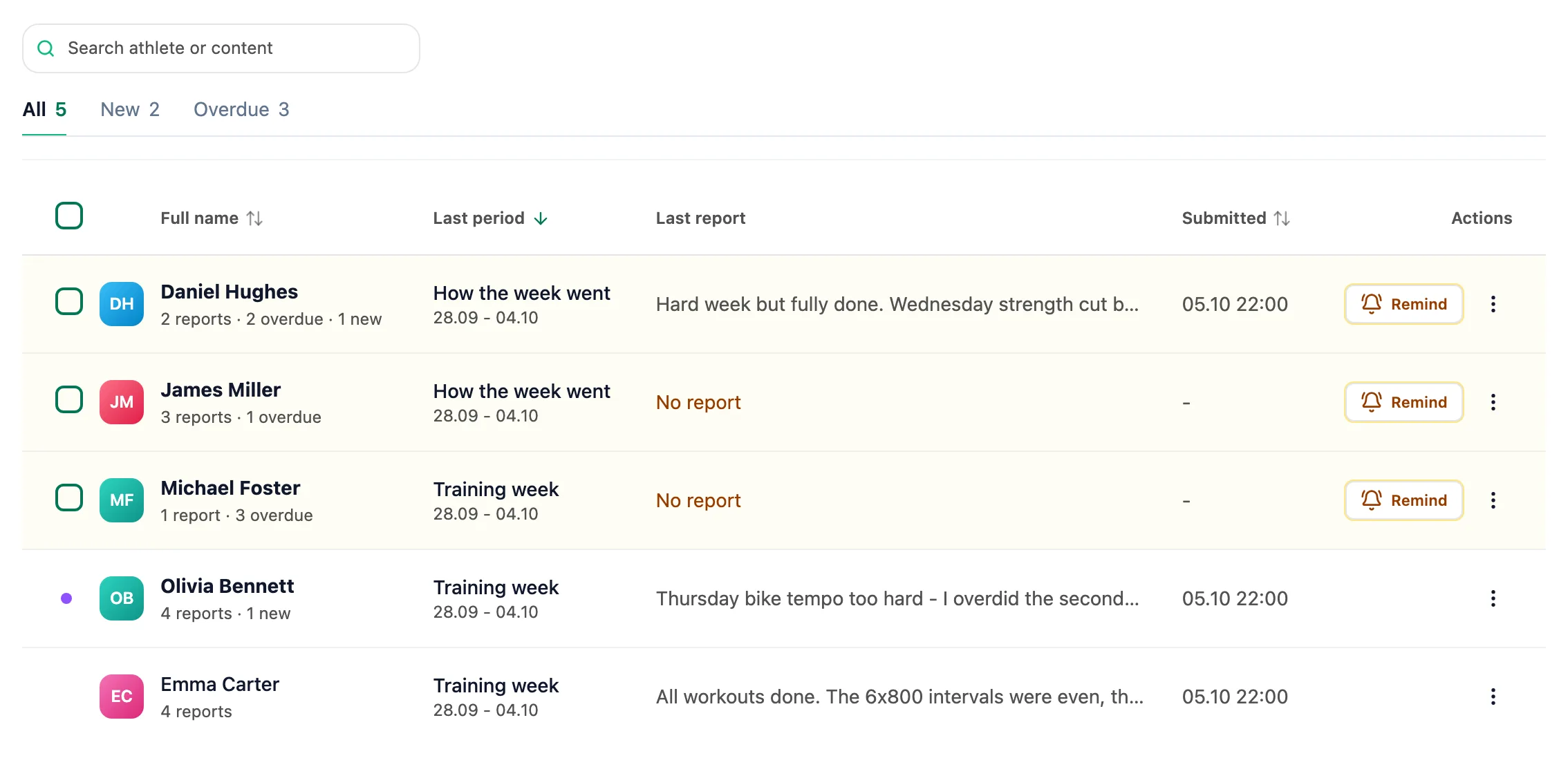
Each row is one athlete with their whole report history. The New and Overdue tabs count athletes, not reports. For an overdue request, click Remind: the athlete gets an email, at most one a day.
Read and reply
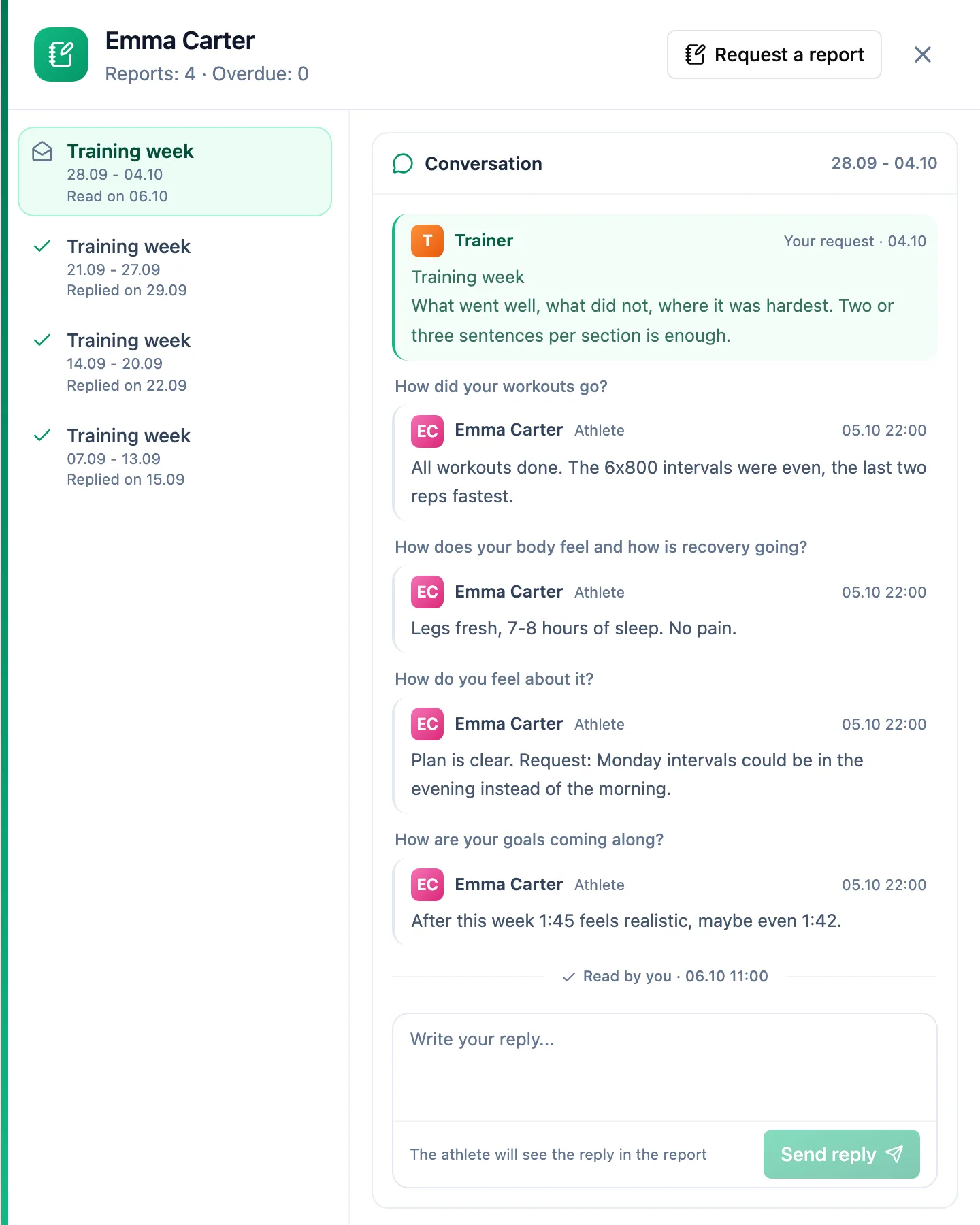
Click a row to open the athlete's history: periods on the left, the selected report on the right. Type your reply under the report and send it with Send reply.
More in this section: Athletes
For coaches
Athlete listHow to search and narrow the athlete list, read its columns and act on an athlete.For coaches
Athlete summaryWhat the single-athlete screen shows and how to keep notes on it.For coaches
Athlete groupsHow to create an athlete group, change its members, name and colour, delete it, and where groups help across the app.For coaches
Group calendarHow to schedule a group session for the whole group, change or cancel it, see who is coming and record attendance.For coaches
Athlete racesHow to review every athlete race in one table and open the race details.For coaches
Athlete paymentsHow to record athlete payments, set a monthly rate and keep track of whose paid period is running out.For coaches
Suspending and ending the coaching relationshipHow suspending an athlete differs from deleting them, what happens to their plan and data, and how to bring them back.