On this page
You can move a planned workout to another day with a single drag, and copy a recurring session to the following weeks or to other athletes without typing it again.
Athlete calendarMoving to another day
Hover over a workout tile. A Drag to move handle appears in its bottom-right corner. Grab it and drop the workout on another day - the calendar confirms the new date. Dragging within the same day changes the order of the workouts.
You can also change the date when editing: open the workout, click Edit and fix it in the Details step.
Copying to the following weeks
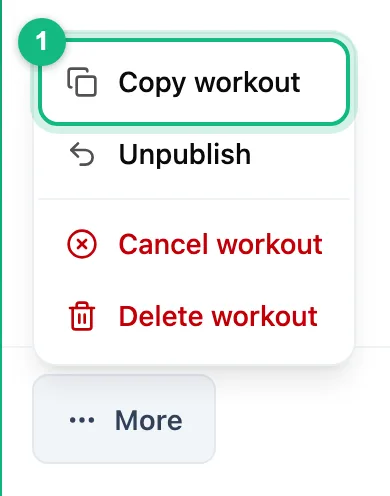
Open the workout menu
Click the workout in the calendar, then More in the panel and Copy workout.
Set the date and number of copies
In First copy on, pick the day of the first copy - one week after the original by default. Repeat weekly creates a series of copies seven days apart, up to eight at a time. The line below the form tells you how many copies you will get and when the last one falls.
Choose the status and confirm
In Copy status, choose Publish right away or Save as draft and click Copy. The copies have the same steps as the original.
Copying to other athletes
In the same copy window, the Copy to field decides whose calendars get the copies. It starts with the athlete you are copying from - remove them if the copy should only go to others.
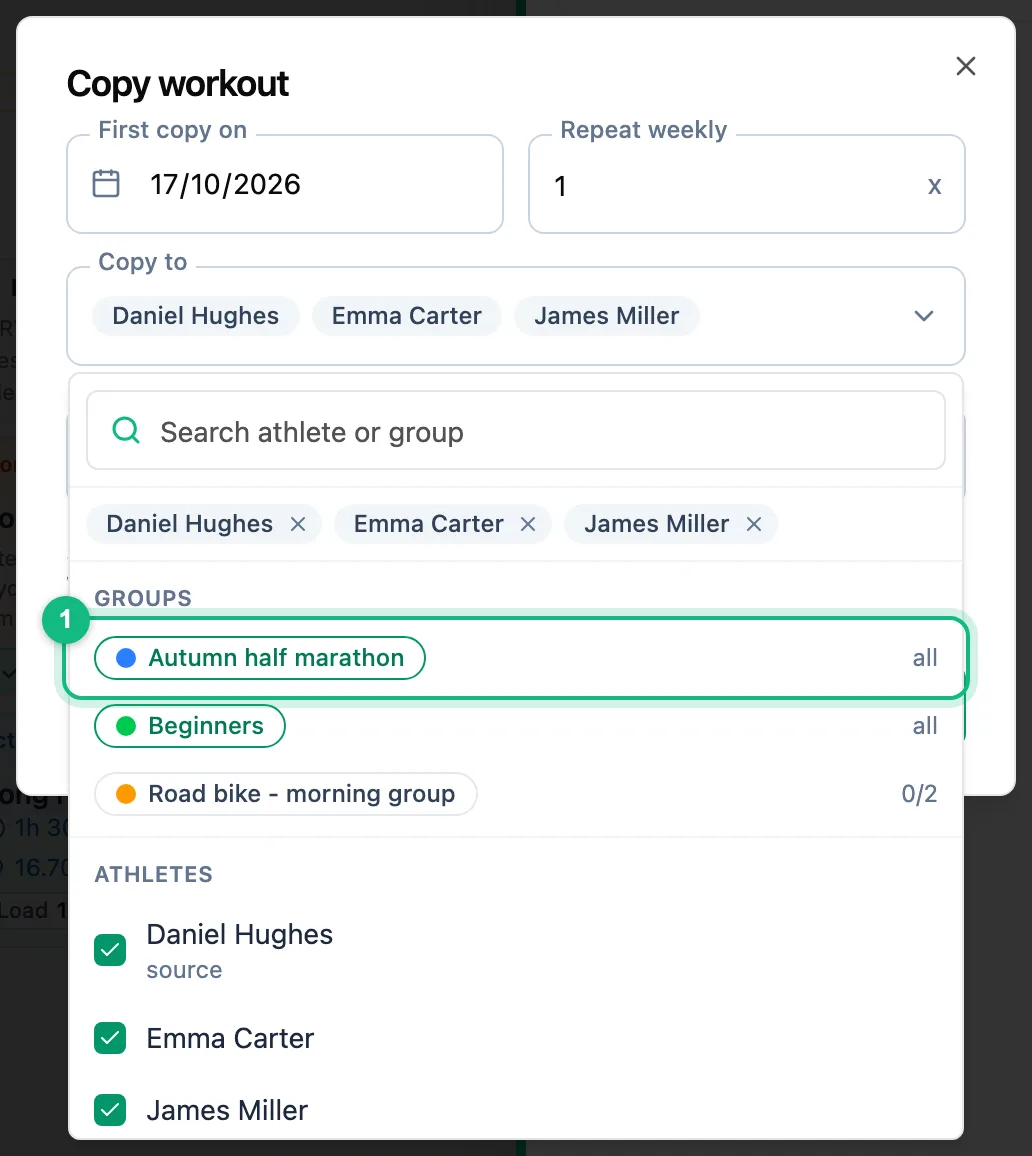
Pick athletes or a group
Open the Copy to field and tick the athletes. Clicking a group adds all of its members at once; each group shows how many of them you have already picked.
Check the warnings and confirm
Notes about the picked athletes appear under the field: no active coaching relationship (that athlete will be skipped), thresholds that differ from the source athlete's when the workout has power, pace or heart rate targets, and copy days that fall in a no-training period or on a race day. Apart from the missing relationship, none of them blocks the copy. The line below the form tells you how many copies you will get and for how many athletes.
Copying several workouts at once
To copy a whole week or a handful of workouts to athletes, use selection mode.
Turn on selection mode
In the calendar bar, open Tools and choose Select workouts. Workouts you can copy get a checkbox; the rest of the calendar is dimmed.
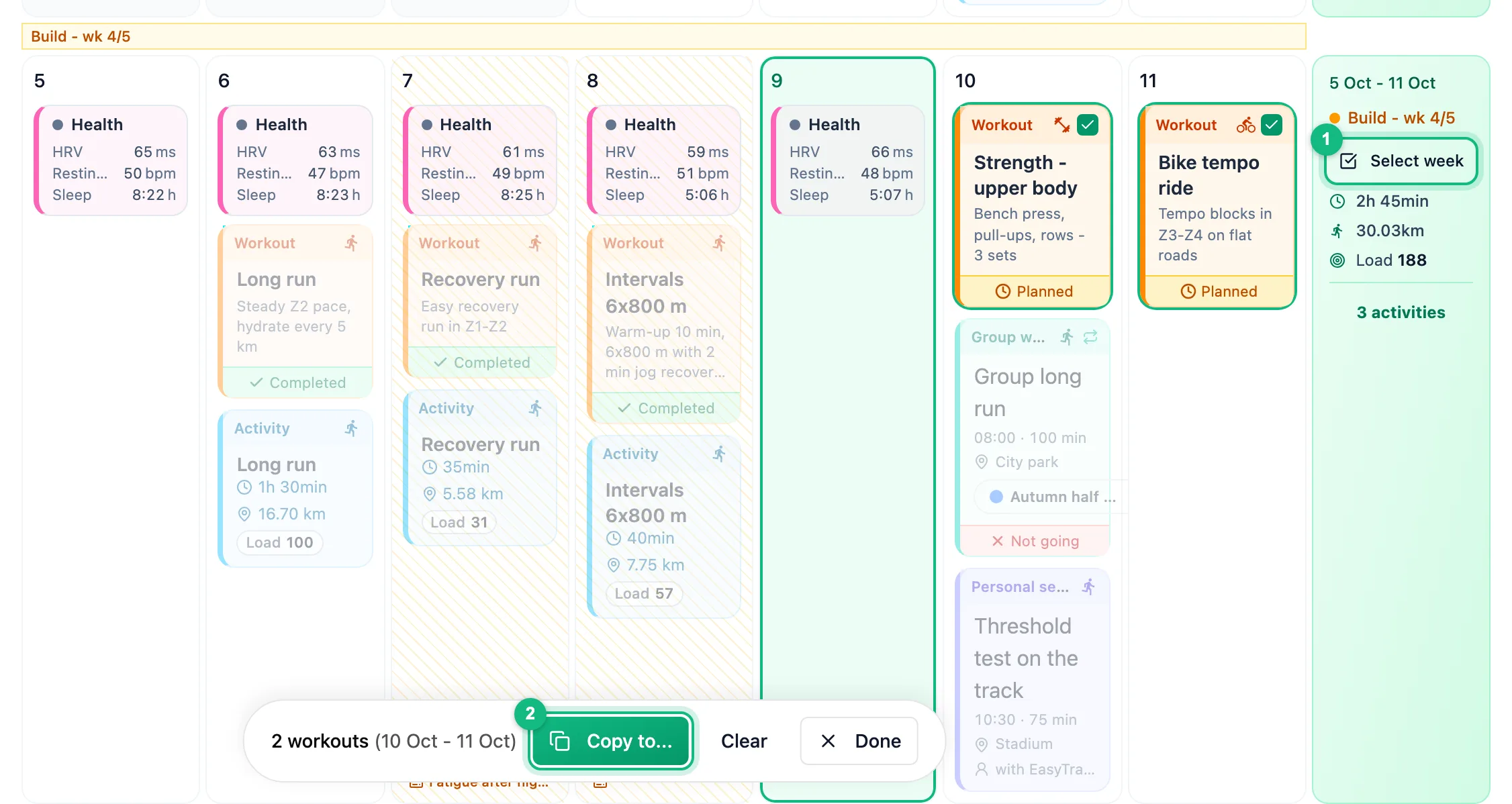
Select the workouts
Tick the checkboxes on the tiles or use Select week next to the week summary. The bar at the bottom shows the count and the date range.
Choose the day and the athletes
Click Copy to.... In First workout on, pick the day for the earliest workout - the others keep their spacing. With Keep weekdays on, the field only accepts the same weekday as the source. Then pick the athletes and the status and confirm.
What athletes can do
Athletes can also move a published workout you planned for them, by dragging it or with Move to another day. The new day has to be within 7 days before or after today. Athletes cannot change the content of the workout.
More in this section: Calendar
For coaches and athletes
Calendar viewsHow to browse the calendar: month, week and day views, jumping back to today and what the tiles mean.For coaches
Adding a workoutHow to plan a workout for an athlete: the day, sport and template, details, structure and publishing.For coaches
Editing, unpublishing and deleting a workoutHow to change a planned workout, move it back to a draft or delete it - and what the athlete and their watch see when you do.For coaches
Structured workoutsHow to build a workout from steps: warm-up, intervals, recoveries and repeats with a pace, speed, heart rate, power or cadence target.For coaches and athletes
Completing a workoutHow to close a planned workout: linking an activity from the watch, entering a result by hand, linking from the activity side and fixing a wrong link.For coaches and athletes
Missed and cancelled workoutsWhat to do with a workout whose day has passed: done, not done or moved; cancelling a plan as the trainer and undoing the status.For coaches and athletes
Manually entered activityHow to log a session done without a watch from the day menu in the calendar: form fields, load from perceived exertion and linking it to a plan later.For coaches and athletes
Uploading a file from your watchHow to add an activity from a FIT, TCX or GPX file when the watch is not connected to the app.For coaches and athletes
Sharing a workout on a photoHow to turn an activity into a transparent sticker or frame for your own photo, pick the data fields, and when each style works best.For coaches and athletes
Comments and wellbeingHow to discuss a specific workout in comments, rate the effort and fill in the wellbeing survey for a chosen day.For coaches and athletes
CompetitionsHow to add a competition to the calendar: type, how it is measured, date, race priority and target.For coaches and athletes
Your plan in Google, Apple or Outlook CalendarHow to add workouts and competitions to the calendar you already use, and how often they refresh.