On this page
A finished workout from the watch lands in the calendar on its own, with no file uploads. The athlete only has to connect the watch maker's account once in their profile.
ProfileIntegrationsOnly athletes have the Integrations tab. A coach can't connect a watch on the athlete's behalf, but sees everything the watch sends in the athlete's calendar.
Connect the account
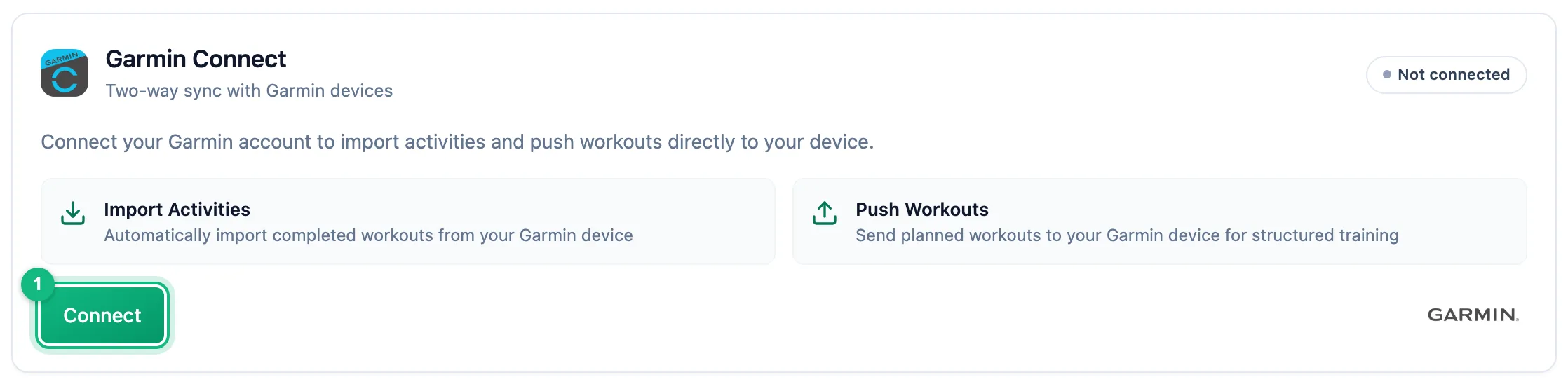
On your watch's card, click Connect. You're taken to the watch maker's site to sign in and approve access. Back in the app, the card shows Active.
Pick the sports
In the Workouts section, the Fetch completed workouts from your watch switch turns import on or off as a whole, and the sport buttons below it control single sports. All sports are on after connecting. Turning a sport off stops new workouts of that sport; anything already imported stays.
Sync the watch
A workout reaches us once the watch has synced with the maker's phone app. It usually shows up in the calendar within a few minutes. Sync Now on the card fetches whatever is missing from the last 30 days; for Suunto, since the last sync.
What happens after import
The workout appears in the athlete's calendar as an activity, with the data from the watch file: heart rate, pace, power, laps and route, if the watch recorded them. When a planned workout of the same sport waits on that day or the day next to it, the app suggests linking the activity to the plan.
Disconnecting stops new workouts from coming in. Imported data stays in the calendar.
More in this section: Integrations
For athletes
GarminHow to connect your Garmin Connect account, choose which sports to import and turn on sending planned workouts to the watch.For athletes
PolarHow to connect your Polar Flow account, accept the Polar consents and choose which sports reach the calendar.For athletes
SuuntoHow to connect your Suunto account, choose which sports to import, fetch workouts from the last 90 days and send planned workouts to the watch.For coaches and athletes
Workouts on the watchHow a planned workout reaches the athlete's Garmin or Suunto watch: what the athlete sets up, which workouts qualify and what happens when sending fails.For coaches and athletes
Common sync problemsWhat to check when a workout from the watch didn't reach the calendar or a planned workout didn't reach the watch.