On this page
Turn a watch activity into an image with your distance, time and pace, place it on your own photo from the session and post it on social media.
CalendarOpen the share window
Click the activity in the calendar. In the Metrics section, click Share. A preview of the first style opens.
Pick a sticker or a frame
The arrows next to the preview and the thumbnails below it switch styles. The checkerboard behind the preview marks transparency: in the downloaded image, that is where your photo shows through.
Adjust the content
Expand Customize card. Under Data fields you choose which numbers go on the image: the three most important ones for the sport by default, and you can add a fourth. Title and date adds the activity name and date (off by default). Sticker text is plain white by default; Add shadow adds a dark outline or shadow when the photo underneath is bright.
Save or share
On a computer, Download PNG saves the image and Copy puts it on the clipboard. On a phone, Share opens the system share menu, so you can send the image straight to the app you want.
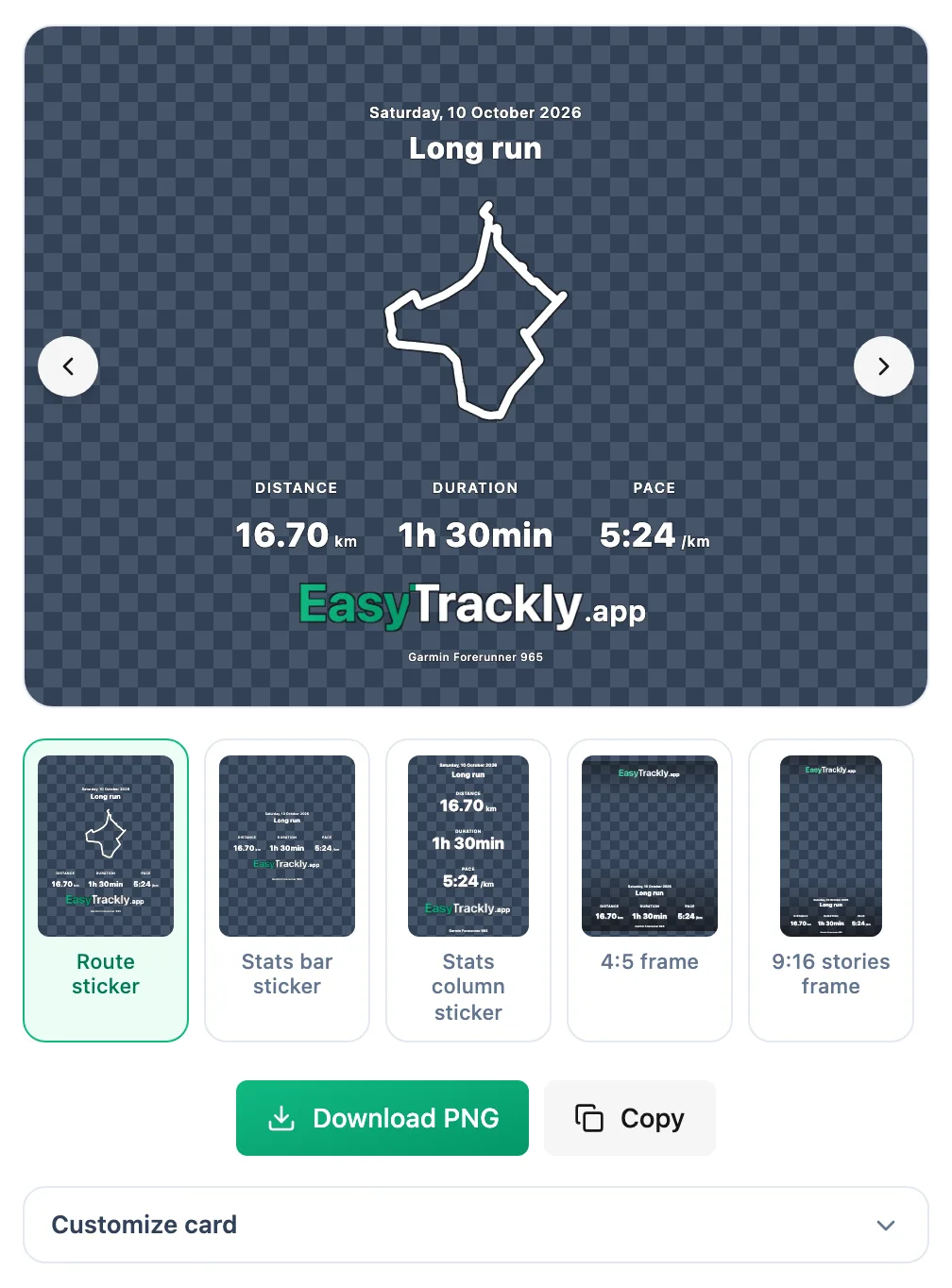
Which style to pick
Stickers are small and you place them anywhere on the photo. Frames match the photo's proportions and cover it entirely: the logo sits at the top, the numbers (and optionally the title) at the bottom, and the middle is left for your photo.
| Style | When |
|---|---|
| Route sticker | The route is the point: a new loop, mountains, a race. Only for activities with GPS. |
| Stats bar sticker | Along the bottom of a wide photo, above the horizon or below a person, clear of faces. |
| Stats column sticker | Down the side of a portrait photo, where one side is sky, a wall or water. |
| 4:5 frame | A feed post on a platform that crops photos to 4:5. |
| 9:16 stories frame | A full-screen story on a phone. |
| 3:4 frame with bar | A photo straight from the phone camera, uncropped; the bottom bar reads on any background. |
Put a frame on a photo with the same proportions so the logo and the numbers land on the edges of the shot.
Why it works this way
- Your photo, our numbers. The image is a transparent PNG, so in a photo or story editor you add it as a layer over any photo and move it wherever you like.
- Readable on any background. Frames add a dark gradient or bar, and stickers can get a dark outline or shadow, so white numbers stay visible on bright sky and snow.
- No retyping. Distance, time, pace and heart rate come straight from the watch.
- Privacy. Stickers without a route and frames don't show where you train or where you start.
More in this section: Calendar
For coaches and athletes
Calendar viewsHow to browse the calendar: month, week and day views, jumping back to today and what the tiles mean.For coaches
Adding a workoutHow to plan a workout for an athlete: the day, sport and template, details, structure and publishing.For coaches
Editing, unpublishing and deleting a workoutHow to change a planned workout, move it back to a draft or delete it - and what the athlete and their watch see when you do.For coaches
Structured workoutsHow to build a workout from steps: warm-up, intervals, recoveries and repeats with a pace, speed, heart rate, power or cadence target.For coaches
Copying and movingHow to move a workout to another day, reorder a day, and copy a workout to the following weeks or to other athletes.For coaches and athletes
Completing a workoutHow to close a planned workout: linking an activity from the watch, entering a result by hand, linking from the activity side and fixing a wrong link.For coaches and athletes
Missed and cancelled workoutsWhat to do with a workout whose day has passed: done, not done or moved; cancelling a plan as the trainer and undoing the status.For coaches and athletes
Manually entered activityHow to log a session done without a watch from the day menu in the calendar: form fields, load from perceived exertion and linking it to a plan later.For coaches and athletes
Uploading a file from your watchHow to add an activity from a FIT, TCX or GPX file when the watch is not connected to the app.For coaches and athletes
Comments and wellbeingHow to discuss a specific workout in comments, rate the effort and fill in the wellbeing survey for a chosen day.For coaches and athletes
CompetitionsHow to add a competition to the calendar: type, how it is measured, date, race priority and target.For coaches and athletes
Your plan in Google, Apple or Outlook CalendarHow to add workouts and competitions to the calendar you already use, and how often they refresh.