On this page
Notes about a specific session stay with it in the comments, and athletes rate their day in the wellbeing survey straight from the calendar.
CalendarComments on a workout
Open the comments tab
Click a workout, activity or competition in the calendar and switch to the Comments tab.
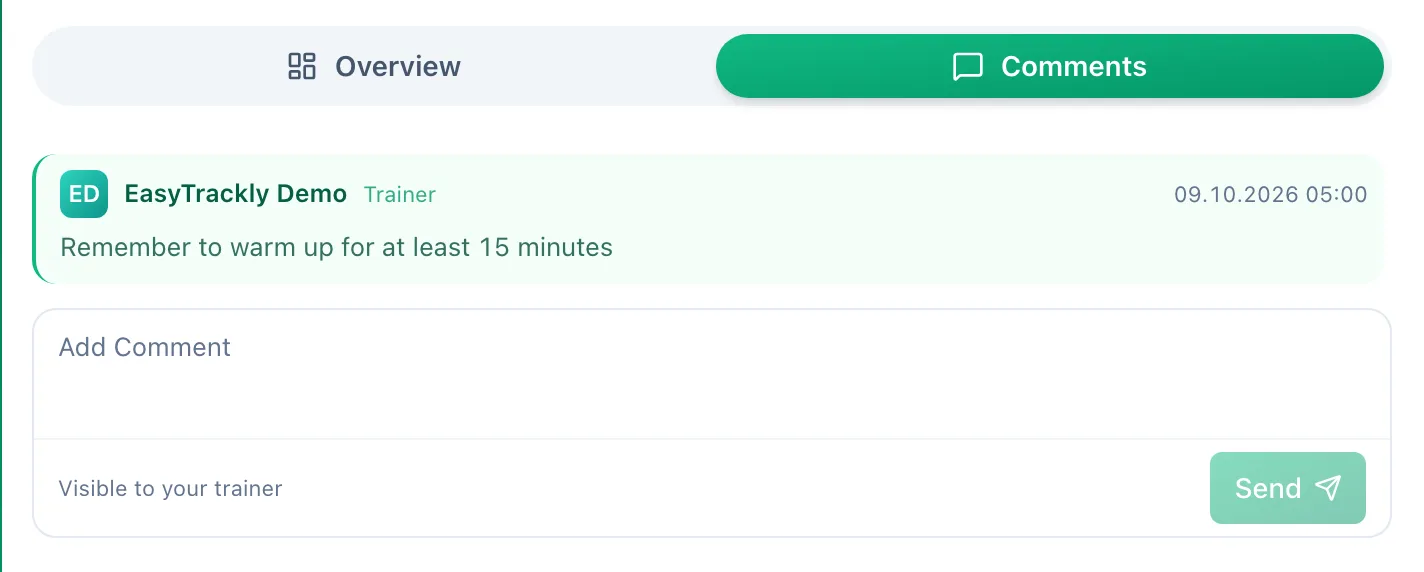
Write and send
Type in the Add Comment field and click Send. The line below the field tells you who will see the message: coaches write to the athlete, athletes to the coach. The other side gets a notification.
You can remove your own comment with the Delete comment icon next to it; other people's comments cannot be removed. Notes left on the plan before the session also show up in the panel of the linked activity, under Pre-training discussion.
Effort rating and notes
When closing a workout, the athlete picks Perceived Exertion (RPE) on a 1 to 10 scale in the Feedback section, and adds Notes when entering the result by hand. A rating from the watch comes in automatically and can be corrected.
Wellbeing survey
The coach turns the survey on for all of their athletes: Profile, the Settings tab, the Enable wellness check-in switch, where they also choose the active fields.
Click the icon in the day
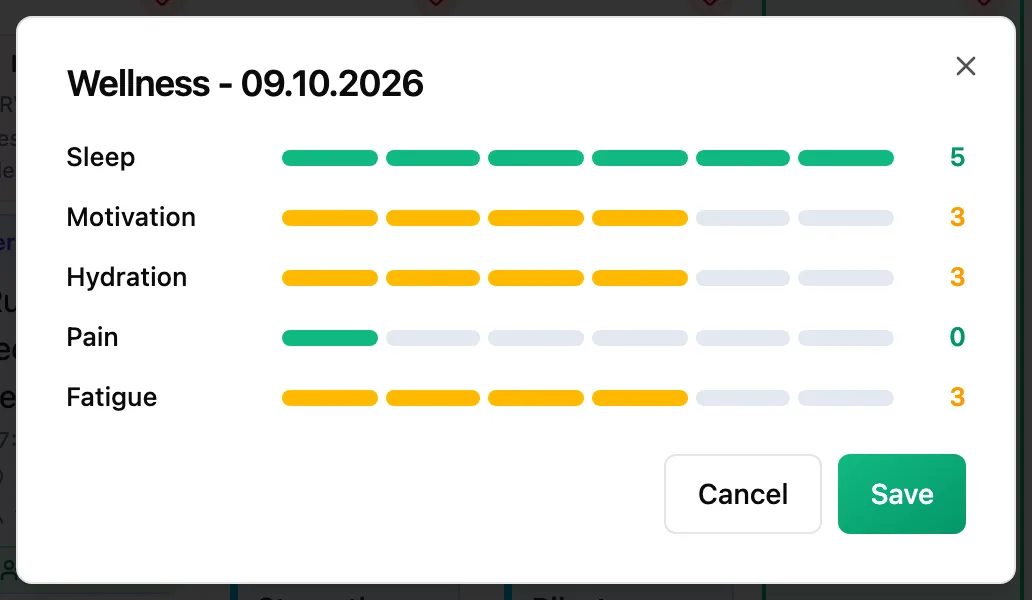
The athlete hovers over a day in the month view and clicks the heart icon. Days with a completed survey show it all the time.
Rate and save
Rate each field from 0 to 5 and click Save. The same form is on the athlete dashboard as How are you feeling today?.
More in this section: Calendar
For coaches and athletes
Calendar viewsHow to browse the calendar: month, week and day views, jumping back to today and what the tiles mean.For coaches
Adding a workoutHow to plan a workout for an athlete: the day, sport and template, details, structure and publishing.For coaches
Editing, unpublishing and deleting a workoutHow to change a planned workout, move it back to a draft or delete it - and what the athlete and their watch see when you do.For coaches
Structured workoutsHow to build a workout from steps: warm-up, intervals, recoveries and repeats with a pace, speed, heart rate, power or cadence target.For coaches
Copying and movingHow to move a workout to another day, reorder a day, and copy a workout to the following weeks or to other athletes.For coaches and athletes
Completing a workoutHow to close a planned workout: linking an activity from the watch, entering a result by hand, linking from the activity side and fixing a wrong link.For coaches and athletes
Missed and cancelled workoutsWhat to do with a workout whose day has passed: done, not done or moved; cancelling a plan as the trainer and undoing the status.For coaches and athletes
Manually entered activityHow to log a session done without a watch from the day menu in the calendar: form fields, load from perceived exertion and linking it to a plan later.For coaches and athletes
Uploading a file from your watchHow to add an activity from a FIT, TCX or GPX file when the watch is not connected to the app.For coaches and athletes
Sharing a workout on a photoHow to turn an activity into a transparent sticker or frame for your own photo, pick the data fields, and when each style works best.For coaches and athletes
CompetitionsHow to add a competition to the calendar: type, how it is measured, date, race priority and target.For coaches and athletes
Your plan in Google, Apple or Outlook CalendarHow to add workouts and competitions to the calendar you already use, and how often they refresh.