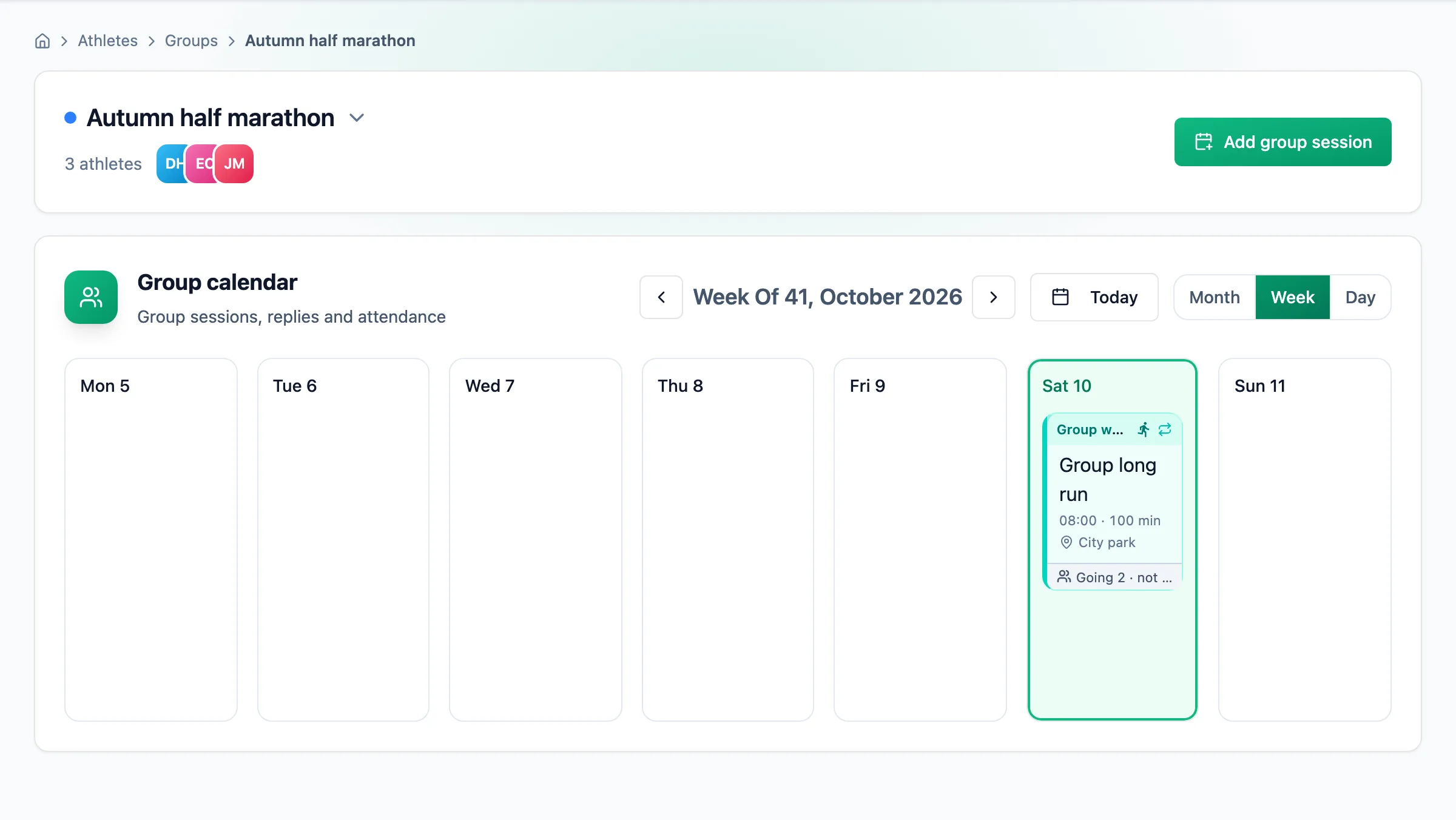
The group calendar is where you schedule sessions the whole group trains together, such as a Saturday long run in the park. Athletes in the group see them in their own calendars and say whether they will come, and after the session you record who actually showed up.
TeamGroupsCalendarThe Calendar link sits in the last column of the groups table, and the Next session column tells you when the group meets next. The Group calendar button in the group panel leads to the same place. The arrow next to the group name above the calendar switches to another group's calendar.
Schedule a group session
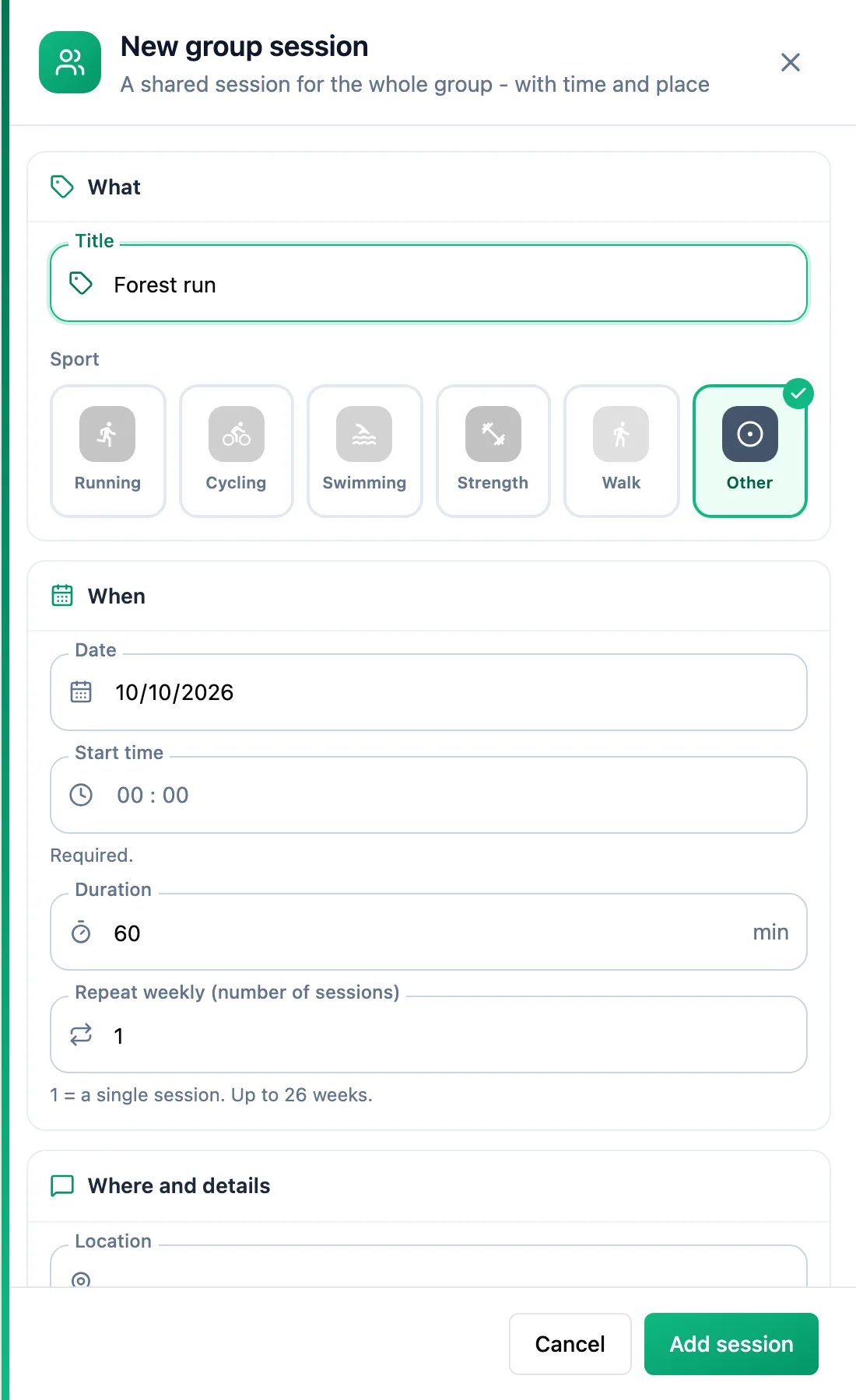
Click Add group session or the add icon in a day cell. Enter a title, pick the sport, the date, the Start time (required) and the Duration, then add a place and a description under details.
Repeat weekly (number of sessions)creates a series on the same weekday for up to 26 weeks. Save with Add session.
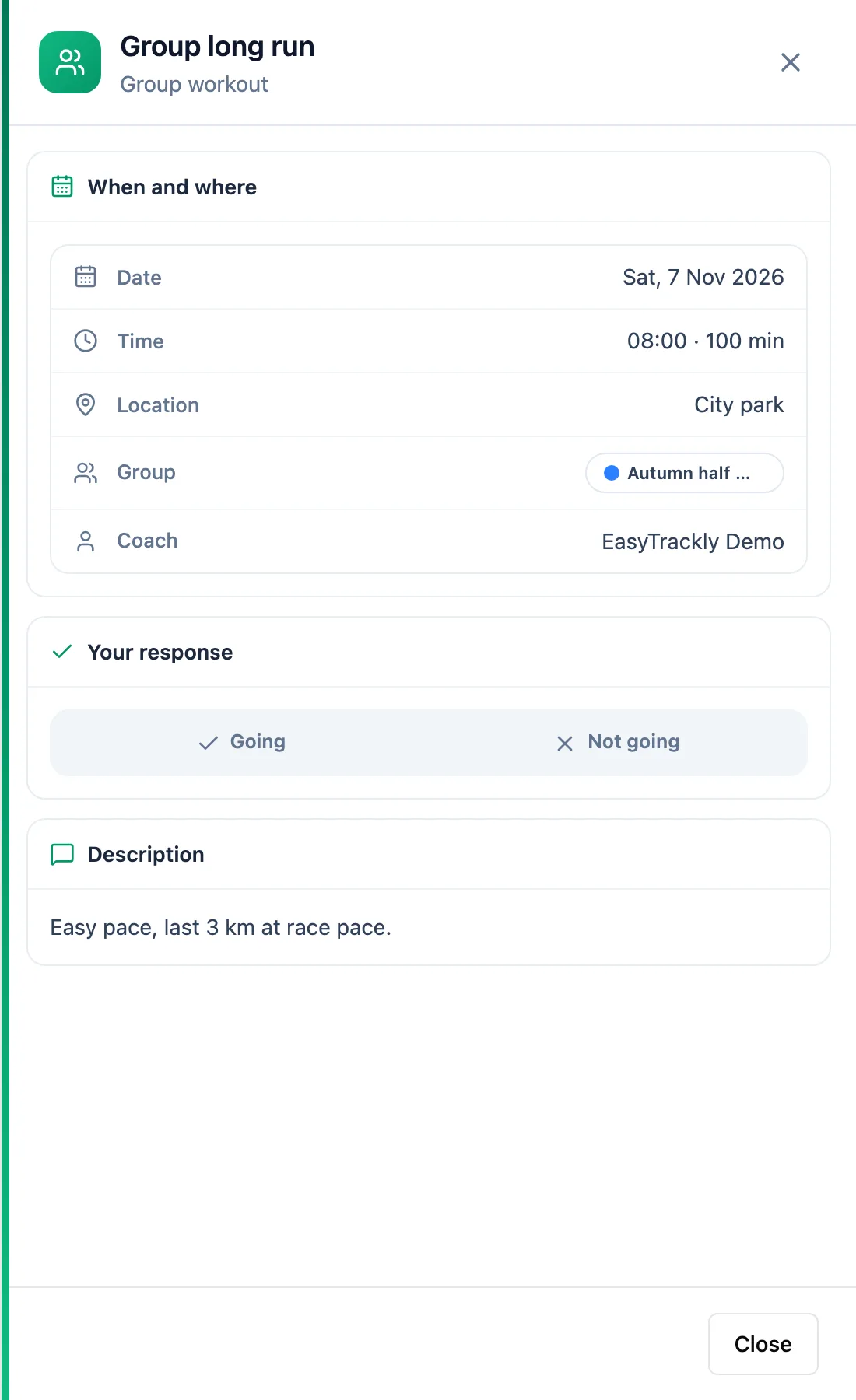
Athletes respond
The session appears in the calendar of every athlete in the group, and each of them gets a notification. In the session panel they answer Going or Not going, and can change or withdraw the answer until the end of the session day. Athletes who join the group later see the sessions already scheduled.
Change, move or cancel a session
Click the session card and choose Edit, or drag the card to another day. For a session in a series, you are asked whether the change applies to Only this session or to This and following; past sessions in the series stay as they are. The three-dot menu holds Cancel session (the session stays in calendars marked as cancelled and athletes are notified) and Delete session.
Record attendance
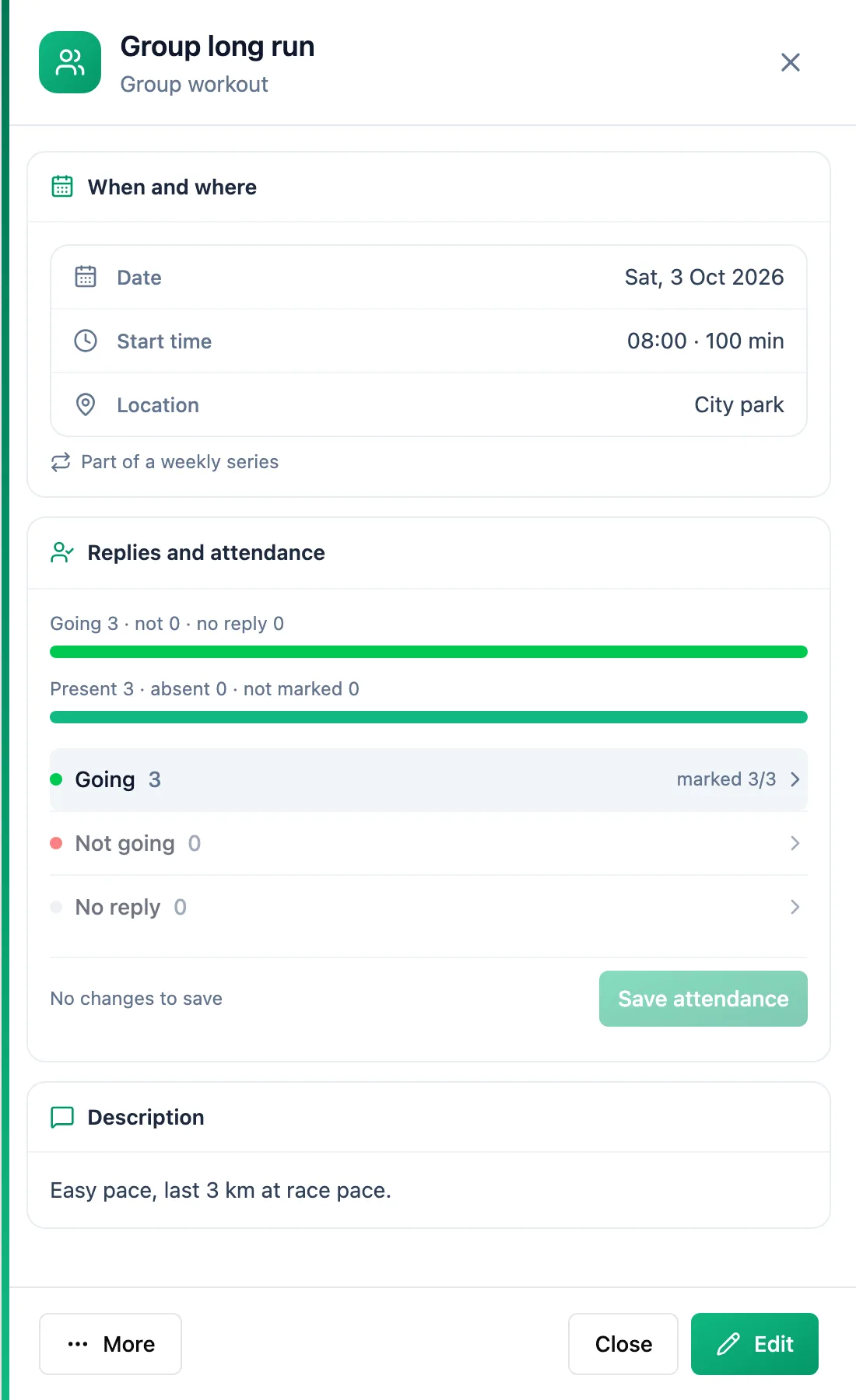
From the session day on, the Replies and attendance section of the session panel shows the responses and lets you record who came. Open a group of people, for example Going, mark each person present or absent or use Everyone present, then click Save attendance. Athletes see their recorded attendance in their own session panel.
More in this section: Athletes
For coaches
Athlete listHow to search and narrow the athlete list, read its columns and act on an athlete.For coaches
Athlete summaryWhat the single-athlete screen shows and how to keep notes on it.For coaches
Athlete groupsHow to create an athlete group, change its members, name and colour, delete it, and where groups help across the app.For coaches
Athlete racesHow to review every athlete race in one table and open the race details.For coaches
Athlete reportsHow to ask an athlete for a report, set up a series of requests, send a reminder and reply to a report.For coaches
Athlete paymentsHow to record athlete payments, set a monthly rate and keep track of whose paid period is running out.For coaches
Suspending and ending the coaching relationshipHow suspending an athlete differs from deleting them, what happens to their plan and data, and how to bring them back.