On this page
A group brings athletes together under one name and colour, such as "Spring marathon" or "Morning road group". You use groups to filter lists, copy a workout to several athletes at once and send announcements to part of your team.
TeamGroupsThe table lists your groups with their colour, members, next group session and creation date. The Calendar link in the last column opens the group calendar.

Create a group
Click New group in the top right corner. In the panel, enter the Group name (up to 60 characters, different from your other groups) and pick a Color - a badge preview appears next to it.
Add athletes
Open the Athletes in group field and tick athletes in the list; the search box above it narrows the list by name. One athlete can belong to several groups. Save with Save group - the group appears in the table.
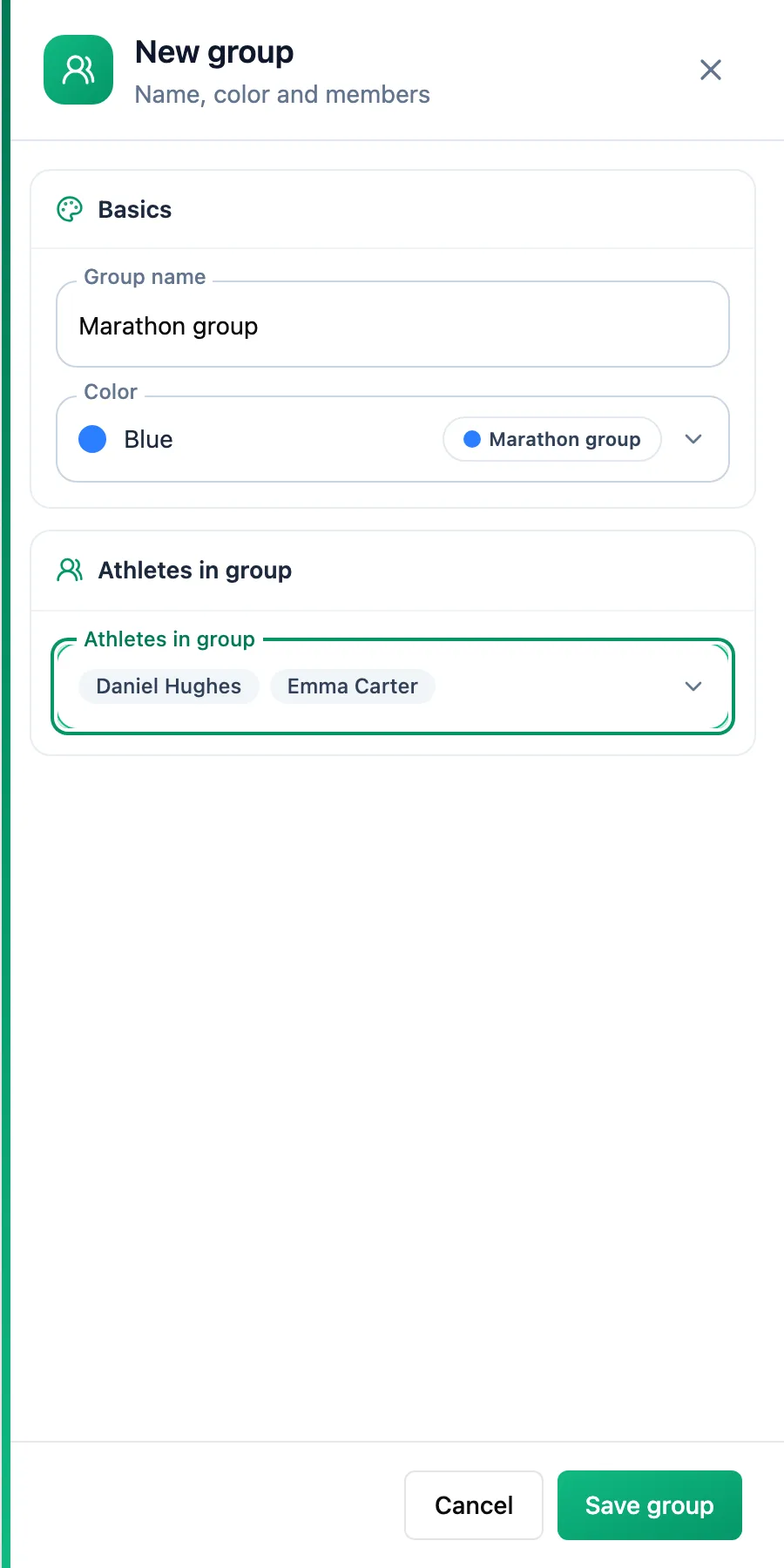
Change members, name or colour
Click the group's row in the table. The Edit group panel opens with the same fields. Remove an athlete with the cross next to their name in the open list, or untick them. Nothing changes until you click Save group; closing the panel without saving leaves the group as it was.
Delete a group
In the group panel, open the three-dot menu in the footer, choose Delete group and confirm. The group disappears from filters and badges, and its athletes stay on your list. The confirmation shows how many group sessions will be removed with the group.
Where groups help
- Group calendar - sessions the group trains together, with responses and attendance, are covered on the Group calendar page.
- Athlete list and races - the Group list narrows the table to one group, and each name shows a badge with the number of groups the athlete is in, in their colours.
- Copying a workout - in the Copy to section, picking a group selects all of its athletes at once.
- Board - the Selected groups audience sends an announcement only to athletes in the chosen groups.
More in this section: Athletes
For coaches
Athlete listHow to search and narrow the athlete list, read its columns and act on an athlete.For coaches
Athlete summaryWhat the single-athlete screen shows and how to keep notes on it.For coaches
Group calendarHow to schedule a group session for the whole group, change or cancel it, see who is coming and record attendance.For coaches
Athlete racesHow to review every athlete race in one table and open the race details.For coaches
Athlete reportsHow to ask an athlete for a report, set up a series of requests, send a reminder and reply to a report.For coaches
Athlete paymentsHow to record athlete payments, set a monthly rate and keep track of whose paid period is running out.For coaches
Suspending and ending the coaching relationshipHow suspending an athlete differs from deleting them, what happens to their plan and data, and how to bring them back.