On this page
The board is where a coach posts announcements for athletes: a meeting point before a race, a change to this week's plan or the ground rules for the season. Athletes read them in one place, and the coach sees how many of them have read each post.
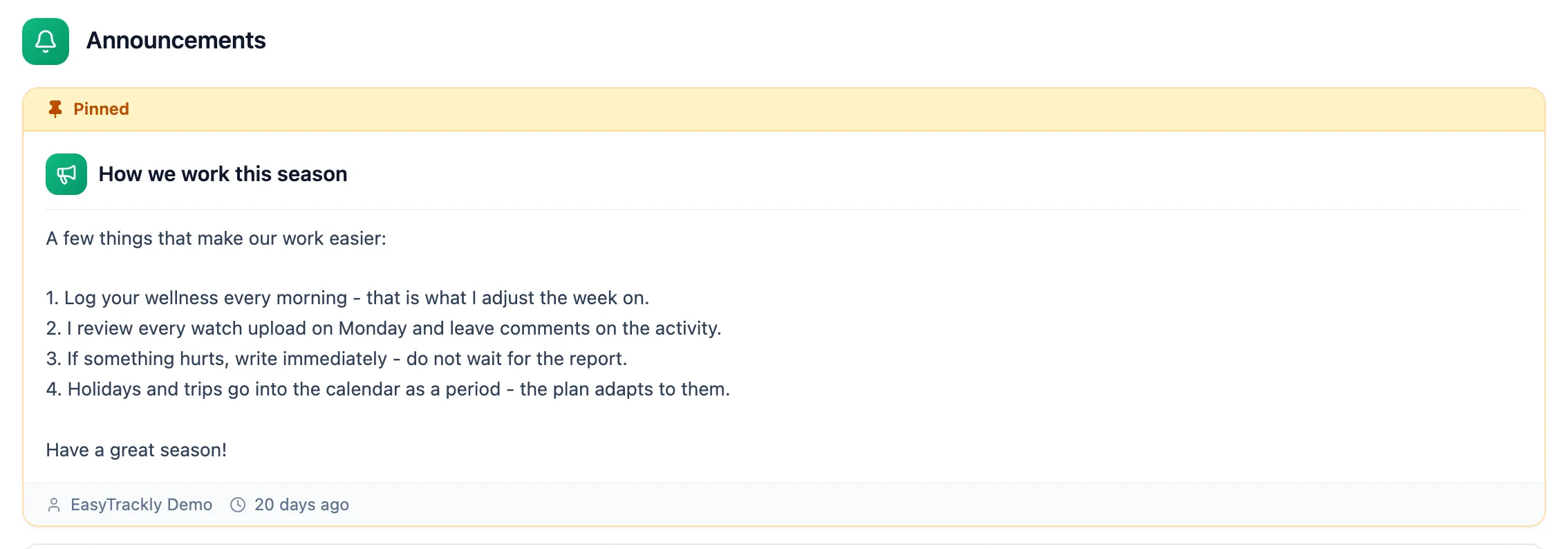
TeamBoardAthletes find the board in the Overview section.
Coach: posting
Open the form
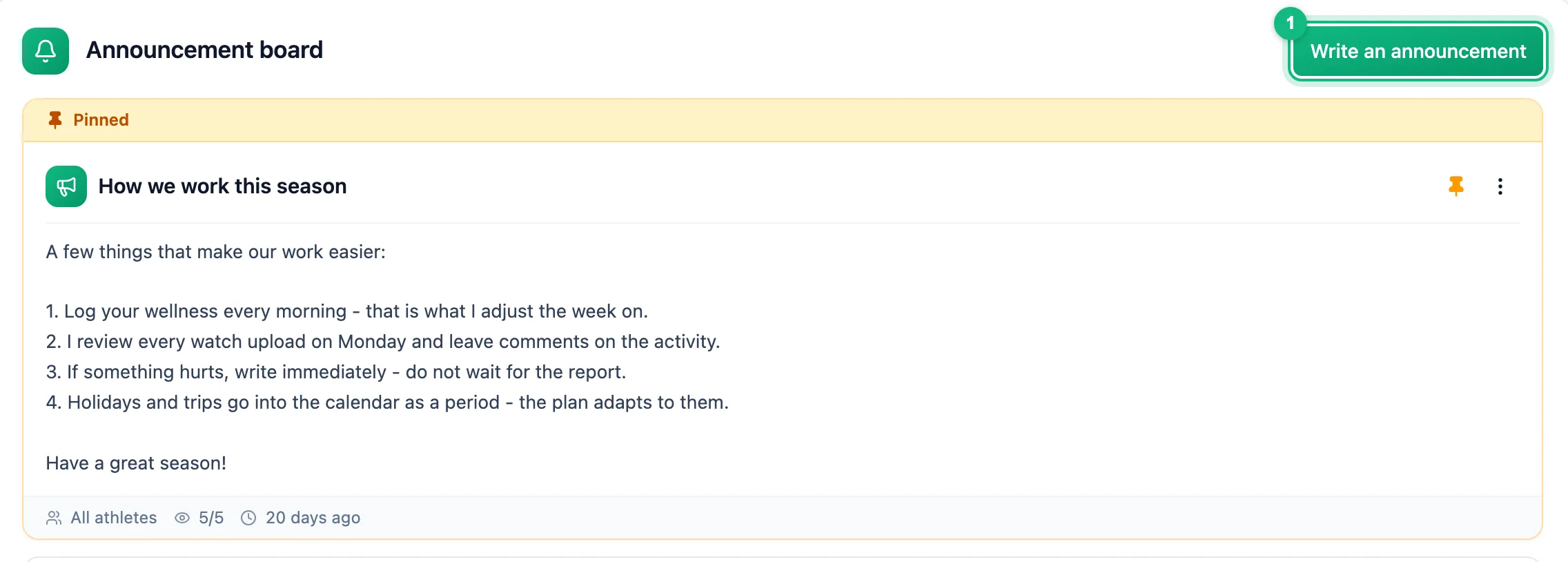
On the Announcement board page, click Write an announcement.
Write the announcement
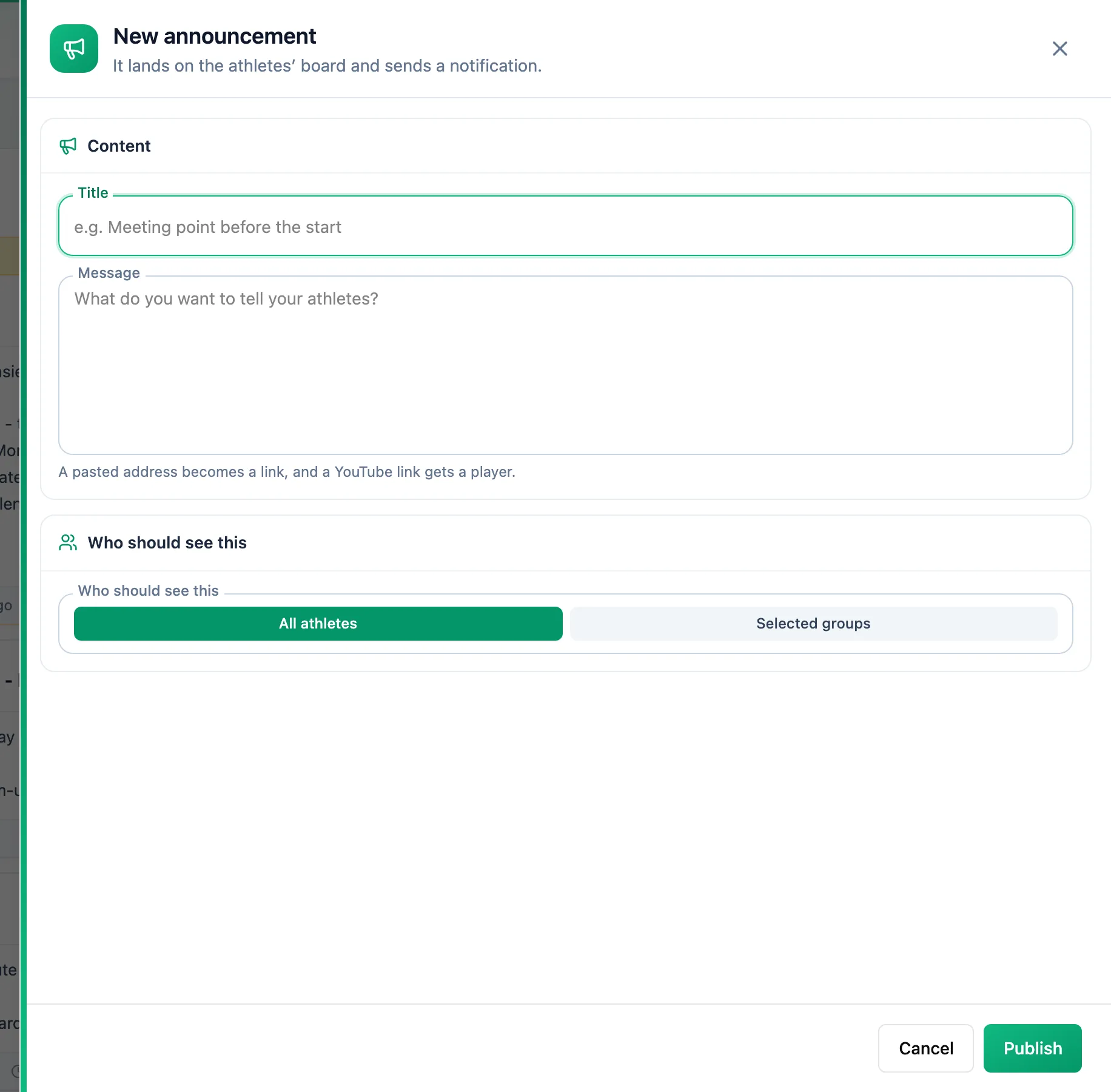
Fill in Title and Message. A pasted web address becomes a link and a YouTube link gets a player - a preview appears below the text.
Choose the audience
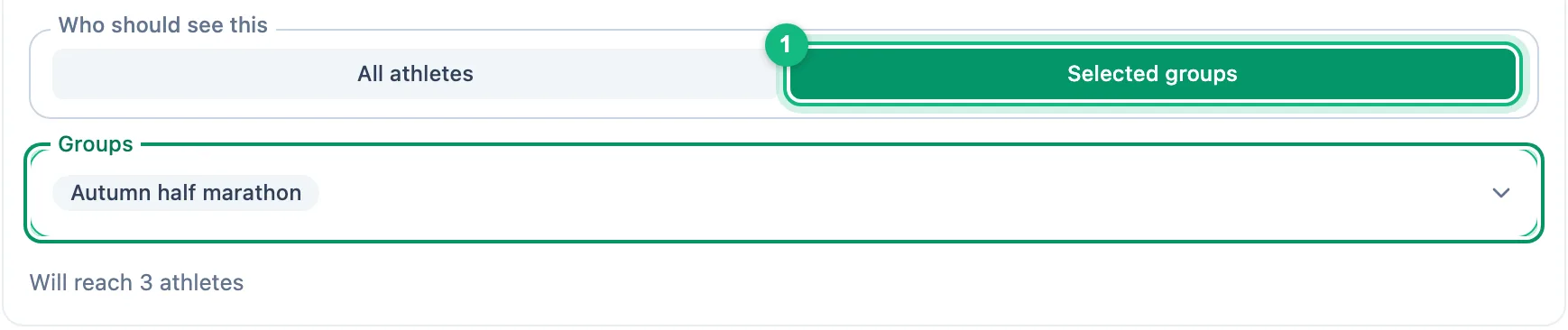
Under Who should see this, keep All athletes or choose Selected groups and pick one or more groups in the Groups field. Below the field you see how many athletes the post will reach - an athlete in several chosen groups gets it once. If you have no groups yet, the post goes to everyone - see Athlete groups to create them.
Publish
Click Publish. Once you confirm, the post lands on the chosen athletes' board and each of them gets a notification.
The pin icon keeps a post at the top of the board. The three-dot menu lets you edit or delete it - a deleted post disappears from your athletes' board along with the record of who read it.
Athlete: reading
The Announcements page shows your coach's posts, pinned ones first. Unread posts are marked New and posts changed after publishing are marked Edited. Posts count as read once you open the board.