On this page
Notifications tell you what changed since your last visit: a new workout in the plan, a comment, a completed activity, a report request or a post from your coach.
NotificationsView all notificationsThe bell sits in the header of every page, and the red number on it counts unread notifications. Clicking the bell opens a list of the latest ones.
Go through the list
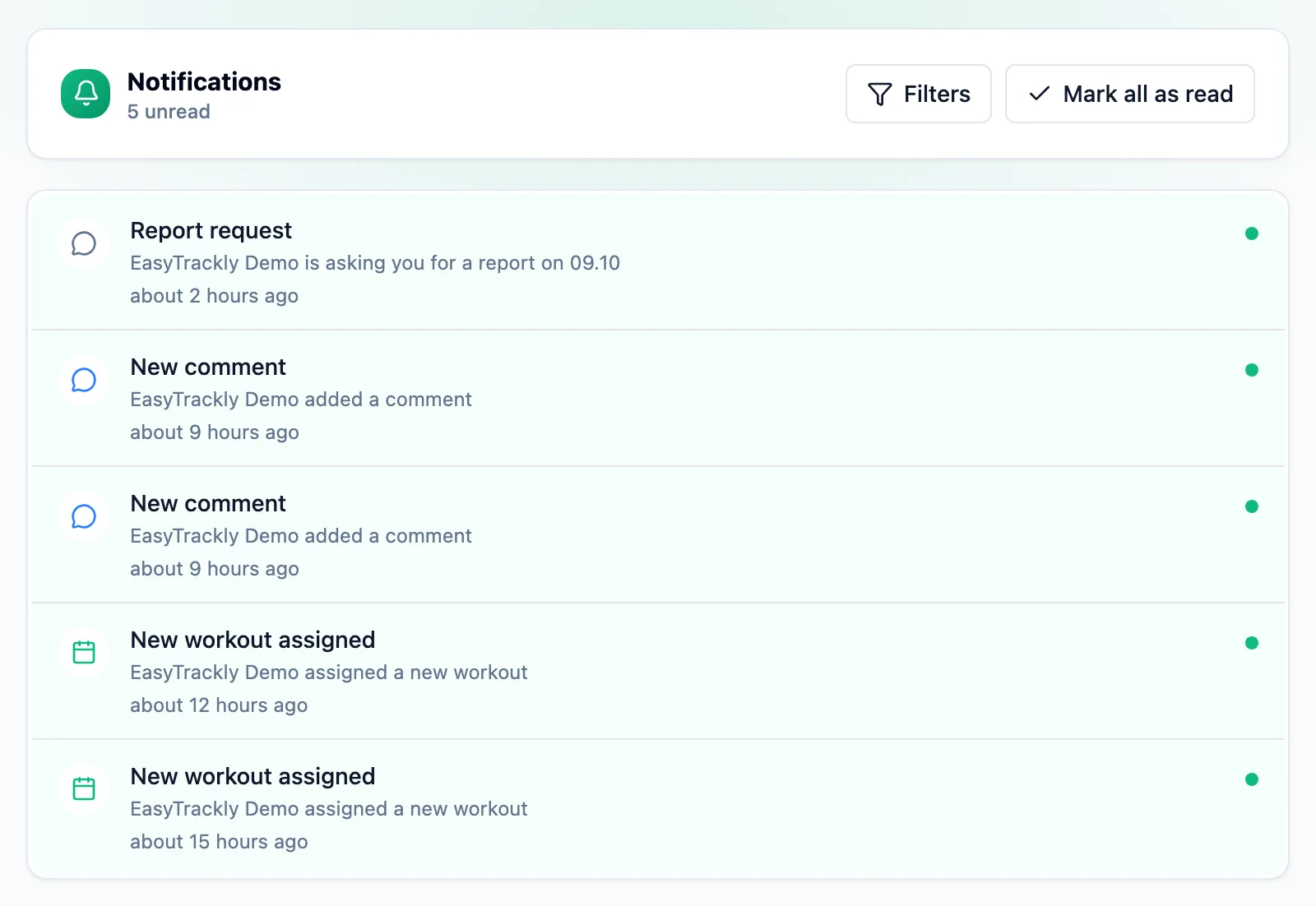
The Notifications page lists notifications newest first; unread ones have a green dot. Clicking a notification marks it as read and takes you to what it is about, for example a workout in the calendar.
Narrow the list
Filters shows the Unread, Workouts, Activities and Comments buttons.
Mark everything as read
Mark all as read clears the count on the bell. The notifications stay in the list.
Athlete: choose what you hear about
ProfileSettingsIn the Notifications section, two switches control in-app and email notifications:
- Notify me about reports - report reminders and news of a new request from your coach,
- Notify me about races - race reminders and suggestions to match an activity to a race.
