A template is a workout you write once: a name, a description and the steps. In the library you browse the ready-made Easy Trackly templates, copy them to your own collection and build templates you later drop into your athletes' calendars.
PlanningTemplates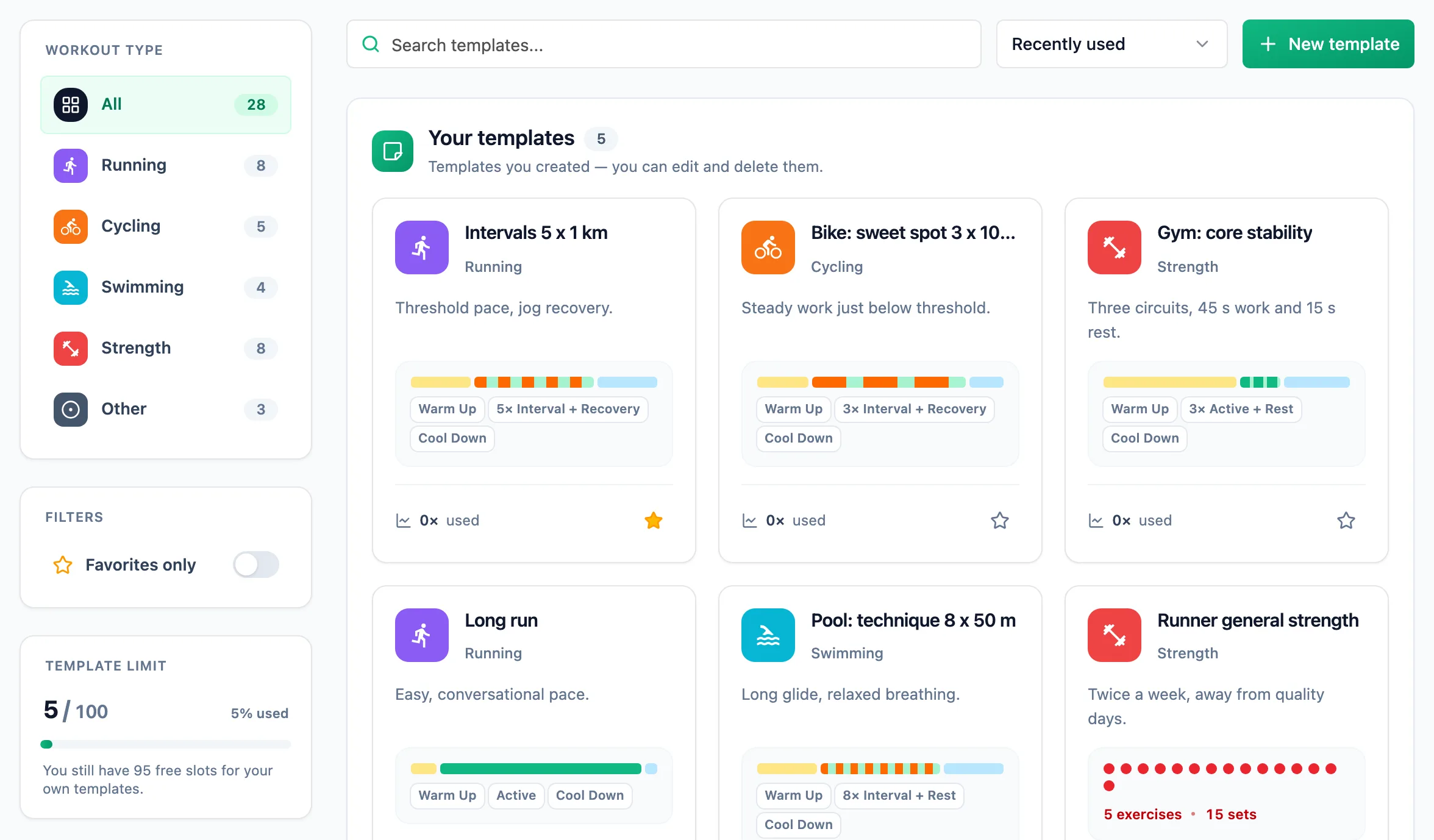
The list has two sections. Your templates holds the templates you built yourself: you can edit and delete them. System templates is the ready-made library, marked with a padlock: you can preview and copy it, nothing more. The panel on the left filters by discipline and shows your Template limit, and sorting by Most used brings the templates you plan from most often to the top.
Copy a system template
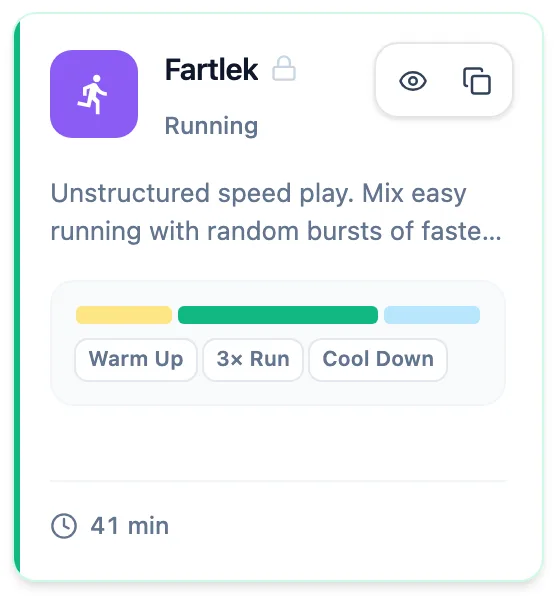
Hover over a system template card. The eye icon opens Template preview with the full list of steps, and Duplicate adds a copy to Your templates. The copy keeps every step of the original, and you can change it straight away.
Create your own template
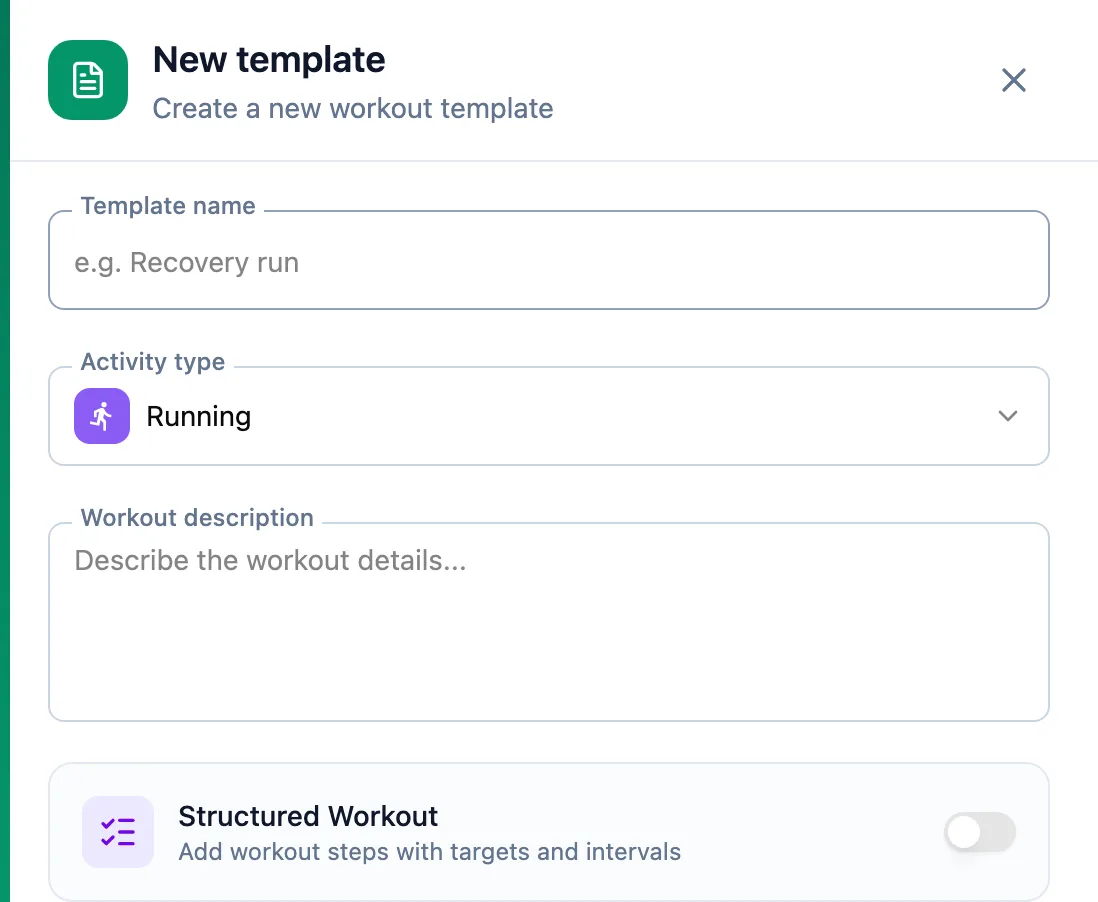
Click New template. Fill in Template name, pick the Activity type and add a Workout description. The name and description carry over to every workout planned from the template, so write the description for your athlete, not as a note to yourself.
Add the steps
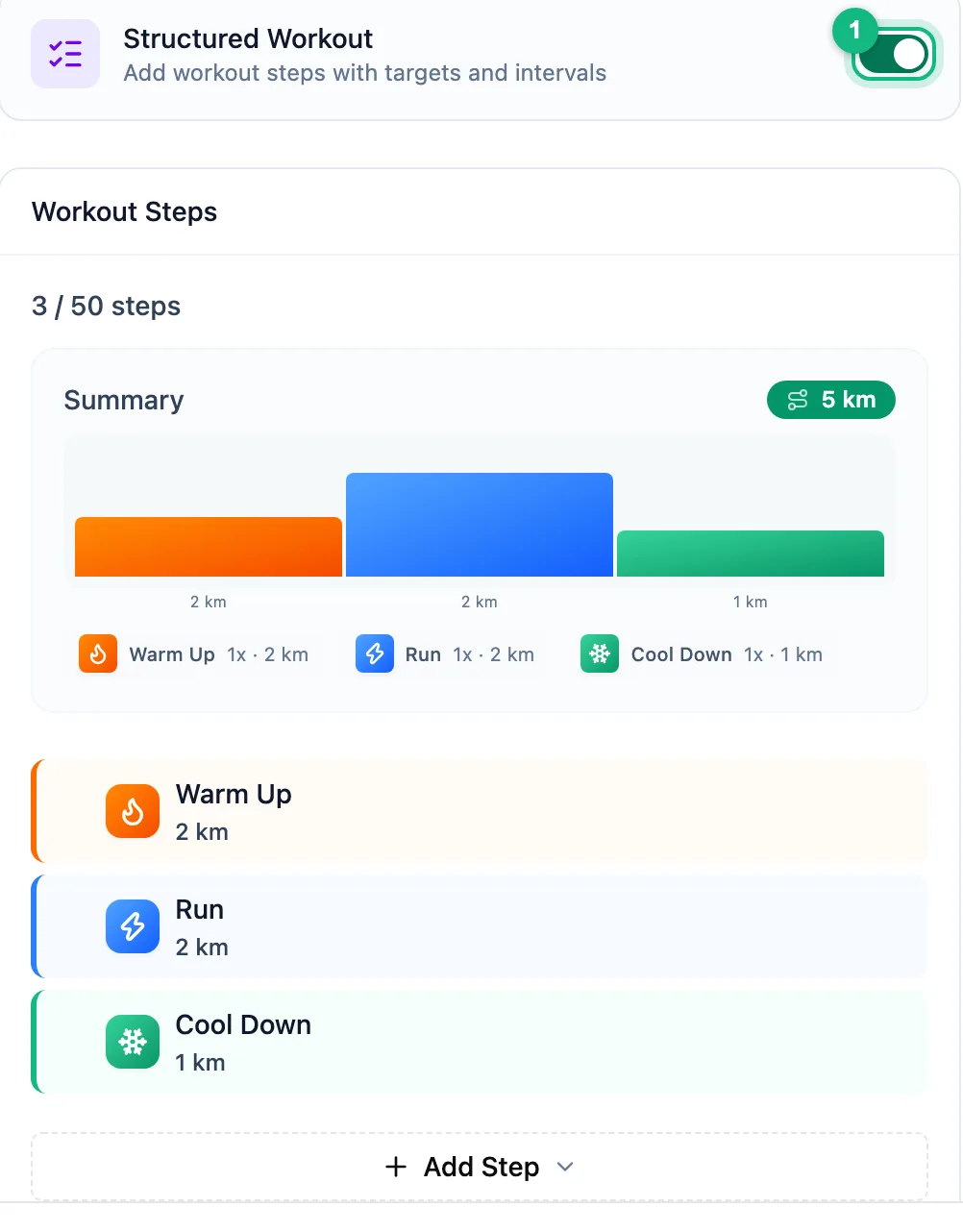
Turn on Structured Workout. A step editor opens below the form with a warm-up, a main part and a cool-down. Adjust them, add repeats and click Save. For a strength session you turn on Strength routine instead, with exercises and sets. Walking and other activities have only a name and a description.
Keep the library tidy
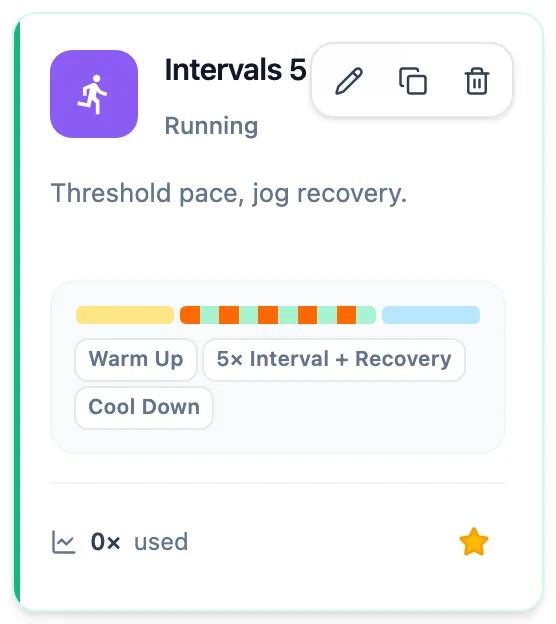
Hover over one of your own cards to get Edit template, Duplicate and Delete template. The star marks a favourite, and the Favorites only switch narrows the list to them. The counter at the bottom of the card shows how many workouts were planned from the template.