On this page
You use a template in the workout wizard, inside the athlete's calendar. The workout gets the template's name, description and steps, and you tailor them to that one athlete.
Athlete calendarPlan WorkoutType & templatePick the sport, then the template
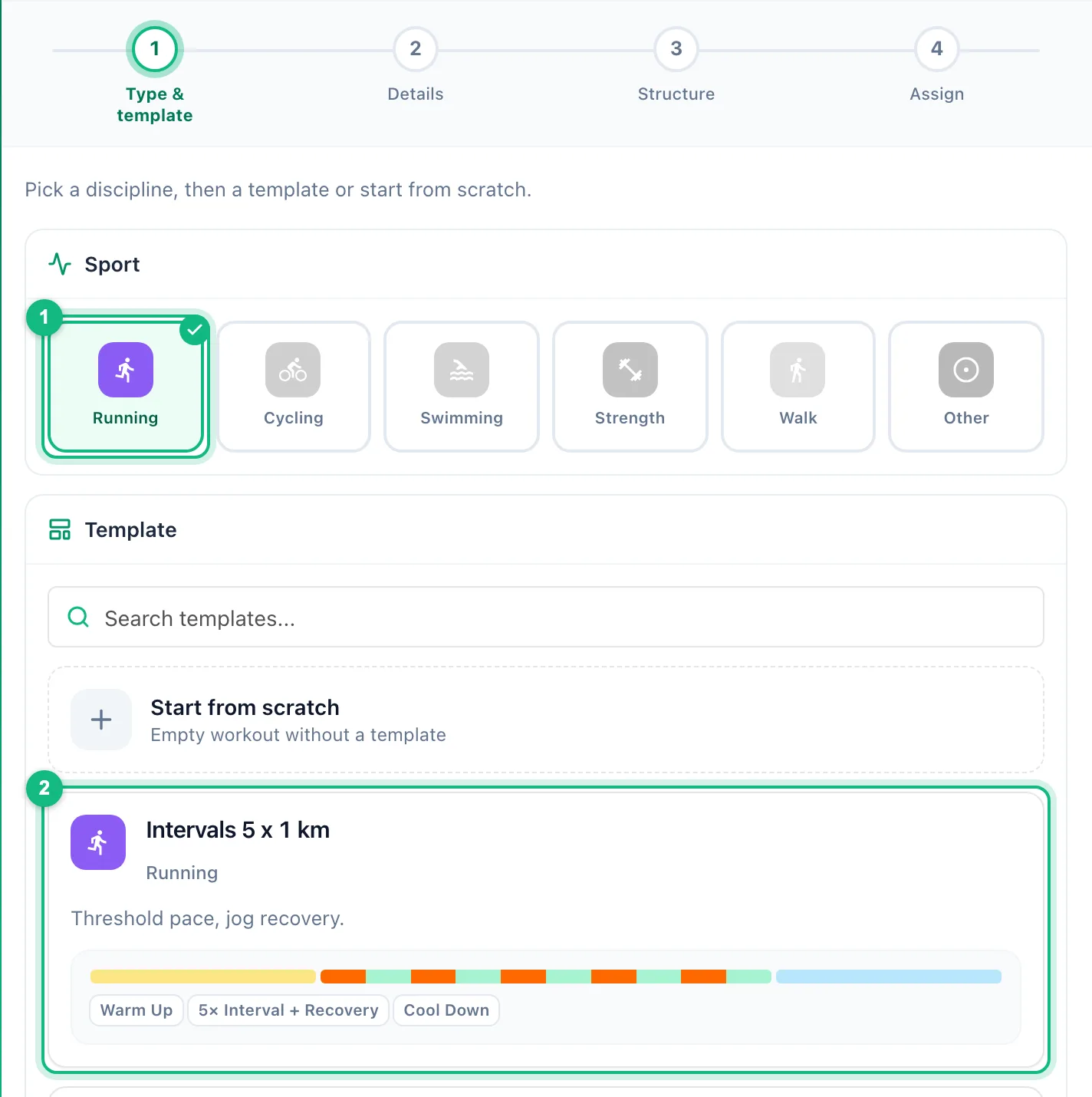
Hover over a day and click Plan Workout. On the Type & template step choose the discipline first - the list only shows templates for that sport. You can also search above the list. The Start from scratch tile gives you an empty workout.
Check the details
Clicking a template fills in the name and description, turns the structure on and takes you straight to the Details step. Change the title or the description if this athlete needs a different cue.
Tailor the steps
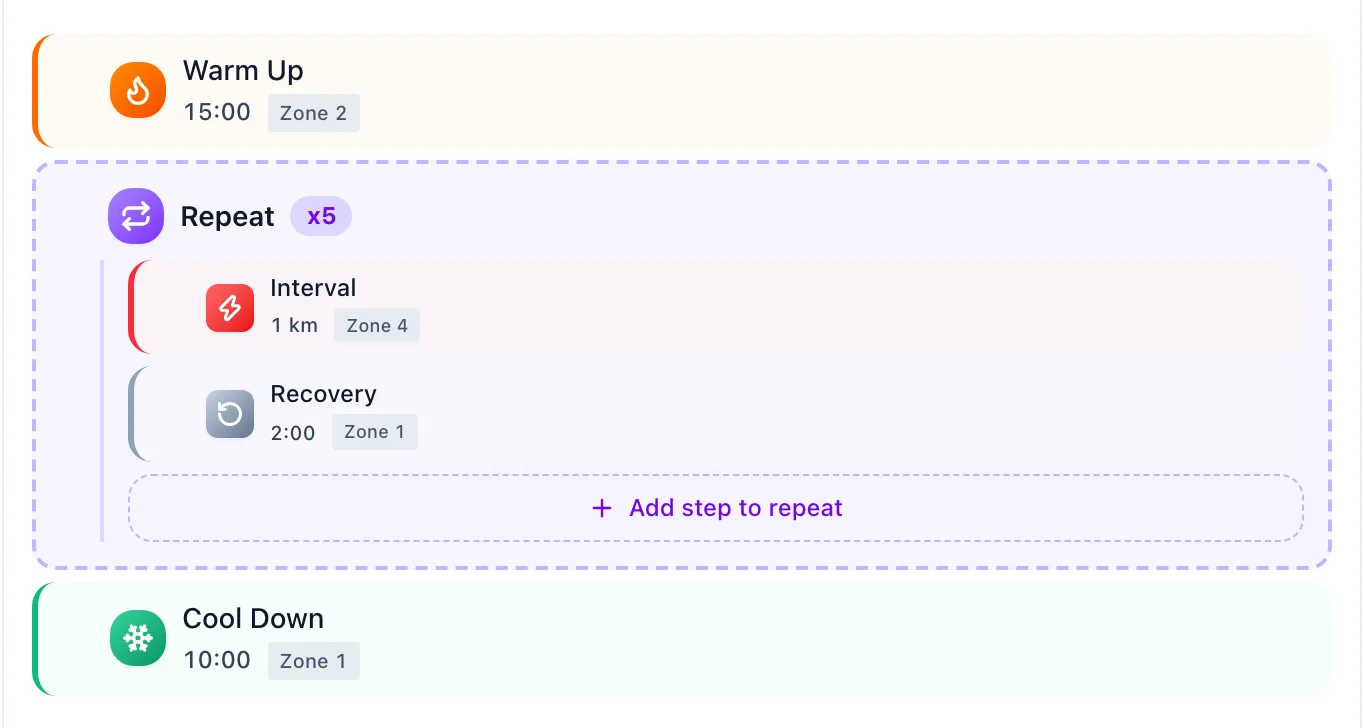
The Structure step holds the template's steps. Shorten the warm-up, change a target, add a repeat - the change applies to this workout only. Zone targets show the numbers from this athlete's own zones.
Publish or keep a draft
On the Assign step choose Publish now or Save as draft. The usage counter on the template card goes up by one.
A template is a copy, not a link
The steps are copied into the workout when you save it. Editing the template later does not touch workouts you have already planned - fix their steps by hand or plan them again. It works the other way too: changing an athlete's workout leaves the template as it was.