On this page
This is where you log your weight, body composition and circumferences and follow how they change over time.
StatisticsMeasurementsThe tab shows tiles with the latest value of each metric, charts for weight, body composition and circumferences, and your measurement history. You pick the period the same way as everywhere in statistics, in the bar above the tabs. Your latest weight and height are also in Profile, on the Athlete Data tab: the Body measurements tile has the same add button and a Measurement history link.
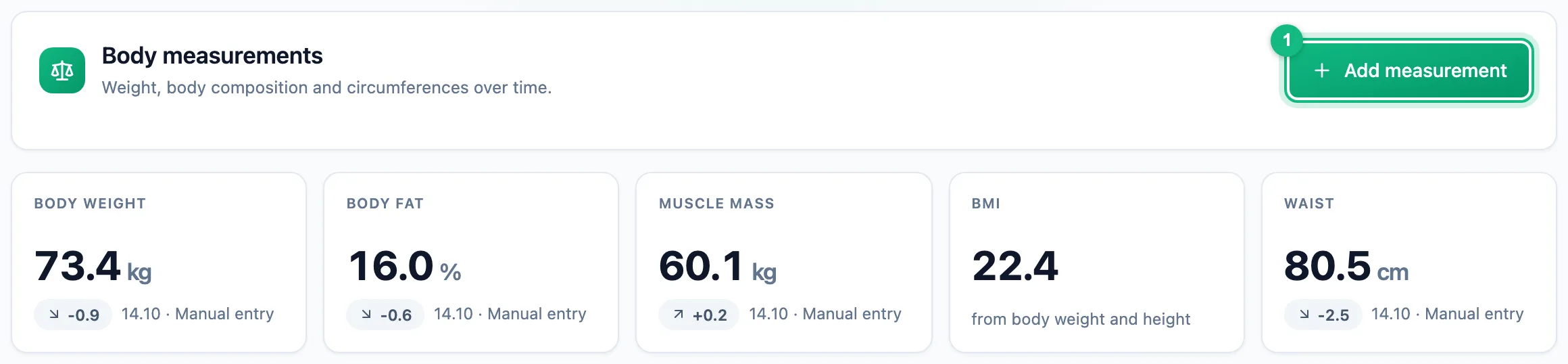
Adding a measurement
Open the form
Click Add measurement. If you have no measurements yet, Add first measurement opens the same form.
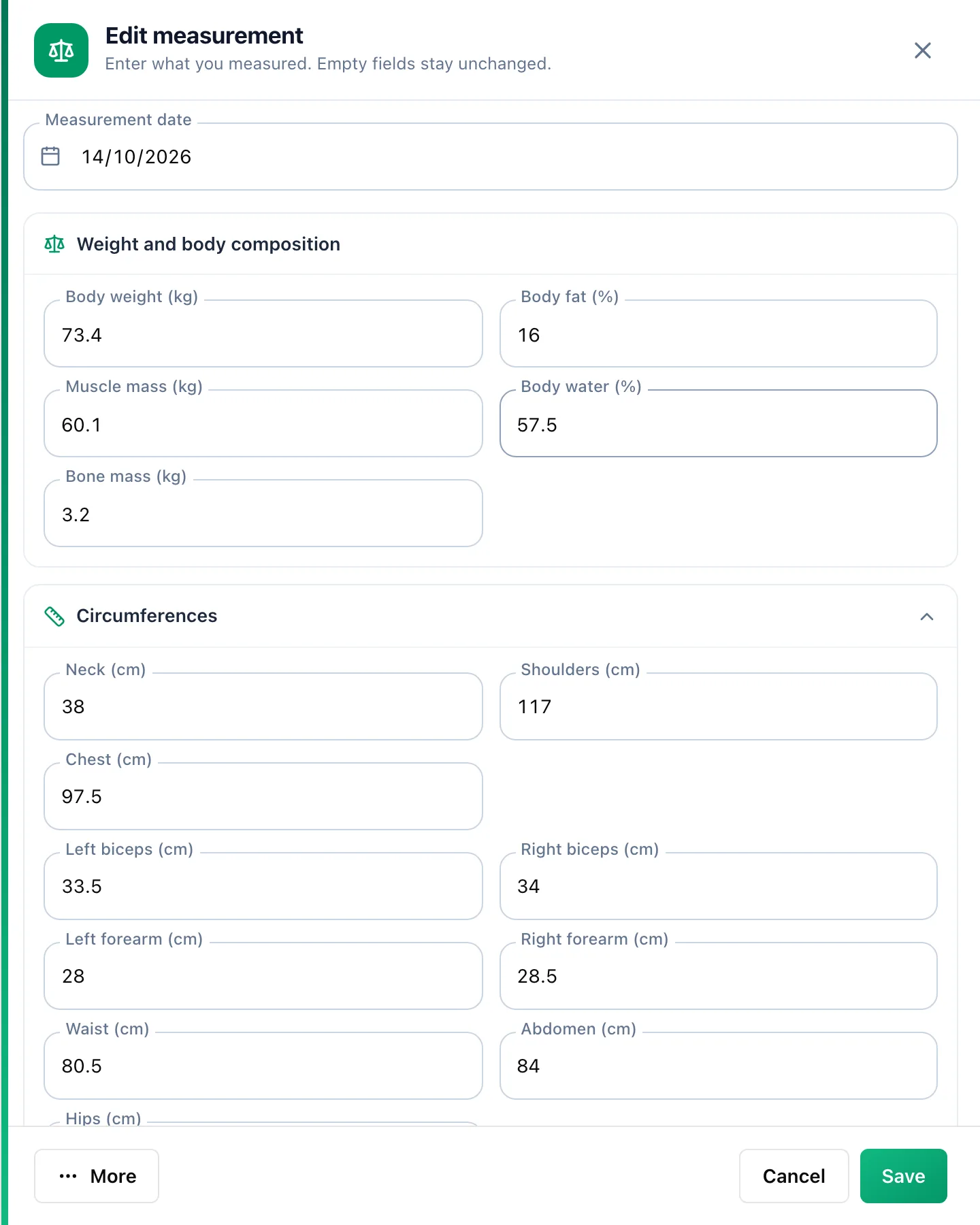
Pick the day
The date defaults to today; you can choose an earlier day, but not a future one. If that day already has measurements, the form turns into Edit measurement with its values - you correct them instead of typing them again.
Enter the values
Fill in only what you measured - empty fields stay unchanged. Below an empty field you see the last measurement of that metric with its date; the button with that value puts it into the field. Once you type a value, you see the difference from the last measurement.
Save
Click Save. The tiles, charts and history refresh right away.
Where the values come from
Every day in the history has a badge in the Source column:
- Manual entry - a value typed into the form,
- a provider name, such as Garmin - a reading from a scale connected to your watch that arrived on its own after a sync,
- Entered by coach - a value entered by your coach.
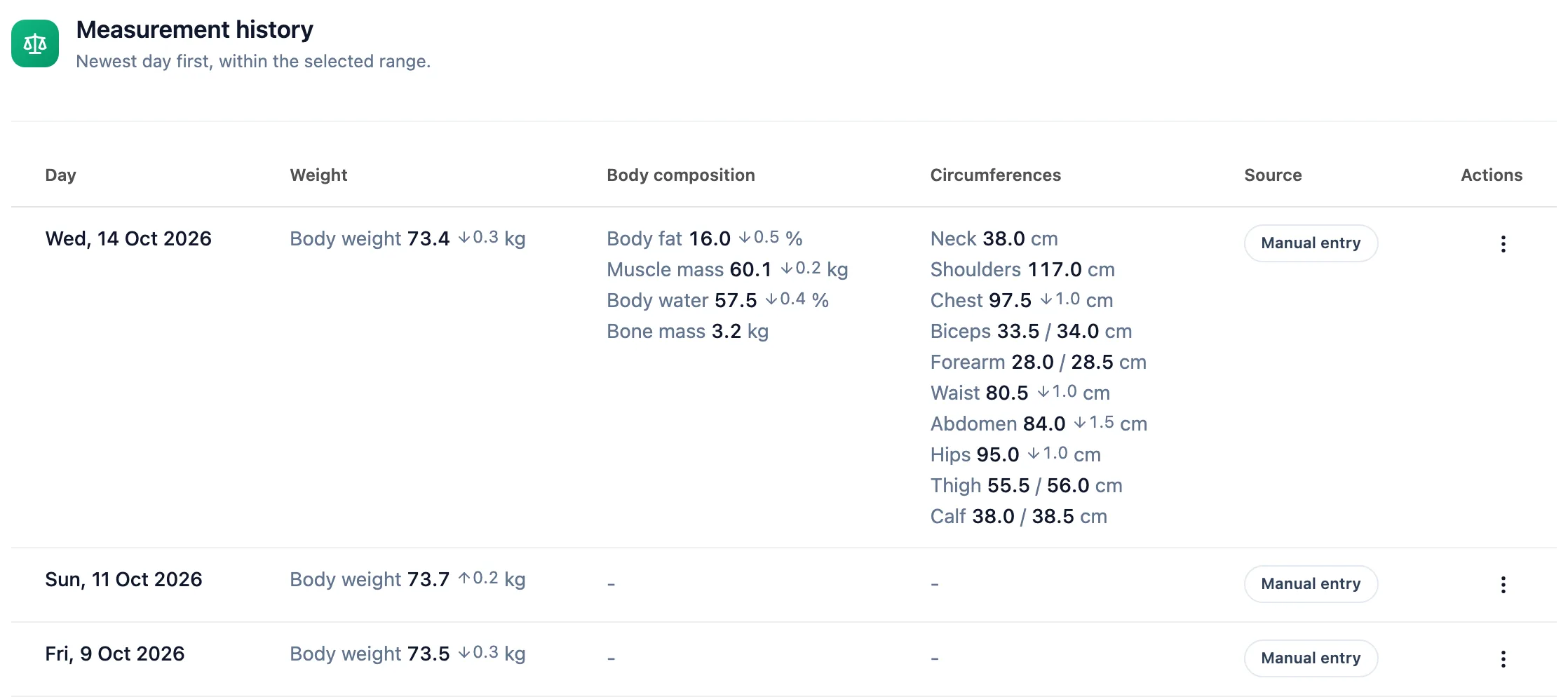
In the form, fields entered by your coach show a person icon, and the box above the fields says how many values of that day your coach entered. If the same day has both a watch reading and a manual entry for the same metric, the manual entry wins.
Correcting and removing
The Actions column of the history gives you:
- edit - opens the form with the day's values; clearing a field with a manual entry removes that entry,
- Restore from watch - appears when a watch reading of the same metric sits under a manual entry; the field in the form has the same button, with the value that comes back,
- Delete day entry - removes every value entered manually that day. In the form it is in the More menu.
More in this section: Health
For coaches and athletes
Watch metricsWhat the Health page shows: sleep, HRV, resting heart rate and other watch data, recovery set against training load, and the day details.For coaches and athletes
ReadinessHow to read the HRV, resting heart rate, sleep and form tiles, the decision of the day and the hint for trainers.For athletes
Sharing data with your trainerHow to turn on health data import from your watch, share it with your trainer, stop sharing and delete the stored data.For coaches
Your athlete's body measurementsHow a coach checks an athlete's weight, body composition and circumferences, logs a measurement on their behalf and what the athlete then sees.