On this page
The Health page brings together the health data from an athlete's watch - sleep, HRV, resting heart rate, breathing, daily activity and body - next to the training load from the same days.
OverviewHealthMake sure data is coming in
Data shows up once a watch is connected in integrations and health data import is switched on in its card. Until then the page is empty, with a Go to integrations button. If the watch is connected but the import is waiting for consent, a Health data import is paused message sits at the top.
Read the header
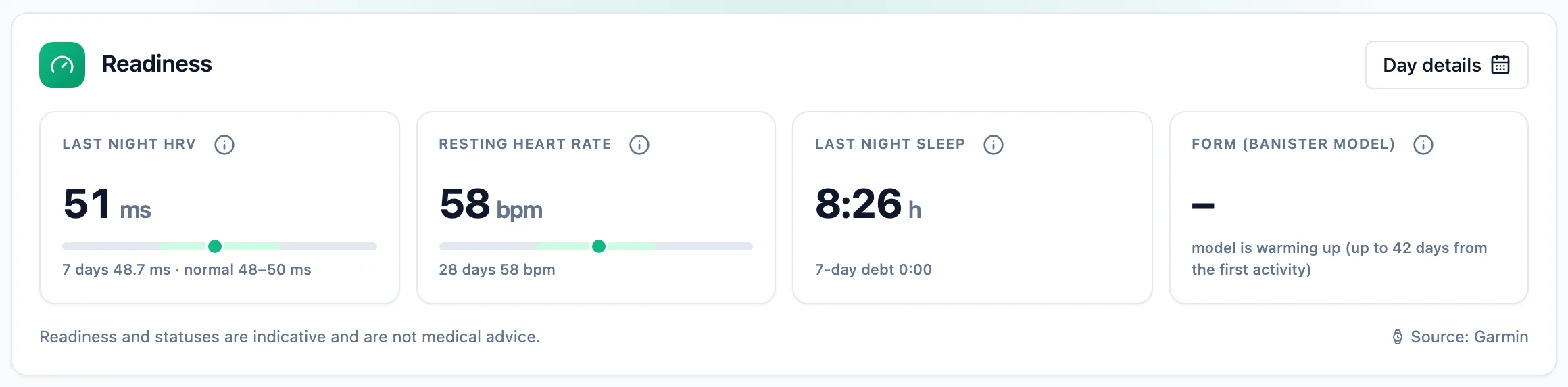
The Readiness card has the Last night HRV, Resting heart rate , Last night sleep and Form (Banister model) tiles, each measured against the athlete's own normal range. The readiness page explains how to read them.
Choose the window
The buttons above the charts switch between 7, 28 and 90 days. Charts start on the first day with data, so a new watch doesn't leave an empty stretch at the start of the axis.
Compare recovery with load
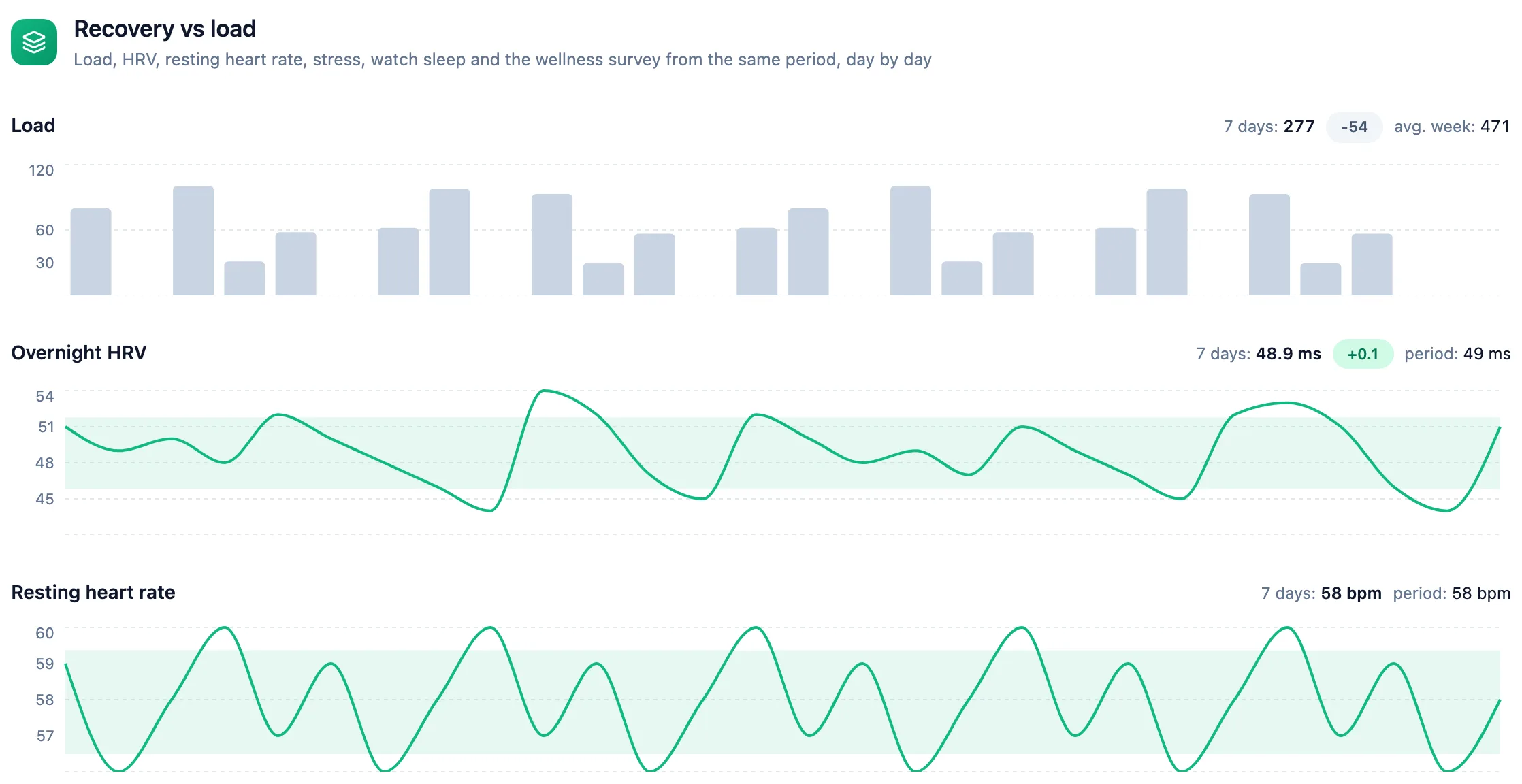
The Recovery vs load chart stacks training load, HRV, resting heart rate, stress, sleep and the wellbeing survey day by day.
Go through the metric groups
Below are the group cards: Recovery, Sleep, Heart, Breathing and oxygen, Daily activity and Body and fitness. You only see the groups the watch measured in the selected window.
Open the day details
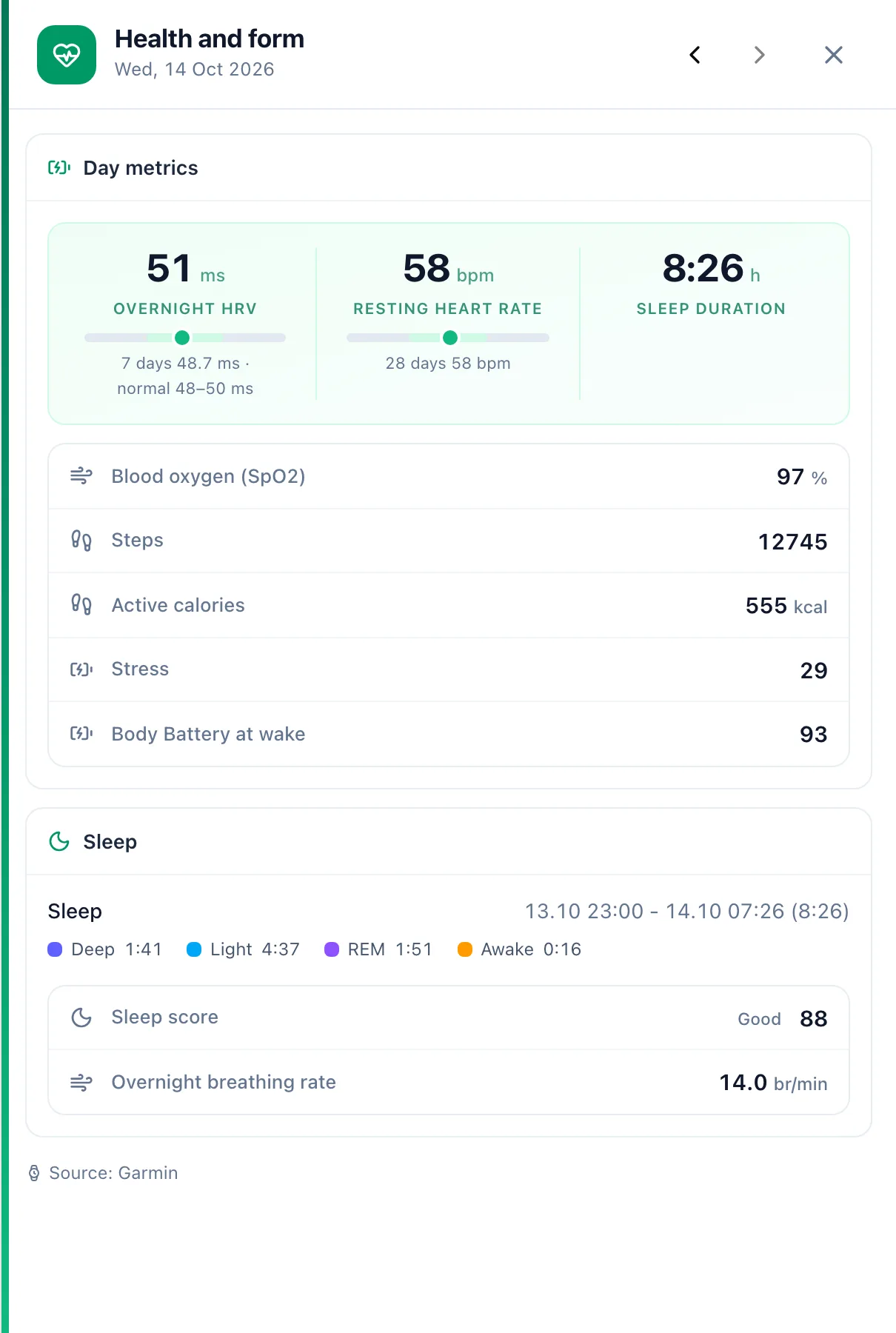
Day details opens the Health and form panel on the latest day with data: the day's metrics, sleep stages, the course of the day and spot measurements. Use the arrows to step back through earlier days.
For trainers
A trainer opens an athlete's data from the Health card in the athlete overview, using the See health link. The page has the same cards and charts, with an athlete selector above them.
If the athlete doesn't share health data, the trainer sees The athlete is not sharing health data and a Ask for data button. The request reaches the athlete as a notification; another one can be sent after a week. To ask all athletes at once, the trainer turns on Ask for health data in Profile, on the Settings tab. Athletes who don't share then see Your coach is asking for health data on the Health page and in their watch card.
More in this section: Health
For coaches and athletes
ReadinessHow to read the HRV, resting heart rate, sleep and form tiles, the decision of the day and the hint for trainers.For athletes
Sharing data with your trainerHow to turn on health data import from your watch, share it with your trainer, stop sharing and delete the stored data.For athletes
Your body measurementsHow to log weight, body composition and circumferences, where the values come from and how to correct or remove a measurement.For coaches
Your athlete's body measurementsHow a coach checks an athlete's weight, body composition and circumferences, logs a measurement on their behalf and what the athlete then sees.