On this page
Analysis opens an activity from the watch full screen: one chart with several channels at once, the route map and the numbers for the segment you pick.
CalendarOpen Analysis
Click an activity in the calendar, go to the Charts tab and click Analysis. Analysis opens on top of the activity panel; when you close it you are back where you were, and the selected segment stays on the charts tab.
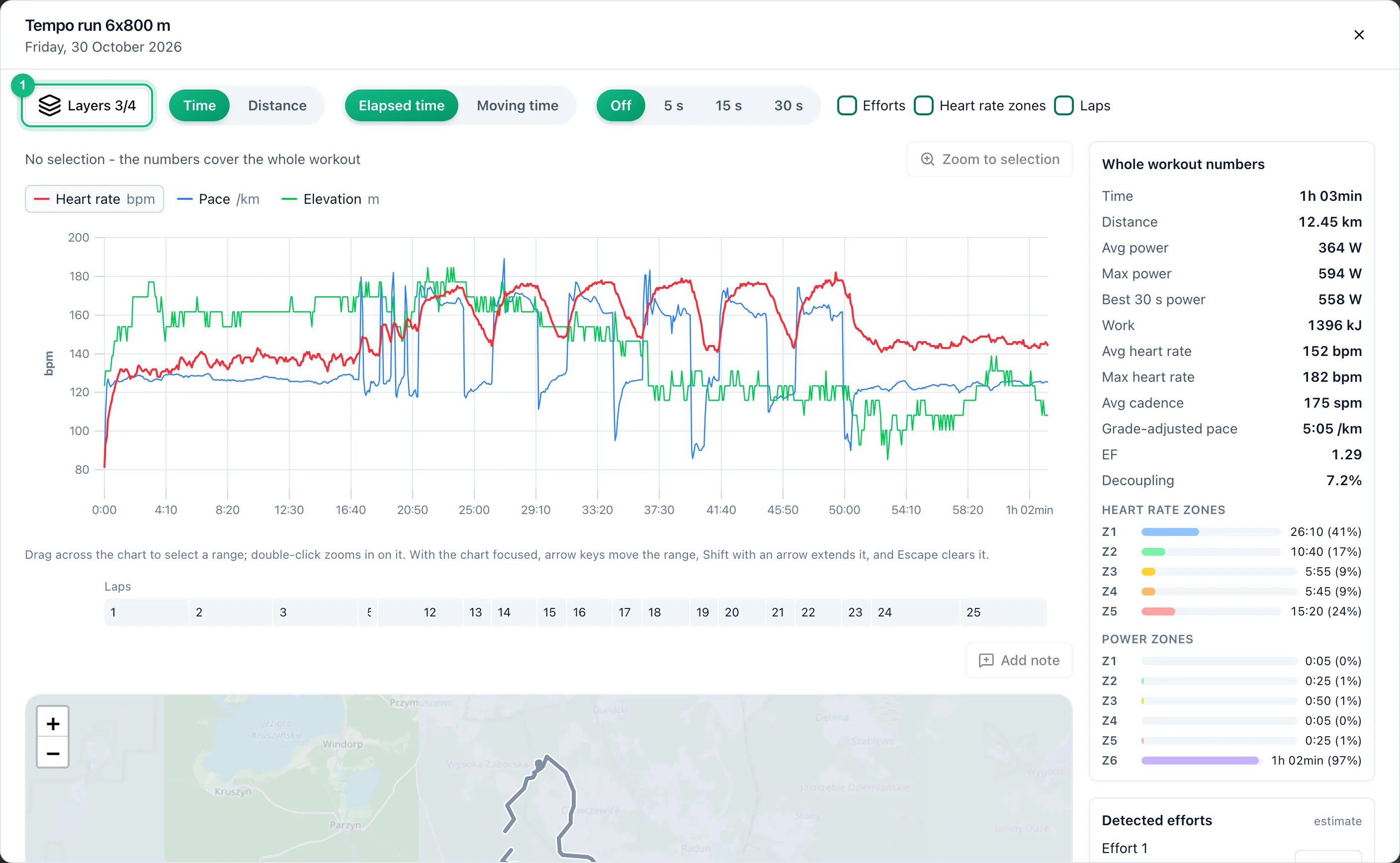
Pick layers
In the bar above the chart, open Layers on the chart and tick the channels you want side by side. The chart holds up to four. There is one vertical axis, belonging to the layer highlighted in the legend above the chart; click another layer in the legend to show its axis. Hovering over the chart, the legend gives each layer's value at that point. The list offers only channels the watch recorded: power and 30 s power appear only for rides with a power meter, and grade-adjusted pace only for runs.

Set the axis and smoothing
Horizontal axis switches the chart between time and distance. On the time axis, Moving time collapses stops, so waiting at a traffic light does not stretch the chart. Smoothing averages the lines over a 5, 15 or 30 second window.
Turn on bands
Under Bands you can lay Heart rate zones, Power zones or Laps behind the chart. Zones show up when the athlete has thresholds in their training settings and a heart rate or power layer is on. Clicking a lap selects the whole lap. You can do the same on the Laps track under the chart, even with the bands off.
Select a segment
Drag across the chart. The panel next to it shows Selection numbers: duration, distance, averages and maximums, grade-adjusted pace, EF, heart rate drift and time in zones. When the watch kept recording heart rate for at least a minute after the selection, the panel adds Heart rate recovery after 60 s: how far heart rate dropped in the 60 seconds after the segment ended. With nothing selected, the same panel covers the whole session. When the session has a GPS route, the map highlights the selected part of the route and marks the spot under your cursor.
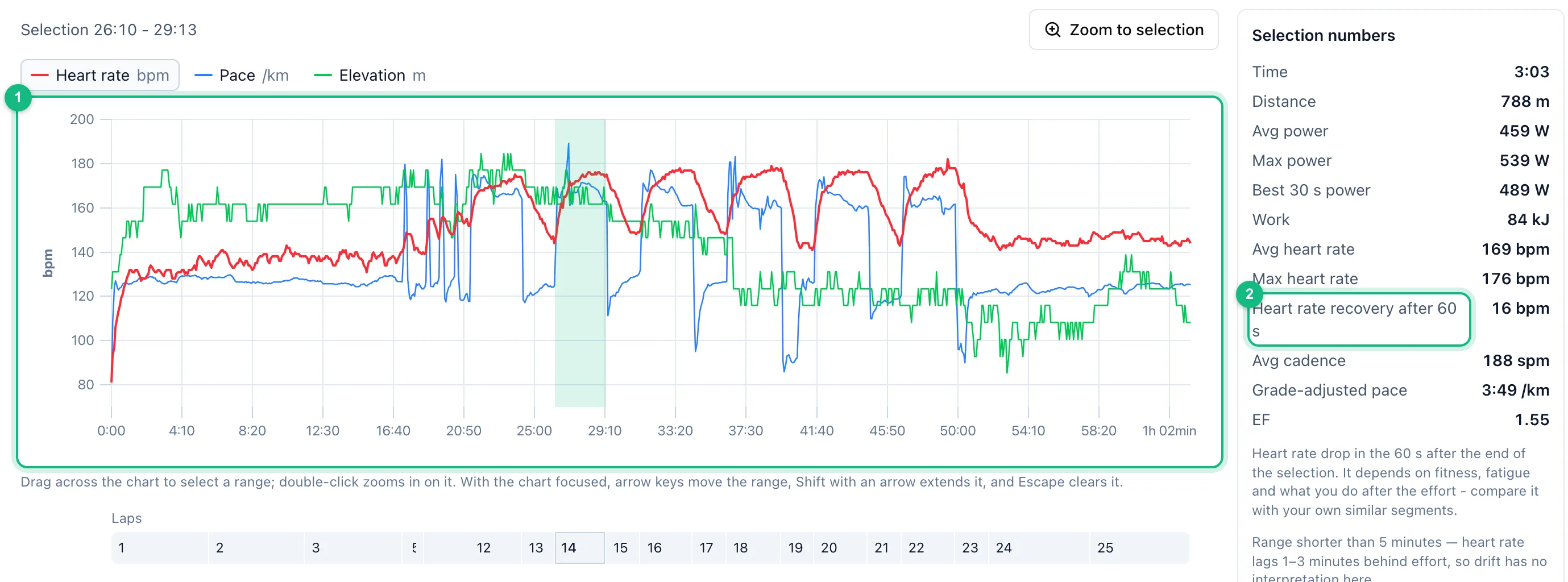
Zoom in
Double-click the chart or use Zoom to selection to zoom into the selected segment. Whole workout takes you back to the full view.
Notes on a segment
You can pin a short note to a selected segment, for example a cue for the athlete or a question for the coach. Select a segment in Analysis or on the Charts tab and click Add note. In the Note on a section window pick a Type, such as Instruction or Question, write up to 500 characters and click Save note. The note lands in the activity comments straight away, and the other side gets a notification with the segment time. Clicking the notification opens Analysis with that segment selected.
Every note has a numbered marker, with a light band under the lines. In the activity panel the markers sit above the chart; in Analysis they sit on the Notes track under it. Clicking a marker selects the note's segment. When the zoom hides some notes, a link next to the track takes you back to the whole workout. On the Comments tab a note shows its segment time, and Show on chart switches to the chart with that segment selected. A reply to a note is a regular comment in the same thread.
Plan on the execution
When the activity is attached to a planned workout whose steps have targets, Plan appears under Bands in the bar. Each step's target is drawn as a box on its layer's axis for as long as the step lasts, so you see it only while the heart rate, power, pace or cadence layer is on. Steps follow the laps when the watch ran the workout and the number of work laps matches the plan; otherwise they are laid out one after another from the start of the recording. On the Steps track under the chart the plan's steps replace the laps, even in a plan without targets; clicking a step selects it. Select a segment that lines up with a step and the panel shows Plan step and In target, the share of the step's readings that stayed inside the target.
This compares the session with its targets; it does not grade it. If the athlete skipped or stretched a step, the boxes can drift away from what was done. A pace zone target takes its limits from the pace zones in the athlete's training settings; without a threshold pace, or with incomplete custom zones, that step gets no box. A manual pace range always has one.
Detected efforts
The side panel suggests Detected efforts: stretches of at least 30 seconds above 90% of FTP on rides with a power meter, or with grade-adjusted pace faster than threshold pace on runs. Matches are short bursts above 120% of FTP lasting at least 10 seconds. Select selects a stretch on the chart, and the Efforts toggle shows all of them as bands.
These are estimates based on the thresholds in the athlete's training settings, not laps from the watch and not a verdict on the effort. Without FTP or threshold pace the list asks you to set them, and with outdated thresholds the stretches come out too short or too long.
Peaks
Peaks lists the highest average power, speed or grade-adjusted pace over windows from a few seconds up to an hour, taken from this one session. Windows longer than the session are left out, and gaps in the recording do not count towards the average. Select selects the window on the chart.
Peaks are not records or a power curve across many sessions: they compare parts of this one activity.
W' balance
On rides with a power meter, once critical power and W' are filled in the training settings, the layer list offers W' balance. The line shows how much of the work reserve above critical power is left at each moment: it falls while you ride above critical power and refills below it. The panel gives Min. W' balance for the selection or the whole session.
This is a model estimate, not a measurement. Different critical power and W' values give a different line, and a balance below zero usually means the values in the settings are too low.
More in this section: Analysis
For coaches
Trainer dashboardWhat the trainer dashboard shows: team numbers, athletes who need attention, the weekly summary, upcoming workouts and competitions, and recent activities.For athletes
Athlete dashboardWhat the athlete dashboard shows: today's workouts, 7- and 30-day numbers, the weekly summary, your workout streak, recent activities and the plan ahead.For coaches and athletes
StatisticsHow to pick the athlete, sport and date range in statistics, and what the Overview, Training, Progress and Wellbeing tabs contain.For coaches and athletes
Training load and formWhere training load from power, pace, heart rate or RPE comes from, which athlete thresholds it needs, and how to read the load chart and the form chart.For coaches and athletes
Laps, charts and zonesHow to read the activity panel: the laps table, charts over time, drift and EF for a chosen range, and time in heart rate and power zones.For athletes
ReportsHow an athlete submits a report the trainer asked for, reads the trainer's reply and corrects their own answer after submitting a training period report.