On this page
The onboarding questionnaire collects an athlete's goal, experience, availability and health background before you plan their first sessions. The coach writes the questions and sends the questionnaire, and the athlete fills it in.
Coach: prepare and send the questionnaire
TeamSettingsOnboarding questionnaireWrite the questions
Choose Start from template or Create from scratch. In the editor you set the title, the intro, sections and questions of several types, from short text to a scale, and mark which ones are required. Preview as athlete shows the form the way the athlete will see it. Nothing is stored until you click Save questionnaire, and changes only apply to questionnaires sent after saving.
Prepare several versions
New questionnaire adds another questionnaire, and Duplicate in the row menu makes a copy, for example one version for beginners and one for advanced athletes. Only you see the working name; the athlete sees the title. You can keep up to 10 questionnaires.
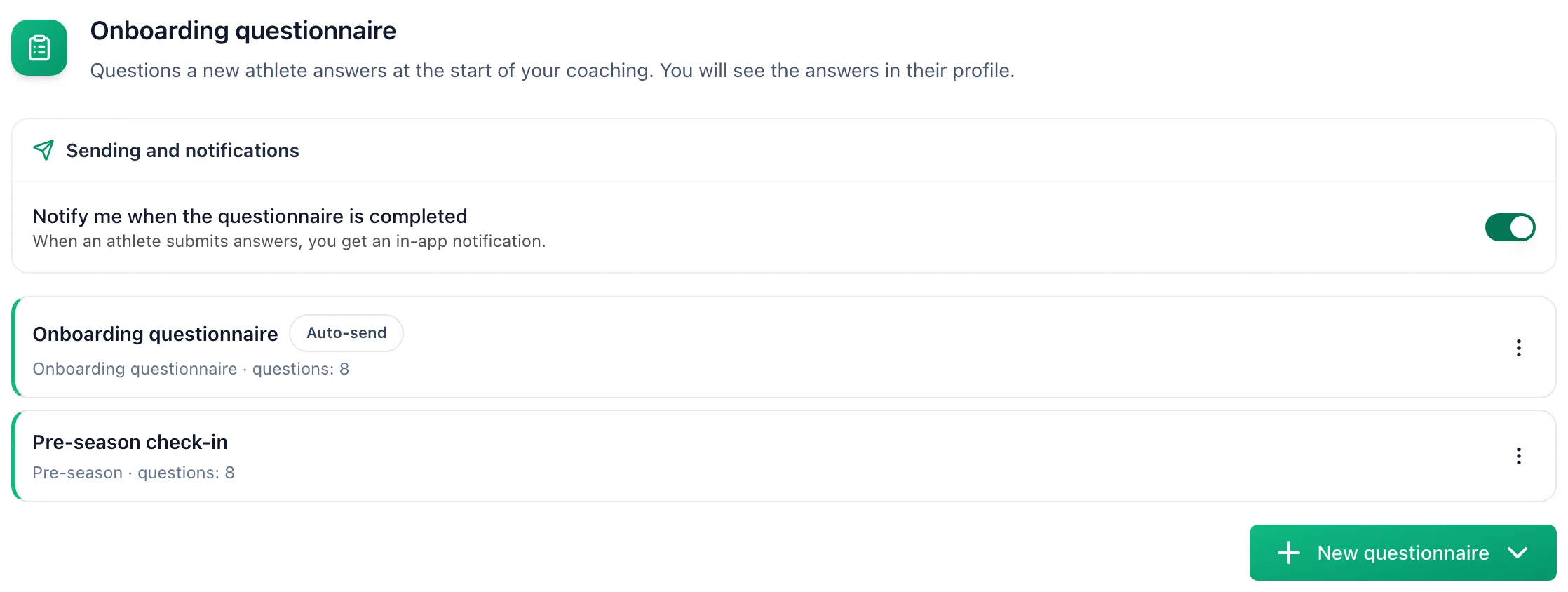
Turn on automatic sending
In the Sending and notifications panel, turn on Send automatically to new athletes. The athlete gets this questionnaire when coaching starts, and again when it is resumed. Only one questionnaire can send automatically: turning it on for another one turns it off for the previous one. The same panel has the notification about completed questionnaires.
Send it manually from the athlete list
On the athlete list, choose Send questionnaire in the row menu, or tick several athletes and click the same button above the table. If you have several questionnaires, the dialog asks which one to send. A questionnaire already sent in this coaching period is disabled and shows when it was sent and its state. When sending to several athletes, those who already have it are skipped.
Read the answers on the athlete profile
The Onboarding questionnaire tile in the athlete summary lists every questionnaire you sent, with its state and the dates it was sent, completed and updated. Clicking a row opens the answers in a panel. From the panel menu you can choose Remind (once every 24 hours), Request an update after it is completed, or, until the athlete starts answering, Change questionnaire.
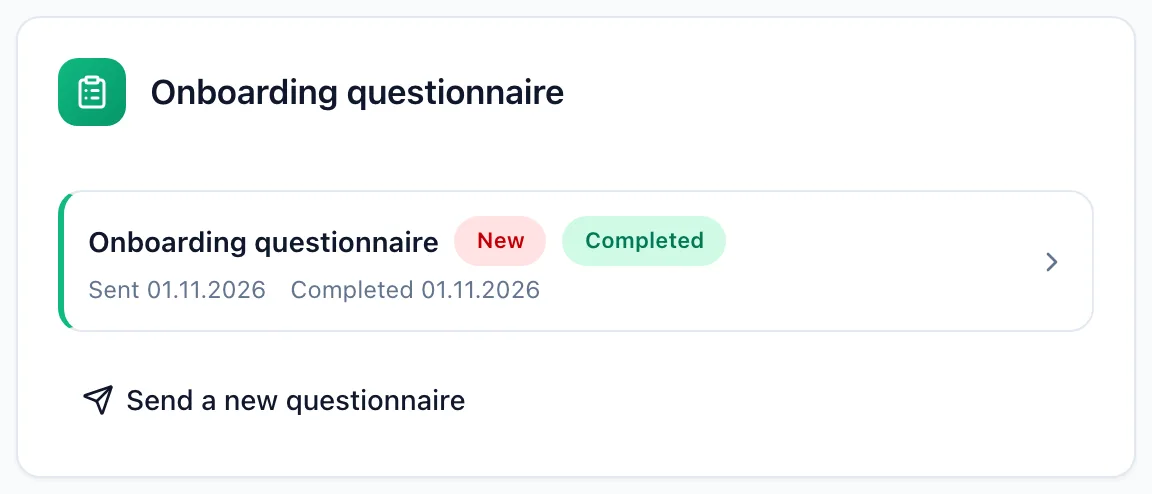
Athlete: fill in the questionnaire
DashboardOpen the questionnaire
Click Fill in on the questionnaire bar on your dashboard, or the notification from your coach. The form takes you through the sections one by one with Next and Back.
Answer at your own pace
Your answers are saved as a draft as you go, and Save and finish later lets you come back later. Questions marked required must be answered; you can skip the rest. Only your coach sees the answers.
Send your answers
On the last step, click Send answers. You can find the answers you sent later in your training settings: Training, Settings, the Questionnaires tab. Edit answers lets you correct them; your coach sees the changes only after you send them again.
More in this section: Athletes
For coaches
Athlete listHow to search and narrow the athlete list, read its columns on plans, races and payments, and act on an athlete from the row menu.For coaches
Athlete summaryWhat the single-athlete screen shows: recent training weeks, the upcoming plan, thresholds and reports, and how coaches keep private notes on it.For coaches
Athlete groupsHow to create an athlete group, change its members, name and colour, delete it, and how groups help filter lists, copy workouts and target announcements.For coaches
Group calendarHow coaches schedule a session for a whole athlete group in the group calendar, change or cancel it, see who is coming and record attendance.For coaches
Athlete racesHow coaches review every athlete race in one table, filter by race priority and group, sort the columns and open the race details.For coaches
Athlete reportsHow to ask an athlete for a report, set up a series of recurring requests, send a reminder about an overdue report and reply to an athlete report.For coaches
Athlete paymentsHow to record athlete payments, set a monthly rate and keep track of whose paid period is running out. EasyTrackly never charges your athletes.For coaches
Suspending and ending the coaching relationshipHow suspending an athlete differs from deleting them, what happens to their plan and training data, and how to bring them back after a break in coaching.