On this page
Planned volume is the distance and time of the whole workout. The app calculates it from the structure steps and estimates the missing measure from the athlete's pace. The coach can type either measure by hand.
Athlete calendarPlan WorkoutStructureSee the volume in the calendar
The workout tile shows the volume under its title, and the week column sets it against what was done in Done / planned: in total and per sport, on two lines: time and kilometres. A time-based and a distance-based workout in the same week both count, and the kilometres of time-based steps join the sum as an estimate. Drafts count towards the weekly plan too, but only the coach who prepared them sees them. The athlete sees the sum of published workouts. Cancelled workouts do not count.
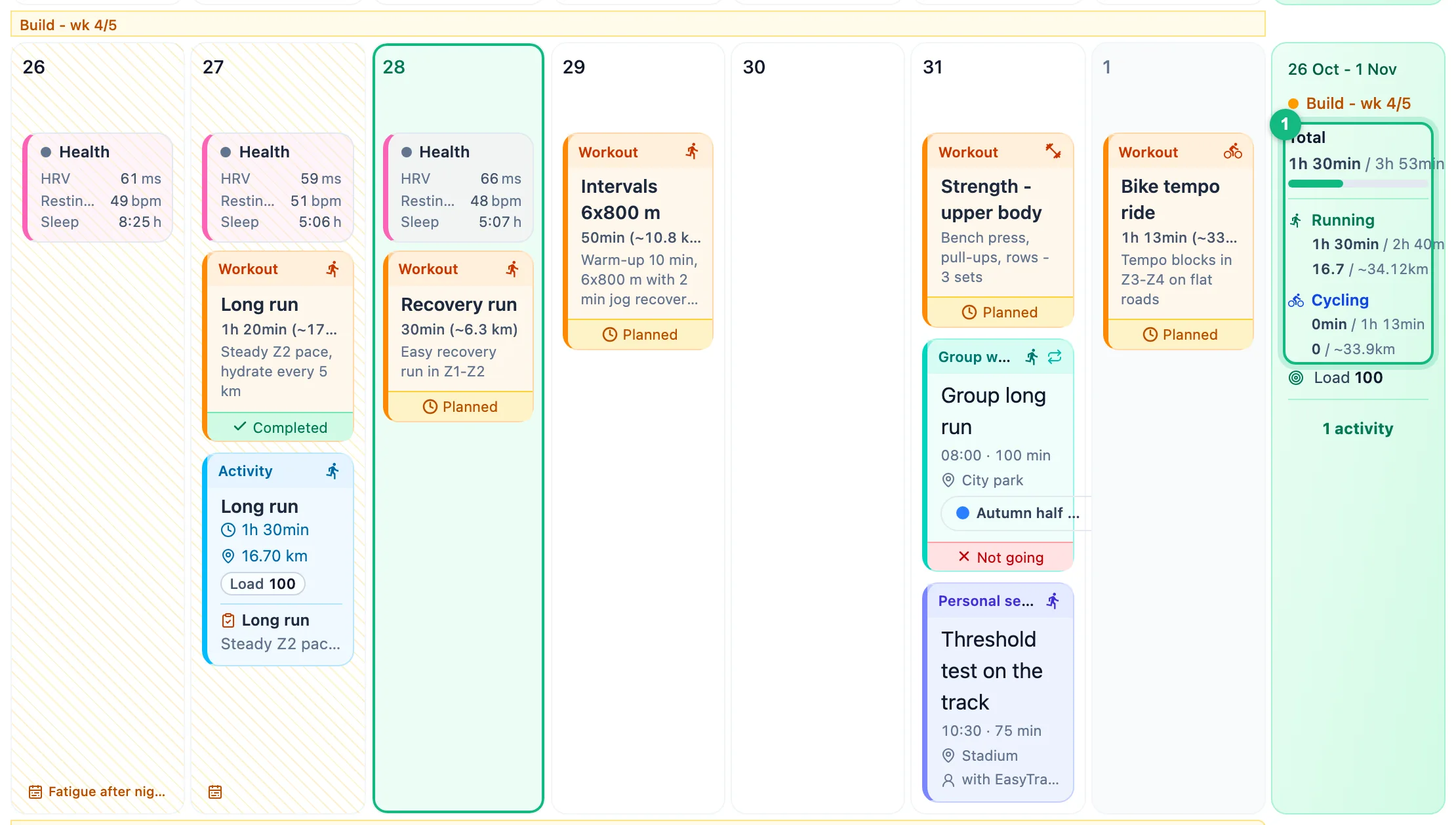
Read the marks next to the numbers
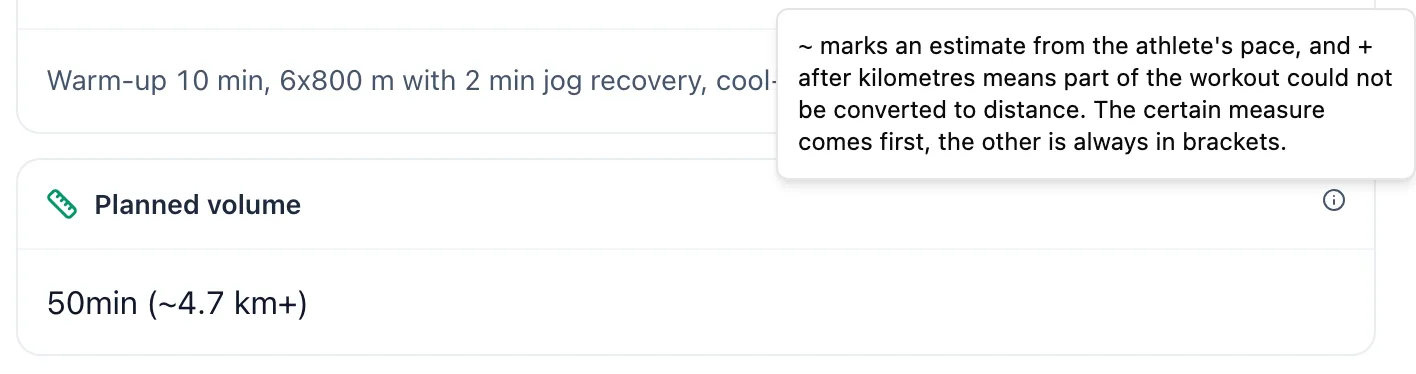
In the workout panel the volume has its own section, Planned volume. The info icon next to the title explains the marks. The certain measure comes first, the other is always in brackets:
- ~ before a number marks an estimate from the athlete's pace,
- + after kilometres means part of the workout could not be converted to distance, so the real distance will be longer.
Read 50min (~4.7 km+) as: 50 minutes come from the steps, and about 4.7 km is the estimate for the part that could be converted.
Check the preview from the structure
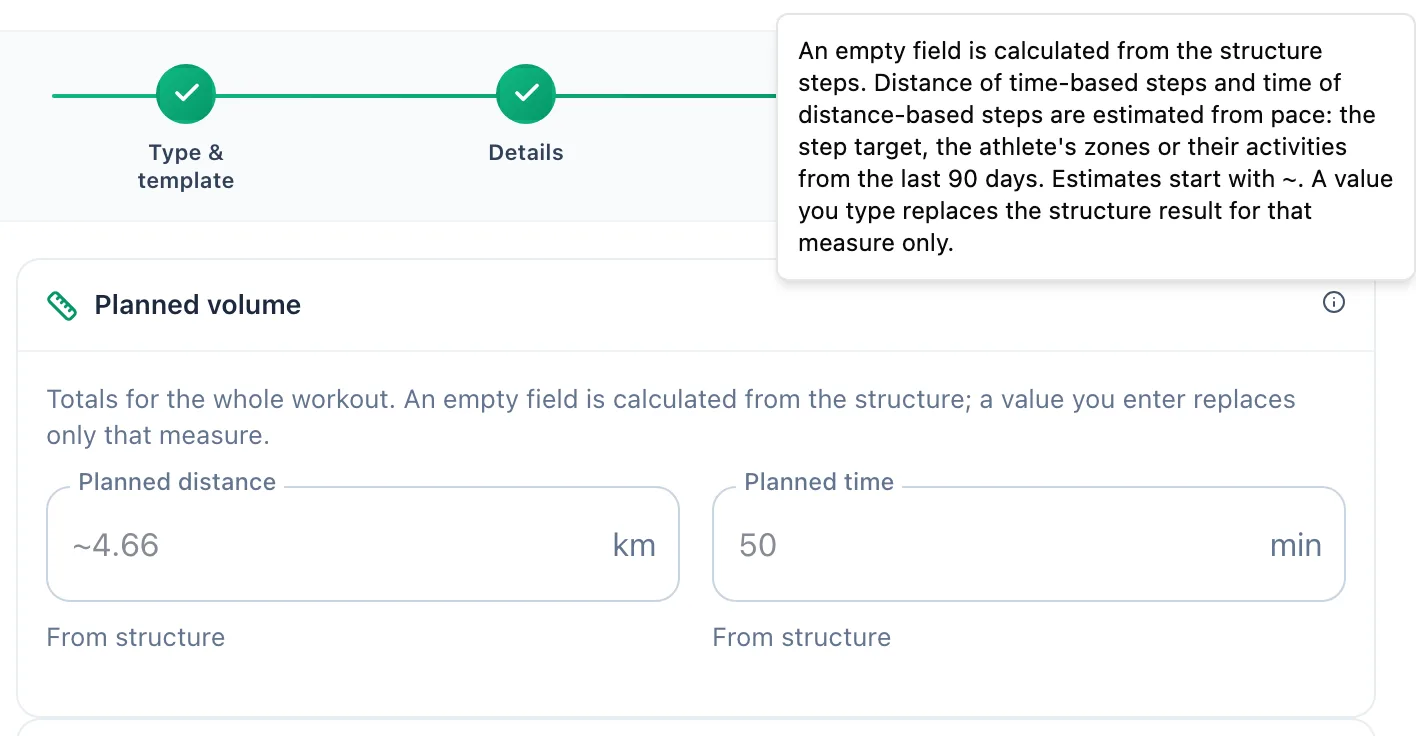
In the workout wizard the Planned volume section sits in the Structure step above the steps. Empty Planned distance and Planned time fields show a grey value from the structure labelled From structure. It updates as you edit the steps.
Type your own value
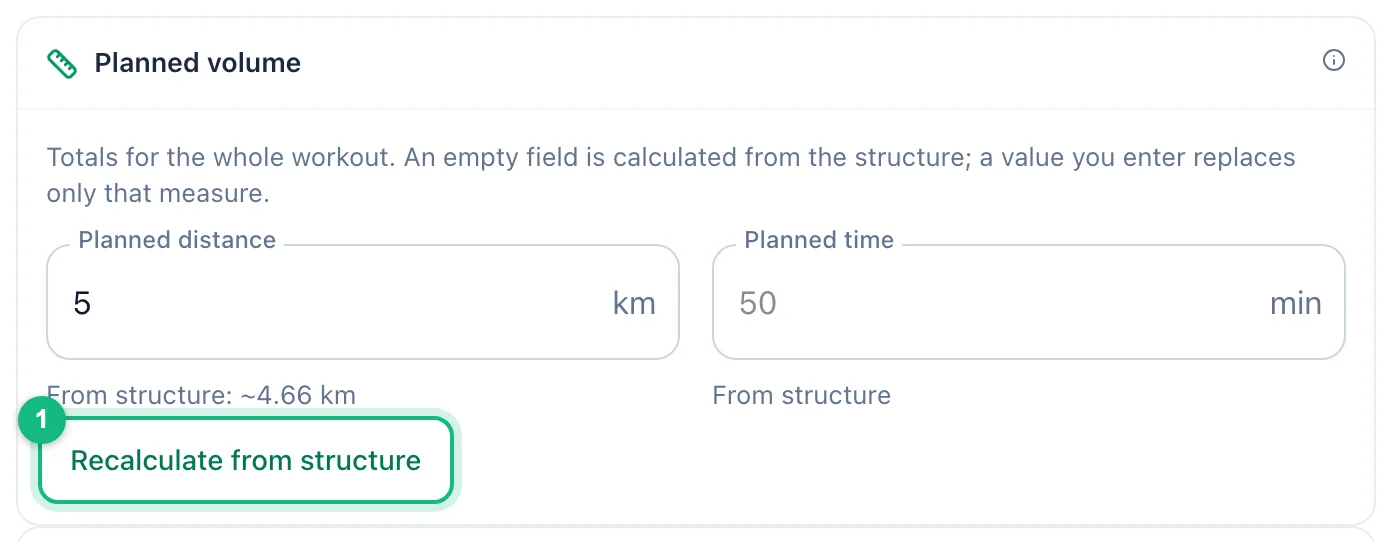
A number you type replaces the structure result for that measure only. The other measure is still calculated from the steps. Below the field you see which value you are replacing, and Recalculate from structure clears your entry and brings the structure result back. A workout without structure only takes a typed value.
Where the pace comes from
A time-based step gives time, and its kilometres have to be converted. A distance-based step gives kilometres, and its time has to be converted. The app uses the first pace it can find:
- the step's pace or speed target - the middle of the range,
- the zone from the step target, including a heart rate zone, which maps to the same pace zone,
- the step's default zone from the athlete's thresholds: Warm Up, Cool Down and Recovery in zone 1, other steps in zone 2,
- the athlete's typical pace in that sport: the median of at least three activities from the last 90 days that have a distance and last at least 10 minutes,
- the sport's default pace when the athlete has no thresholds and no history yet: running 6:00 min/km, walking 5 km/h, cycling 25 km/h, swimming 2:00 min/100 m.
Thanks to the last source every time-based step has kilometres, always marked with ~. You will only see + briefly, before the app recalculates the workout with the athlete's data. Repeats multiply their steps by the repeat count.
More in this section: Calendar
For coaches and athletes
Calendar viewsHow to browse the training calendar in month, week and day views, jump back to today, switch athletes and read the plan and activity tiles.For coaches
Adding a workoutHow to plan a workout for an athlete in the calendar: pick the day, sport and template, fill in details and structure, then publish it to the athlete.For coaches
Editing, unpublishing and deleting a workoutHow to change a planned workout, move it back to a draft or delete it - and what the athlete and their watch see when you do.For coaches
Structured workoutsHow to build a workout from steps: warm-up, intervals, recoveries and repeats with a pace, speed, heart rate, power or cadence target.For coaches
Copying and movingHow coaches move a workout to another day, reorder a day, and copy workouts to the following weeks or to other athletes, including several at once.For coaches and athletes
Completing a workoutHow to close a planned workout: linking an activity from the watch, entering a result by hand, linking from the activity side and fixing a wrong link.For coaches and athletes
Missed and cancelled workoutsWhat to do with a workout whose day has passed: done, not done or moved; cancelling a plan as the trainer and undoing the status.For coaches and athletes
Manually entered activityHow to log a session done without a watch from the day menu in the calendar: form fields, load from perceived exertion and linking it to a plan later.For coaches and athletes
Uploading a file from your watchHow to add an activity from a FIT, TCX or GPX file when the watch is not connected, and get charts, laps and zones just like an automatic import.For coaches and athletes
Sharing a workout on a photoHow to turn an activity into a transparent sticker or frame for your own photo, pick the data fields, and when each style works best.For coaches and athletes
Comments and wellbeingHow to discuss a specific workout in comments, rate the effort, add a note and fill in the wellbeing survey for a chosen day in the calendar.For coaches and athletes
Ready-made questions in commentsHow to insert a ready-made question about wellbeing, effort, execution or recovery into a workout comment and add your own words to it.For coaches and athletes
CompetitionsHow to add a race to the calendar with its type, date, A, B or C priority and goal, then enter the result with places in each classification and a coach note.For coaches and athletes
Time off periodsHow to mark illness, injury, holidays, travel or a training camp in the calendar, who can add such a period and how it affects the athlete's training.For coaches
Season and blocksHow coaches split an athlete's season into training blocks with a phase, a goal and a target competition, and where athletes see it in the calendar.For coaches and athletes
Your plan in Google, Apple or Outlook CalendarHow to add EasyTrackly workouts and competitions to Google Calendar, Apple Calendar or Outlook, how often they refresh and how to revoke the link.